
Projeto de jogos RAD: 
Mapas e Build 
Augusto Bülow
Unity3D 
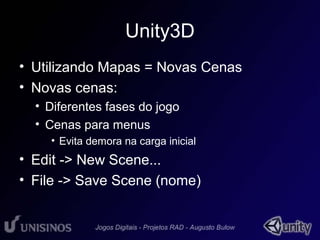
• Utilizando Mapas = Novas Cenas 
• Novas cenas: 
• Diferentes fases do jogo 
• Cenas para menus 
• Evita demora na carga inicial 
• Edit -> New Scene... 
• File -> Save Scene (nome)
Unity3D 
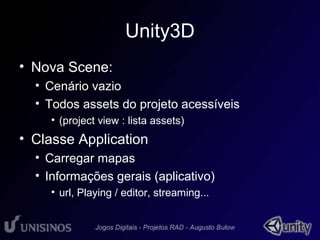
• Nova Scene: 
• Cenário vazio 
• Todos assets do projeto acessíveis 
• (project view : lista assets) 
• Classe Application 
• Carregar mapas 
• Informações gerais (aplicativo) 
• url, Playing / editor, streaming...
Unity3D 
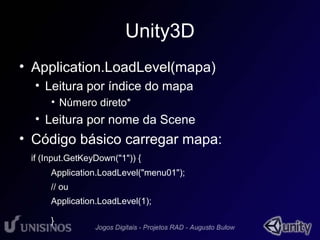
• Application.LoadLevel(mapa) 
• Leitura por índice do mapa 
• Número direto* 
• Leitura por nome da Scene 
• Código básico carregar mapa: 
if (Input.GetKeyDown("1")) { 
Application.LoadLevel("menu01"); 
// ou 
Application.LoadLevel(1); 
}
Unity3D 
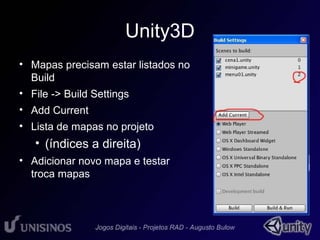
• Mapas precisam estar listados no 
Build 
• File -> Build Settings 
• Add Current 
• Lista de mapas no projeto 
• (índices a direita) 
• Adicionar novo mapa e testar 
troca mapas
Unity3D 
• Classe Application : Informações (vars) 
• .loadedLevel() 
• .loadedLevelName() 
• .isLoadingLevel() 
• .isPlayer / .isEditor 
• .systemLanguage 
• .levelCount 
• .absolutURL
Unity3D 
• Classe Application : Funções 
• .LoadLevel() 
• Por nome ou índice 
• .Quit() 
• Ignorado no Editor e no WebPlayer 
• .CaptureScreenShot() 
• Application.CaptureScreenshot(“teste.png”); 
• .OpenURL() 
• Application.OpenURL(“http://invent4.com”);
Unity3D 
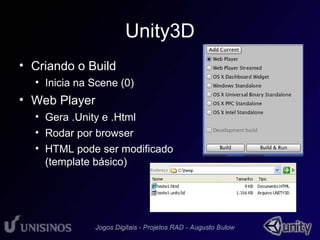
• Criando o Build 
• Inicia na Scene (0) 
• Web Player 
• Gera .Unity e .Html 
• Rodar por browser 
• HTML pode ser modificado 
(template básico)
Unity3D 
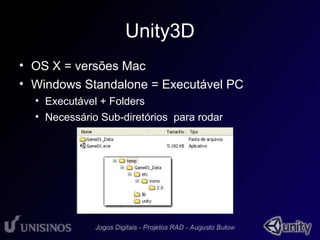
• OS X = versões Mac 
• Windows Standalone = Executável PC 
• Executável + Folders 
• Necessário Sub-diretórios para rodar
Unity3D 
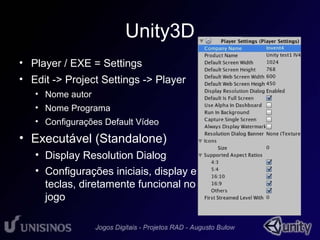
• Player / EXE = Settings 
• Edit -> Project Settings -> Player 
• Nome autor 
• Nome Programa 
• Configurações Default Vídeo 
• Executável (Standalone) 
• Display Resolution Dialog 
• Configurações iniciais, display e 
teclas, diretamente funcional no 
jogo
Unity3D 
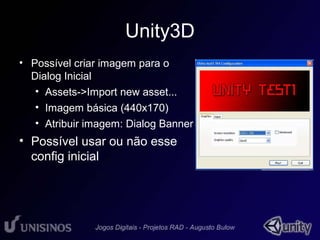
• Possível criar imagem para o 
Dialog Inicial 
• Assets->Import new asset... 
• Imagem básica (440x170) 
• Atribuir imagem: Dialog Banner 
• Possível usar ou não esse 
config inicial
Unity3D 
• WebPlayer Streamed 
• Carregar por demanda, enquanto joga 
• Usando Streamed, necessário verificar se Scene 
disponível: 
if (Application.CanStreamedLevelBeLoaded (levelToLoad)) { 
Application.LoadLevel (levelToLoad); 
}
Unity3D 
• WebPlayer Streamed 
• Possível acompanhar Status de carregamento 
GetStreamProgressForLevel() (0...1) 
• Carregar Stream enquanto joga (assíncrono) 
Application.LoadLevelAsync(level)

Aula maps

  • 1.
    Projeto de jogosRAD: Mapas e Build Augusto Bülow
  • 2.
    Unity3D • UtilizandoMapas = Novas Cenas • Novas cenas: • Diferentes fases do jogo • Cenas para menus • Evita demora na carga inicial • Edit -> New Scene... • File -> Save Scene (nome)
  • 3.
    Unity3D • NovaScene: • Cenário vazio • Todos assets do projeto acessíveis • (project view : lista assets) • Classe Application • Carregar mapas • Informações gerais (aplicativo) • url, Playing / editor, streaming...
  • 4.
    Unity3D • Application.LoadLevel(mapa) • Leitura por índice do mapa • Número direto* • Leitura por nome da Scene • Código básico carregar mapa: if (Input.GetKeyDown("1")) { Application.LoadLevel("menu01"); // ou Application.LoadLevel(1); }
  • 5.
    Unity3D • Mapasprecisam estar listados no Build • File -> Build Settings • Add Current • Lista de mapas no projeto • (índices a direita) • Adicionar novo mapa e testar troca mapas
  • 6.
    Unity3D • ClasseApplication : Informações (vars) • .loadedLevel() • .loadedLevelName() • .isLoadingLevel() • .isPlayer / .isEditor • .systemLanguage • .levelCount • .absolutURL
  • 7.
    Unity3D • ClasseApplication : Funções • .LoadLevel() • Por nome ou índice • .Quit() • Ignorado no Editor e no WebPlayer • .CaptureScreenShot() • Application.CaptureScreenshot(“teste.png”); • .OpenURL() • Application.OpenURL(“http://invent4.com”);
  • 8.
    Unity3D • Criandoo Build • Inicia na Scene (0) • Web Player • Gera .Unity e .Html • Rodar por browser • HTML pode ser modificado (template básico)
  • 9.
    Unity3D • OSX = versões Mac • Windows Standalone = Executável PC • Executável + Folders • Necessário Sub-diretórios para rodar
  • 10.
    Unity3D • Player/ EXE = Settings • Edit -> Project Settings -> Player • Nome autor • Nome Programa • Configurações Default Vídeo • Executável (Standalone) • Display Resolution Dialog • Configurações iniciais, display e teclas, diretamente funcional no jogo
  • 11.
    Unity3D • Possívelcriar imagem para o Dialog Inicial • Assets->Import new asset... • Imagem básica (440x170) • Atribuir imagem: Dialog Banner • Possível usar ou não esse config inicial
  • 12.
    Unity3D • WebPlayerStreamed • Carregar por demanda, enquanto joga • Usando Streamed, necessário verificar se Scene disponível: if (Application.CanStreamedLevelBeLoaded (levelToLoad)) { Application.LoadLevel (levelToLoad); }
  • 13.
    Unity3D • WebPlayerStreamed • Possível acompanhar Status de carregamento GetStreamProgressForLevel() (0...1) • Carregar Stream enquanto joga (assíncrono) Application.LoadLevelAsync(level)