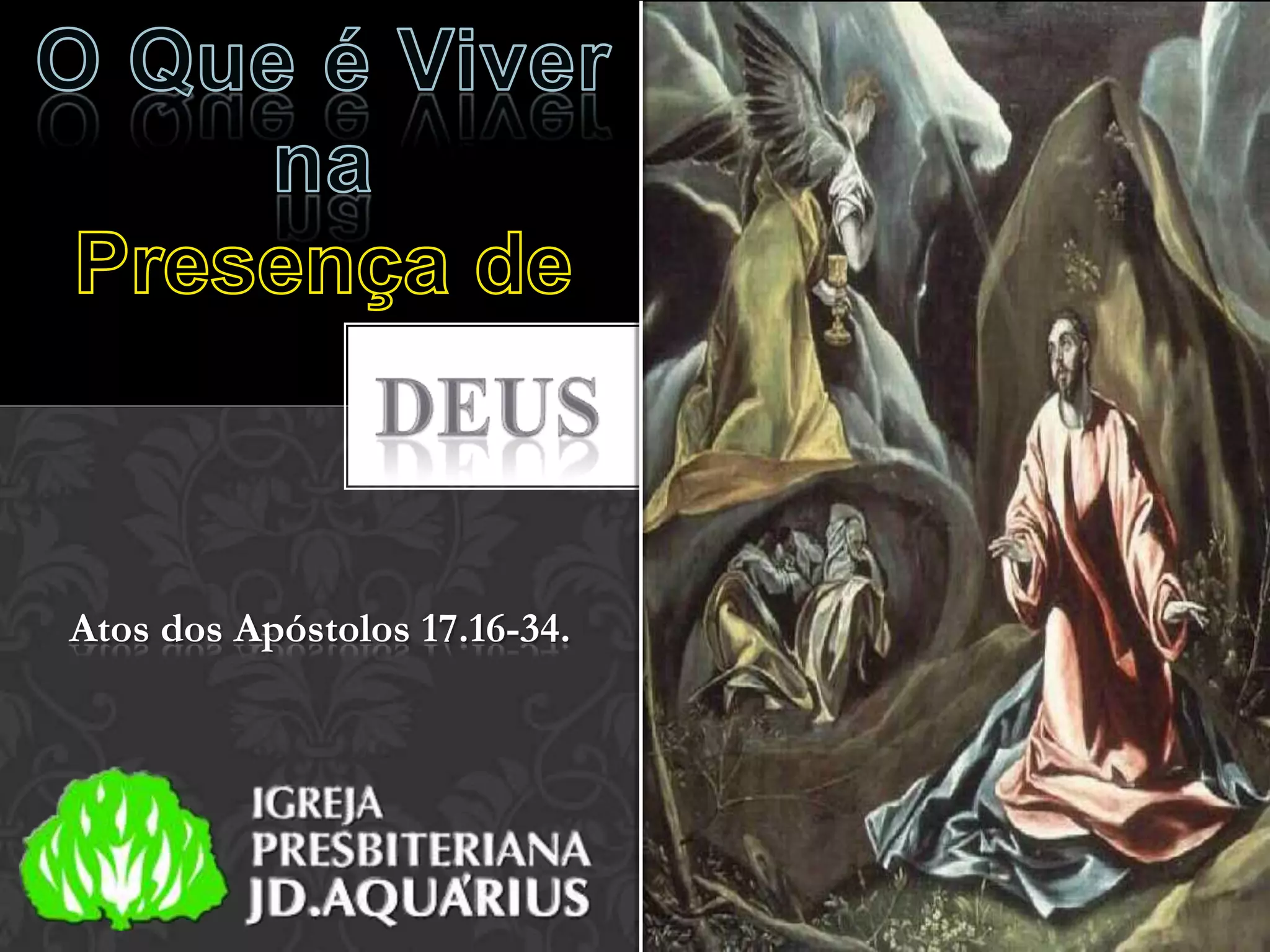
Atos dos Apóstolos 17.16-34.
ATOS 17. 16-34.

   Enquanto esperava por eles em Atenas, Paulo ficou
profundamente indignado ao ver que a cidade estava cheia
de ídolos.
   Por isso, discutia na sinagoga com judeus e com gregos
tementes a Deus, bem como na praça principal, todos os
dias, com aqueles que por ali se encontravam.
    Alguns filósofos epicureus e estóicos começaram a
discutir com ele. Alguns perguntavam: “O que está
tentando dizer esse tagarela?” Outros diziam: “Parece que
ele está anunciando deuses estrangeiros”, pois Paulo
estava pregando as boas novas a respeito de Jesus e da
ressurreição.
ATOS 17. 16-34.

   Então o levaram a uma reunião do Areópago, onde lhe
perguntaram: “Podemos saber que novo ensino é esse que
você está anunciando?
   Você está nos apresentando algumas ideias estranhas, e
queremos saber o que elas significam”.
   Todos os atenienses e estrangeiros que ali viviam não se
preocupavam com outra coisa senão falar ou ouvir as
últimas novidades.
    Então Paulo levantou-se na reunião do Areópago e
disse: “Atenienses! Vejo que em todos os aspectos vocês
são muito religiosos,
ATOS 17. 16-34.

    pois, andando pela cidade, observei cuidadosamente
seus objetos de culto e encontrei até um altar com esta
inscrição: AO DEUS DESCONHECIDO. Ora, o que vocês
adoram, apesar de não conhecerem, eu lhes anuncio.
    “O Deus que fez o mundo e tudo o que nele há é o
Senhor dos céus e da terra, e não habita em santuários
feitos por mãos humanas.
    Ele não é servido por mãos de homens, como se
necessitasse de algo, porque ele mesmo dá a todos a vida,
o fôlego e as demais coisas.
ATOS 17. 16-34.

   De um só fez ele todos os povos, para que povoassem
toda a terra, tendo determinado os tempos anteriormente
estabelecidos e os lugares exatos em que deveriam habitar.
   Deus fez isso para que os homens o buscassem e talvez,
tateando, pudessem encontrá-lo, embora não esteja longe
de cada um de nós.
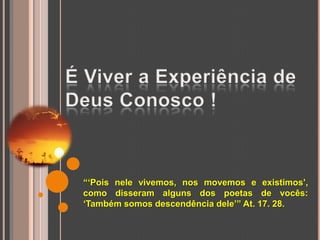
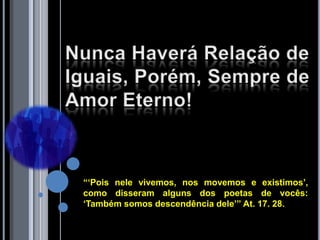
    „Pois nele vivemos, nos movemos e existimos‟, como
disseram alguns dos poetas de vocês: „Também somos
descendência dele‟.
ATOS 17. 16-34.

   “Assim, visto que somos descendência de Deus, não
devemos pensar que a Divindade é semelhante a uma
escultura de ouro, prata ou pedra, feita pela arte e
imaginação do homem.
   No passado Deus não levou em conta essa ignorância,
mas agora ordena que todos, em todo lugar, se
arrependam.
   Pois estabeleceu um dia em que há de julgar o mundo
com justiça, por meio do homem que designou. E deu
provas disso a todos, ressuscitando-o dentre os mortos”.
ATOS 17. 16-34.


     Quando ouviram sobre a ressurreição dos
mortos, alguns deles zombaram, e outros disseram: “A esse
respeito nós o ouviremos outra vez”.
   Com isso, Paulo retirou-se do meio deles.
   Alguns homens juntaram-se a ele e creram. Entre eles
estava Dionísio, membro do Areópago, e também uma
mulher chamada Dâmaris, e outros com eles.
Atos dos Apóstolos 17.16-34.
“Deus fez isso para que os homens o buscassem e
talvez, tateando, pudessem encontrá-lo, embora não
esteja longe de cada um de nós”
At. 17. 27.
“„Pois nele vivemos, nos movemos e existimos‟,
como disseram alguns dos poetas de vocês:
„Também somos descendência dele‟” At. 17. 28.
“„Pois nele vivemos, nos movemos e existimos‟,
como disseram alguns dos poetas de vocês:
„Também somos descendência dele‟” At. 17. 28.
12

Viver na presença de Deus

  • 1.
  • 2.
    ATOS 17. 16-34. Enquanto esperava por eles em Atenas, Paulo ficou profundamente indignado ao ver que a cidade estava cheia de ídolos. Por isso, discutia na sinagoga com judeus e com gregos tementes a Deus, bem como na praça principal, todos os dias, com aqueles que por ali se encontravam. Alguns filósofos epicureus e estóicos começaram a discutir com ele. Alguns perguntavam: “O que está tentando dizer esse tagarela?” Outros diziam: “Parece que ele está anunciando deuses estrangeiros”, pois Paulo estava pregando as boas novas a respeito de Jesus e da ressurreição.
  • 3.
    ATOS 17. 16-34. Então o levaram a uma reunião do Areópago, onde lhe perguntaram: “Podemos saber que novo ensino é esse que você está anunciando? Você está nos apresentando algumas ideias estranhas, e queremos saber o que elas significam”. Todos os atenienses e estrangeiros que ali viviam não se preocupavam com outra coisa senão falar ou ouvir as últimas novidades. Então Paulo levantou-se na reunião do Areópago e disse: “Atenienses! Vejo que em todos os aspectos vocês são muito religiosos,
  • 4.
    ATOS 17. 16-34. pois, andando pela cidade, observei cuidadosamente seus objetos de culto e encontrei até um altar com esta inscrição: AO DEUS DESCONHECIDO. Ora, o que vocês adoram, apesar de não conhecerem, eu lhes anuncio. “O Deus que fez o mundo e tudo o que nele há é o Senhor dos céus e da terra, e não habita em santuários feitos por mãos humanas. Ele não é servido por mãos de homens, como se necessitasse de algo, porque ele mesmo dá a todos a vida, o fôlego e as demais coisas.
  • 5.
    ATOS 17. 16-34. De um só fez ele todos os povos, para que povoassem toda a terra, tendo determinado os tempos anteriormente estabelecidos e os lugares exatos em que deveriam habitar. Deus fez isso para que os homens o buscassem e talvez, tateando, pudessem encontrá-lo, embora não esteja longe de cada um de nós. „Pois nele vivemos, nos movemos e existimos‟, como disseram alguns dos poetas de vocês: „Também somos descendência dele‟.
  • 6.
    ATOS 17. 16-34. “Assim, visto que somos descendência de Deus, não devemos pensar que a Divindade é semelhante a uma escultura de ouro, prata ou pedra, feita pela arte e imaginação do homem. No passado Deus não levou em conta essa ignorância, mas agora ordena que todos, em todo lugar, se arrependam. Pois estabeleceu um dia em que há de julgar o mundo com justiça, por meio do homem que designou. E deu provas disso a todos, ressuscitando-o dentre os mortos”.
  • 7.
    ATOS 17. 16-34. Quando ouviram sobre a ressurreição dos mortos, alguns deles zombaram, e outros disseram: “A esse respeito nós o ouviremos outra vez”. Com isso, Paulo retirou-se do meio deles. Alguns homens juntaram-se a ele e creram. Entre eles estava Dionísio, membro do Areópago, e também uma mulher chamada Dâmaris, e outros com eles.
  • 8.
  • 9.
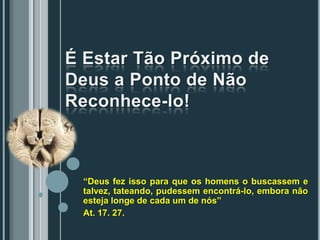
    “Deus fez issopara que os homens o buscassem e talvez, tateando, pudessem encontrá-lo, embora não esteja longe de cada um de nós” At. 17. 27.
  • 10.
    “„Pois nele vivemos,nos movemos e existimos‟, como disseram alguns dos poetas de vocês: „Também somos descendência dele‟” At. 17. 28.
  • 11.
    “„Pois nele vivemos,nos movemos e existimos‟, como disseram alguns dos poetas de vocês: „Também somos descendência dele‟” At. 17. 28.
  • 12.

Notas do Editor

  • #2 Custom animation effects: line sweeps in picture and text(Basic)To reproduce the shape effects on this slide, do the following:On the Home tab, in theSlides group, click Layout, and then click Blank.On the Home tab, in the Drawing group, click Shapes, and then under Lines click Line (first option from the left).On the slide, press and hold SHIFT, and then drag to draw a straight, vertical line.Select the line. Under DrawingTools, on the Format tab, in the Size group, in the Shape Width box, enter 7.5”.Under DrawingTools, on the Format tab, in the ShapeStyles group, click the Format Shape dialog box launcher. In the Format Shape dialog box, click LineColor in the left pane. In the LineColor pane, select Solidline, click the button next to Color, and then under ThemeColors click Black, Text 1 (first row, second option from the left).Also in the Format Shape dialog box, click LineStyle in the left pane. In the LineStyle pane, in the Weight box, enter 2 pt.Under DrawingTools, on the Format tab, in the ShapeStyles group, click ShapeEffects, point to Glow, and then under GlowVariations click Accent color 1, 5 pt glow (first row, first option from the left). Under DrawingTools, on the Format tab, in the ShapeStyles group, click ShapeEffects, point to Glow, point to MoreGlowColors, and then under ThemeColors click White, Background 1 (first row, first option from the left).On the Home tab, in the Drawing group, click Arrange, point to Align, and then do the following:Click Align to Slide.Click AlignCenter.Click AlignMiddle.On the slide, select the line. On the Home tab, in the Clipboard group, click the arrow under Paste, and then click Duplicate.Drag the duplicate line slightly off the right edge of the slide.With the duplicate line still selected, on the Home tab, in the Drawing group, click Arrange, point to Align, and then do the following: Click Align to Slide. Click Align Middle.On the Insert tab, in the Illustrations group, click Picture. In the InsertPicture dialog box, select a picture, and then click Insert.On the slide, select the picture. Under Picture Tools, on the Format tab, in the bottom right corner of the Size group, click the Size and Position dialog box launcher. In the Size and Position dialog box, on the Size tab, resize or crop the picture as needed so that under Size and rotate, the Height box is set to 7.5” and the Width box is set to 5”. Resize the picture under Size and rotate by entering values into the Height and Width boxes. Crop the picture under Crop from by entering values into the Left, Right, Top, and Bottom boxes. On the Home tab, in the Drawing group, click Arrange, point to Align, and then do the following:Click Align to Slide.ClickAlignRight.ClickAlignMiddle.To reproduce the text effects on this slide, do the following:On the Insert tab, in the Illustrations group, click TextBox. On the slide, drag to draw a text box.Enter text in the text box, and then select the text. On the Home tab, in the Font group, do the following:In the Font list, select Arial.In the FontSize list, select 28.Click Bold.Click the button next to FontColor, and then under ThemeColors click White, Background 1 (first row, first option from the left).On the Home tab, in the Paragraph group, click AlignTextRight to align the text right in the text box. Drag the text box onto the left half of the slide.To reproduce the background effects on this slide, do the following:Right-click the slide background area, and then click Format Background. In the Format Background dialog box, click Fill in the left pane, select Gradient fill in the Fill pane, and then do the following:In the Type list, select Linear.Click the button next to Direction, and then click Linear Down (first row, second option from the left).Under Gradient stops, click Add or Remove until two stops appear in the drop-down list.Also under Gradient stops, customize the gradient stops that you added as follows:Select Stop 1 from the list, and then do the following:In the Stop position box, enter 40%.Click the button next to Color, and then click Black, Text 1 (first row, second option from the left).Select Stop 2 from the list, and then do the following: In the Stop position box, enter 100%.Click the button next to Color, and then click Black, Text 1, Lighter 50% (second row, second option from the left).To reproduce the animation effects on this slide, do the following:On the Animations tab, in the Animations group, click CustomAnimation. Select the line off the right edge of the slide. In the CustomAnimation task pane, do the following:Click AddEffect, point to Entrance, and then click MoreEffects. In the AddEntranceEffect dialog box, under Basic, click FlyIn.Select the animation effect (fly-in effect for the second line). Under Modify: Fly In,do the following:In the Start list, select After Previous.In the Direction list, select FromLeft.In the Speed list, select Fast.On the Home tab, in the Editing group, click Select, and then click Selection Pane.In the Selection and Visibility pane, select the first line you created (in the middle of the slide). In the CustomAnimation task pane, do the following:Click AddEffect, point to Entrance, and then click MoreEffects. In the AddEntranceEffect dialog box, under Basic, click FlyIn.Select the second animation effect (fly-in effect for the first line). Under Modify: Fly In,do the following:In the Start list, select AfterPrevious.In the Direction list, select FromRight.In the Speed list, select Fast.On the slide, select the picture. In the CustomAnimation task pane, do the following:Click AddEffect, point to Entrance, and then click MoreEffects. In the AddEntranceEffect dialog box, under Basic, click Wipe.Select the third animation effect (wipe effect for the picture). Under Modify: Wipe,do the following:In the Start list, select WithPrevious.In the Direction list, select FromRight.In the Speed list, select Fast.On the slide, select the text box. In the CustomAnimation task pane, do the following:Click AddEffect, point to Entrance, and then click MoreEffects. In the AddEntranceEffect dialog box, under Basic, clickFlyIn.Select the fourth animation effect (fly-in effect for the text box). Under Modify: Fly In,do the following:In the Start list, select WithPrevious.In the Direction list, select FromRight.In the Speed list, select Fast.
  • #3 Custom animation effects: line sweeps in picture and text(Basic)To reproduce the shape effects on this slide, do the following:On the Home tab, in theSlides group, click Layout, and then click Blank.On the Home tab, in the Drawing group, click Shapes, and then under Lines click Line (first option from the left).On the slide, press and hold SHIFT, and then drag to draw a straight, vertical line.Select the line. Under DrawingTools, on the Format tab, in the Size group, in the Shape Width box, enter 7.5”.Under DrawingTools, on the Format tab, in the ShapeStyles group, click the Format Shape dialog box launcher. In the Format Shape dialog box, click LineColor in the left pane. In the LineColor pane, select Solidline, click the button next to Color, and then under ThemeColors click Black, Text 1 (first row, second option from the left).Also in the Format Shape dialog box, click LineStyle in the left pane. In the LineStyle pane, in the Weight box, enter 2 pt.Under DrawingTools, on the Format tab, in the ShapeStyles group, click ShapeEffects, point to Glow, and then under GlowVariations click Accent color 1, 5 pt glow (first row, first option from the left). Under DrawingTools, on the Format tab, in the ShapeStyles group, click ShapeEffects, point to Glow, point to MoreGlowColors, and then under ThemeColors click White, Background 1 (first row, first option from the left).On the Home tab, in the Drawing group, click Arrange, point to Align, and then do the following:Click Align to Slide.Click AlignCenter.Click AlignMiddle.On the slide, select the line. On the Home tab, in the Clipboard group, click the arrow under Paste, and then click Duplicate.Drag the duplicate line slightly off the right edge of the slide.With the duplicate line still selected, on the Home tab, in the Drawing group, click Arrange, point to Align, and then do the following: Click Align to Slide. Click Align Middle.On the Insert tab, in the Illustrations group, click Picture. In the InsertPicture dialog box, select a picture, and then click Insert.On the slide, select the picture. Under Picture Tools, on the Format tab, in the bottom right corner of the Size group, click the Size and Position dialog box launcher. In the Size and Position dialog box, on the Size tab, resize or crop the picture as needed so that under Size and rotate, the Height box is set to 7.5” and the Width box is set to 5”. Resize the picture under Size and rotate by entering values into the Height and Width boxes. Crop the picture under Crop from by entering values into the Left, Right, Top, and Bottom boxes. On the Home tab, in the Drawing group, click Arrange, point to Align, and then do the following:Click Align to Slide.ClickAlignRight.ClickAlignMiddle.To reproduce the text effects on this slide, do the following:On the Insert tab, in the Illustrations group, click TextBox. On the slide, drag to draw a text box.Enter text in the text box, and then select the text. On the Home tab, in the Font group, do the following:In the Font list, select Arial.In the FontSize list, select 28.Click Bold.Click the button next to FontColor, and then under ThemeColors click White, Background 1 (first row, first option from the left).On the Home tab, in the Paragraph group, click AlignTextRight to align the text right in the text box. Drag the text box onto the left half of the slide.To reproduce the background effects on this slide, do the following:Right-click the slide background area, and then click Format Background. In the Format Background dialog box, click Fill in the left pane, select Gradient fill in the Fill pane, and then do the following:In the Type list, select Linear.Click the button next to Direction, and then click Linear Down (first row, second option from the left).Under Gradient stops, click Add or Remove until two stops appear in the drop-down list.Also under Gradient stops, customize the gradient stops that you added as follows:Select Stop 1 from the list, and then do the following:In the Stop position box, enter 40%.Click the button next to Color, and then click Black, Text 1 (first row, second option from the left).Select Stop 2 from the list, and then do the following: In the Stop position box, enter 100%.Click the button next to Color, and then click Black, Text 1, Lighter 50% (second row, second option from the left).To reproduce the animation effects on this slide, do the following:On the Animations tab, in the Animations group, click CustomAnimation. Select the line off the right edge of the slide. In the CustomAnimation task pane, do the following:Click AddEffect, point to Entrance, and then click MoreEffects. In the AddEntranceEffect dialog box, under Basic, click FlyIn.Select the animation effect (fly-in effect for the second line). Under Modify: Fly In,do the following:In the Start list, select After Previous.In the Direction list, select FromLeft.In the Speed list, select Fast.On the Home tab, in the Editing group, click Select, and then click Selection Pane.In the Selection and Visibility pane, select the first line you created (in the middle of the slide). In the CustomAnimation task pane, do the following:Click AddEffect, point to Entrance, and then click MoreEffects. In the AddEntranceEffect dialog box, under Basic, click FlyIn.Select the second animation effect (fly-in effect for the first line). Under Modify: Fly In,do the following:In the Start list, select AfterPrevious.In the Direction list, select FromRight.In the Speed list, select Fast.On the slide, select the picture. In the CustomAnimation task pane, do the following:Click AddEffect, point to Entrance, and then click MoreEffects. In the AddEntranceEffect dialog box, under Basic, click Wipe.Select the third animation effect (wipe effect for the picture). Under Modify: Wipe,do the following:In the Start list, select WithPrevious.In the Direction list, select FromRight.In the Speed list, select Fast.On the slide, select the text box. In the CustomAnimation task pane, do the following:Click AddEffect, point to Entrance, and then click MoreEffects. In the AddEntranceEffect dialog box, under Basic, clickFlyIn.Select the fourth animation effect (fly-in effect for the text box). Under Modify: Fly In,do the following:In the Start list, select WithPrevious.In the Direction list, select FromRight.In the Speed list, select Fast.