Não são as virtudes que abrem o acesso a Deus, mas
a fraqueza humana e até mesmo o pecado...
“E nos revelou o mistério da sua vontade, de acordo com o seu
bom propósito que ele estabeleceu em Cristo, isto é, de fazer
convergir em Cristo todas as coisas, celestiais ou terrenas, na
dispensação da plenitude dos tempos” Ef.1.9-10.
  É vontade de Deus reunir em um só corpo harmonioso
  todos os objetos da redenção.
   “Embora eu seja o menor dos menores de todos os
   santos, foi-me concedida esta graça de anunciar aos gentios
   as insondáveis riquezas de Cristo e esclarecer a todos a
   administração deste mistério que, durante as épocas
   passadas, foi mantido oculto em Deus, que criou todas as
   coisas” Ef.3.8-9.
O grande desígnio do Evangelho é fazer conhecido o plano de
Deus.


                                                      Trad. NVI
Romanos 8
 29 Pois aqueles que de antemão conheceu, também os
 predestinou para serem conformes à imagem de seu
 Filho, a fim de que ele seja o primogênito entre muitos
 irmãos.
 30 E aos que predestinou, também chamou; aos que
 chamou, também justificou; aos que justificou, também
 glorificou.

               O fim precede os meios.


               Há uma ordem nos decretos divinos.

               Deus planejou a salvação antes da queda.
Trad. NVI
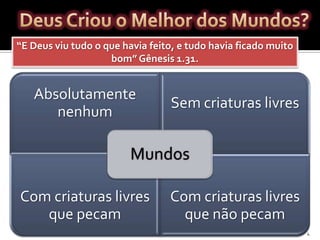
“E Deus viu tudo o que havia feito, e tudo havia ficado muito
                    bom” Gênesis 1.31.


   Absolutamente
                                 Sem criaturas livres
      nenhum

                         Mundos

Com criaturas livres             Com criaturas livres
   que pecam                       que não pecam
                                                                4
O Que Significa Espiritualidade?

   Significa realizar a existência com o espírito. O ser
    humano é um todo (Corpo e Alma).
   Espiritualidade não significa encontro direto com
    realidades imateriais ou atividades que nada
    tenham a ver com o material.
   A alternativa da espiritualidade não é “alma e
    corpo”, “espírito e matéria”, mas “vida ou morte”.
 Ela se desenvolve de dois modos:
1) Espiritualidade de Cima – Começa com os
   ideais que nós nos impomos. Quem se identifica
   com seus próprios ideais frequentemente
   reprime a realidade. As paixões existem para
   serem dominadas.
Exemplo:      A    humildade     é    virtude  ou
   reconhecimento?
 Se é virtude não pode ser humildade, posto que
   bastaria nos rebaixar. Mas, humildade é
   reconhecer e aceitar a verdade sobre si mesmo.
 Segundo modo:
2) Espiritualidade de Baixo – Significa que nós
   buscamos a Deus exatamente em nossas
   paixões, em nossas enfermidades, em nossas
   fraquezas e feridas, em nossas voltas e
   rodeios, enfim, em nossa impotência.
 Quem corre atrás de ideias exteriores não entra em
   contato com seu verdadeiro ser (espiritualidade não
   é programa espiritual).
 “Deus tornou-se homem. Tu, homem, reconhece
   que és homem” Santo Agostinho.
 “Religião é aquilo que cada um faz com a sua
   solidão” Paul Tillich.
 “Mas Pedro declarou: ‘Mesmo que seja preciso que eu
  morra contigo, nunca te negarei’. E todos os outros
  discípulos disseram o mesmo” Mt.26.35.
 “Então Pedro se lembrou da palavra que Jesus tinha
  dito: ‘Antes que o galo cante, você me negará três
  vezes’. E, saindo dali, chorou amargamente” Mt.26.75.
 Pedro transformou-se em pedra (rochedo) por sua
  própria culpa. Depois, vai reconhecer que somente na
  fé pode manter-se em Cristo.
 “Para impedir que eu me exaltasse por causa da
  grandeza dessas revelações, foi-me dado um espinho na
  carne, um mensageiro de Satanás, para me atormentar.
  Três vezes roguei ao Senhor que o tirasse de mim. Mas
  ele me disse: ‘Minha graça é suficiente para você, pois o
  meu poder se aperfeiçoa na fraqueza’. Portanto, eu me
  gloriarei ainda mais alegremente em minhas
  fraquezas, para que o poder de Cristo repouse em mim.
  Por isso, por amor de Cristo, regozijo-me nas
  fraquezas, nos insultos, nas necessidades, nas
  perseguições, nas angústias. Pois, quando sou fraco é que
  sou forte” . 2 Co.12.7-10.
 Paulo tinha uma doença que paralisava suas forças e o
  deixava humilhado.
Questionamentos e
Perguntas…


 Pergunte o que quiser.

 Discorde do que quiser.

 Dê a sua opinião sem constrangimento.
Espiritualidade de cima e de baixo

Espiritualidade de cima e de baixo

  • 1.
    Não são asvirtudes que abrem o acesso a Deus, mas a fraqueza humana e até mesmo o pecado...
  • 2.
    “E nos revelouo mistério da sua vontade, de acordo com o seu bom propósito que ele estabeleceu em Cristo, isto é, de fazer convergir em Cristo todas as coisas, celestiais ou terrenas, na dispensação da plenitude dos tempos” Ef.1.9-10. É vontade de Deus reunir em um só corpo harmonioso todos os objetos da redenção. “Embora eu seja o menor dos menores de todos os santos, foi-me concedida esta graça de anunciar aos gentios as insondáveis riquezas de Cristo e esclarecer a todos a administração deste mistério que, durante as épocas passadas, foi mantido oculto em Deus, que criou todas as coisas” Ef.3.8-9. O grande desígnio do Evangelho é fazer conhecido o plano de Deus. Trad. NVI
  • 3.
    Romanos 8 29Pois aqueles que de antemão conheceu, também os predestinou para serem conformes à imagem de seu Filho, a fim de que ele seja o primogênito entre muitos irmãos. 30 E aos que predestinou, também chamou; aos que chamou, também justificou; aos que justificou, também glorificou. O fim precede os meios. Há uma ordem nos decretos divinos. Deus planejou a salvação antes da queda. Trad. NVI
  • 4.
    “E Deus viutudo o que havia feito, e tudo havia ficado muito bom” Gênesis 1.31. Absolutamente Sem criaturas livres nenhum Mundos Com criaturas livres Com criaturas livres que pecam que não pecam 4
  • 5.
    O Que SignificaEspiritualidade?  Significa realizar a existência com o espírito. O ser humano é um todo (Corpo e Alma).  Espiritualidade não significa encontro direto com realidades imateriais ou atividades que nada tenham a ver com o material.  A alternativa da espiritualidade não é “alma e corpo”, “espírito e matéria”, mas “vida ou morte”.
  • 6.
     Ela sedesenvolve de dois modos: 1) Espiritualidade de Cima – Começa com os ideais que nós nos impomos. Quem se identifica com seus próprios ideais frequentemente reprime a realidade. As paixões existem para serem dominadas. Exemplo: A humildade é virtude ou reconhecimento?  Se é virtude não pode ser humildade, posto que bastaria nos rebaixar. Mas, humildade é reconhecer e aceitar a verdade sobre si mesmo.
  • 7.
     Segundo modo: 2)Espiritualidade de Baixo – Significa que nós buscamos a Deus exatamente em nossas paixões, em nossas enfermidades, em nossas fraquezas e feridas, em nossas voltas e rodeios, enfim, em nossa impotência.  Quem corre atrás de ideias exteriores não entra em contato com seu verdadeiro ser (espiritualidade não é programa espiritual).  “Deus tornou-se homem. Tu, homem, reconhece que és homem” Santo Agostinho.  “Religião é aquilo que cada um faz com a sua solidão” Paul Tillich.
  • 8.
     “Mas Pedrodeclarou: ‘Mesmo que seja preciso que eu morra contigo, nunca te negarei’. E todos os outros discípulos disseram o mesmo” Mt.26.35.  “Então Pedro se lembrou da palavra que Jesus tinha dito: ‘Antes que o galo cante, você me negará três vezes’. E, saindo dali, chorou amargamente” Mt.26.75.  Pedro transformou-se em pedra (rochedo) por sua própria culpa. Depois, vai reconhecer que somente na fé pode manter-se em Cristo.
  • 9.
     “Para impedirque eu me exaltasse por causa da grandeza dessas revelações, foi-me dado um espinho na carne, um mensageiro de Satanás, para me atormentar. Três vezes roguei ao Senhor que o tirasse de mim. Mas ele me disse: ‘Minha graça é suficiente para você, pois o meu poder se aperfeiçoa na fraqueza’. Portanto, eu me gloriarei ainda mais alegremente em minhas fraquezas, para que o poder de Cristo repouse em mim. Por isso, por amor de Cristo, regozijo-me nas fraquezas, nos insultos, nas necessidades, nas perseguições, nas angústias. Pois, quando sou fraco é que sou forte” . 2 Co.12.7-10.  Paulo tinha uma doença que paralisava suas forças e o deixava humilhado.
  • 10.
    Questionamentos e Perguntas… Pergunteo que quiser. Discorde do que quiser. Dê a sua opinião sem constrangimento.

Notas do Editor

  • #2 Custom animation effects: object spins on end(Advanced)To reproduce the background effects on this slide, do the following:On the Home tab, in theSlides group, click Layout, and then click Blank.Right-click the slide background area, and then click Format Background. In the Format Background dialog box, click Fill in the left pane, and then select Solid fill in the Fill pane. Click the button next to Color, and then under Theme Colors click White, Background 1 (first row, first option from the left).To reproduce the rectangle on this slide, do the following:On the Home tab, in the Drawing group, click Shapes, and then under Rectangles click Rounded Rectangle (second option from the left). On the slide, drag to draw a rounded rectangle.Select the rectangle. Drag the yellow diamond adjustment handle to the left to decrease the amount of rounding on the corners. With the rounded rectangle still selected, under Drawing Tools, on the Format tab, in the Size group, do the following:In the Shape Height box, enter 3.5”.In the Shape Width box, enter 0.25”.Under Drawing Tools, on the Format tab, in the bottom right corner of the Shape Styles group, click the Format Shape dialog box launcher. In the Format Shape dialog box, click Fill in the left pane. In the Fill pane, select Solid fill, click the button next to Color, and then under Theme Colors click White, Background 1, Darker 15% (third row, first option from the left).Also in the Format Shape dialog box, click Line Color in the left pane. In the Line Color pane, select No line. Also in the Format Shape dialog box, click Shadow in the left pane. In the Shadow pane, click the button next to Presets, under Outer select Offset Bottom (first row, second option from the left), and then do the following:In the Transparency box, enter 0%.In the Sizebox, enter 100%.In the Blur box, enter 8.5 pt.In the Angle box, enter 90°.In the Distance box, enter 1 pt.Also in the Format Shape dialog box, click 3-D Format in the left pane. In the 3-D Format pane, do the following:Under Bevel, click the button next to Top, and then under Bevel click Circle (first row, first option from the left). Next to Top, in the Width box, enter 5 pt, and in the Height box, enter 5 pt.Under Surface, click the button next to Material, and then under Standard clickMatte (first row, first option from the left).Click the button next to Lighting, and then under Neutral click Soft (first row, third option from the left).On the slide, select the rounded rectangle. On the Home tab, in the Clipboard group, click the arrow under Paste, and then click Duplicate.Select the duplicate rectangle. On the Home tab, in the Drawing group, do the following:Click the arrow next to Shape Fill, and then click No Fill.Click the arrow next to Shape Outline, and then click No Outline.Drag the second rectangle above the first rectangle until the lower edge overlays the top edge of the first rectangle. (Note: When the spinning animation effect is created later for these rectangles, the spin will center where the edges of the rectangles meet.)Press and hold CTRL, and then select both rectangles. On the Home tab, in the Drawing group, click Arrange, and do the following:Point to Align, and then click Align Selected Objects.Point to Align, and then click Align Center.Click Group. On the slide, drag the group until it is centered horizontally on the left edge of the slide (straddling the edge).On the Home tab, in the Drawing group, click Arrange, point to Align, and then do the following:Click Align to Slide.Click Align Middle.To reproduce the dashed arc on this slide, do the following:On the Home tab, in the Drawing group, click Shapes, and then under Basic Shapes click Arc (third row, 12th option from the left). On the slide, drag to draw an arc.Select the arc. Under Drawing Tools, on the Format tab, in the Size group, do the following:In the Shape Height box, enter 7.5”.In the Shape Width box, enter 7.5”.With the arc still selected, on the Home tab, in the Drawing group, click the arrow next to Shape Outline,and then do the following:Under Theme Colors, click White, Background 1, Darker 15% (third row, first option from the left).Point to Dashes, and then click Dash (fourth option from the top).On the slide, drag the yellow diamond adjustment handle on the right side of the arc to the bottom of the arc to create a half circle.Drag the arc until the yellow diamond adjustment handles are on the left edge of the slide.With the arc still selected, on the Home tab, in the Drawing group, click Arrange, point to Align, and then do the following:Click Align to Slide. Click Align Middle. To reproduce the half circle on this slide, do the following:On the slide, select the arc. On the Home tab, in the Clipboard group, click the arrow under Paste, and then click Duplicate.Select the duplicate arc. Under Drawing Tools, on the Format tab, in the Size group, do the following:In the Shape Height box, enter 3.33”.In the Shape Width box, enter 3.33”.With the second arc still selected, under Drawing Tools, on the Format tab, in the Shape Styles group, click the arrow next to Shape Fill, and then under Theme Colors click White, Background 1, Darker 5% (second row, first option from the left).Under Drawing Tools, on the Format tab, in the Shape Styles group, click the arrow next to Shape Outline,and then click No Outline.Under Drawing Tools, on the Format tab, in the Shape Styles group, click Shape Effects, point to Shadow, and then click ShadowOptions. In the Format Shape dialog box, click Shadow in the left pane. In the Shadow pane, click the button next to Presets, under Inner click Inside Right (second row, third option from the left), and then do the following:In the Transparency box, enter 86%.In the Blur box, enter 24 pt.In the Angle box, enter 315°.In the Distance box, enter 4 pt.On the slide, drag the second arc until the yellow diamond adjustment handles are on the left edge of the slide. On the Home tab, in the Drawing group, click Arrange, and then do the following:Point to Align, and then click Align to Slide. Point to Align, and then click Align Middle. Click Send to Back.To reproduce the button shapes on this slide, do the following:On the Home tab, in the Drawing group, click Shapes, and then under Basic Shapes click Oval (first row, second option from the left). On the slide, drag to draw an oval.Select the oval. Under Drawing Tools, on the Format tab, in the Size group, do the following:In the Shape Height box, enter 0.34”.In the Shape Width box, enter 0.34”.Under Drawing Tools, on the Format tab, in the Shape Styles group, click More, and then click Light 1 Outline, Colored Fill – Dark 1 (third row, first option from the left).Under Drawing Tools, on the Format tab, in the bottom right corner of the Shape Styles group, click the Format Shape dialog box launcher. In the Format Shape dialog box, click Fill in the left pane. In the Fill pane, select Solid Fill. Click the button next to Color, and then under Theme Colors click Olive Green, Accent 3, Lighter 80°(second row, seventh option from the left).Also in the Format Shape dialog box, click Line Color in the left pane. In the Line Color pane, select No line. Also in the Format Shape dialog box, click Shadow in the left pane. In the Shadow pane, click the button next to Presets, under Outer click Offset Bottom (first row, second option from the left), and then do the following:In the Transparency box, enter 0%.In the Size box, enter 100%.In the Blur box, enter 8.5 pt.In the Angle box, enter 90°.In the Distance box, enter 1 pt.Also in the Format Shape dialog box, click 3-D Format in the left pane, and then do the following in the 3-D Format pane:Under Bevel, click the button next to Top, and then under Bevel click Art Deco (third row, fourth option from the left). Next to Top, in the Width box, enter 5 pt, and in the Height box, enter 5 pt.UnderContour, click the button next to Color, and then under Theme Colors click White, Background 1 (first row, first option from the left). In the Size box, enter 3.5 pt.Under Surface, click the button next to Material, and then under Standard click Matte (first row, first option from the left). Click the button next to Lighting, and then under Neutral click Soft (first row, third option from the left).On the slide, select the oval. Under Drawing Tools, on the Format tab, in the bottom right corner of the Size group, click the Size and Position dialog box launcher. In the Size and Position dialog box, on the Position tab, do the following:In the Horizontal box, enter 2.98”.In the Vertical box, enter 1.5”.Select the oval. On the Home tab, in the Clipboard group, click the arrow under Paste, and then click Duplicate.Select the duplicate oval. Under Drawing Tools, on the Format tab, in the bottom right corner of the Size group, click the Size and Position dialog box launcher. In the Size and Position dialog box, on the Position tab, do the following:In the Horizontal box, enter 3.52”.In the Vertical box, enter 2.98”. Repeat step 9 two more times, for a total of four ovals. Under Drawing Tools, on the Format tab, in the bottom right corner of the Size group, click the Size and Position dialog box launcher. In the Size and Position dialog box, on the Position tab, do the following to position the third and fourth ovals:Select the third oval on the slide, and then enter 3.52” in theHorizontal box and 4.27” in the Vertical box.Select the fourth oval on the slide, and then enter 2.99” in theHorizontal box and 5.66” in the Vertical box.To reproduce the text on this slide, do the following:On the Insert tab, in the Text group, click Text Box, and then on the slide, drag to draw the text box. Enter text in the text box and select the text. On the Home tab, in the Font group, do the following: In the Font list, select Corbel.In the Font Size list, select 22.Click the arrow next to Font Color, and then under Theme Colors click White, Background 1, Darker 50% (sixth row, first option from the left).On the Home tab, in the Paragraph group, click Align Text Left to align the text left in the text box.On the slide, drag the text box to the right of the first oval.Select the text box. On the Home tab, in the Clipboard group, click the arrow under Paste, and then click Duplicate. Click in the text box and edit the text. Drag the second text box to the right of the second oval.Repeat steps 5-7 to create the third and fourth text boxes, dragging them to the right of the third and fourth ovals. To reproduce the animation effects on this slide, do the following:On the Animations tab, in the Animations group, click Custom Animation.On the Home tab, in the Editing group, click Select, and then click Selection Pane. In the Selection and Visibility pane, select the rectangle group. In the CustomAnimation task pane, do the following:Click AddEffect, point to Emphasis, and then click More Effects. In the Add Emphasis Effect dialog box, under Basic, click Spin. Select the animation effect (spin effect for the rectangle group). Under Modify: Spin, do the following:In theStart list, selectWith Previous. In the Amount list, in the Custom box, enter 123°,and then press ENTER. Also in the Amount list, clickCounterclockwise.In the Speedlist, select Fast. On the slide, select the first oval. In the CustomAnimation task pane, do the following:Click AddEffect, point to Emphasis, and then click More Effects. In the Add Emphasis Effect dialog box, under Basic, click Change Fill Color. Select the second animation effect (change fill color effect for the first oval). Under Modify: Change Fill Color, do the following:In the Startlist, select After Previous. In the Fill Color list, click More Colors. In the Colors dialog box, on the Custom tab, enter values for Red: 130, Green: 153, Blue: 117. In the Speedlist, select Very Fast.On the slide, select the first text box. In the CustomAnimation task pane, do the following:Click Add Effect, point to Entrance,and then click More Effects. In the Add Entrance Effect dialog box, under Subtle, clickFade. Select the third animation effect (fade effect for the first text box). Under Modify: Fade, do the following:In theStart list, selectWith Previous.In the Speed list, select Very Fast. In the Selection and Visibility pane, select the rectangle group. In the CustomAnimation task pane, do the following:Click AddEffect, point to Emphasis, and then click More Effects. In the Add Emphasis Effect dialog box, under Basic, click Spin. Select the fourth animation effect (spin effect for the rectangle group). Under Modify: Spin, do the following:In theStart list, selectOn Click. In the Amount list, in the Custom box, enter 22°, and then press ENTER. Also in the Amount list, click Clockwise.In the Speed list, select Very Fast.On the slide, select the second oval. In the CustomAnimation task pane, do the following:Click AddEffect, point to Emphasis, and then click More Effects. In the Add Emphasis Effect dialog box, under Basic, click Change Fill Color. Select the fifth animation effect (change fill color effect for the second oval). Under Modify: Change Fill Color, do the following:In the Startlist, select After Previous. In the Fill Color list, click More Colors. In the Colors dialog box, on the Custom tab, enter values for Red: 130, Green: 153, Blue: 117. In the Speedlist, select Very Fast.On the slide, select the second text box. In the CustomAnimation task pane, do the following:Click Add Effect, point to Entrance and then click More Effects. In the Add Entrance Effect dialog box, under Subtle, clickFade. Select the sixth animation effect (fade effect for the second text box). Under Modify: Fade, do the following:In theStart list, selectWith Previous.In the Speed list, select Very Fast. On the slide, select the third oval. In the CustomAnimation task pane, do the following:Click AddEffect, point to Emphasis, and then click More Effects. In the Add Emphasis Effect dialog box, under Basic, click Change Fill Color. Select the seventh animation effect (change fill color effect for the third oval). Under Modify: Change Fill Color, do the following:In the Startlist, select After Previous. In the Fill Color list, click More Colors. In the Colors dialog box, on the Custom tab, enter values for Red: 130, Green: 153, Blue: 117. In the Speedlist, select Very Fast.On the slide, select the third text box. In the CustomAnimation task pane, do the following:Click Add Effect, point to Entrance and then click More Effects. In the Add Entrance Effect dialog box, under Subtle, clickFade. Select the eighth animation effect (fade effect for the third text box). Under Modify: Fade, do the following:In theStart list, selectWith Previous.In the Speed list, select Very Fast. On the slide, select the fourth oval. In the CustomAnimation task pane, do the following:Click AddEffect, point to Emphasis, and then click More Effects. In the Add Emphasis Effect dialog box, under Basic, click Change Fill Color. Select the ninth animation effect (change fill color effect for the fourth oval). Under Modify: Change Fill Color, do the following:In the Startlist, select After Previous. In the Fill Color list, click More Colors. In the Colors dialog box, on the Custom tab, enter values for Red: 130, Green: 153, Blue: 117. In the Speedlist, select Very Fast.On the slide, select the fourth text box. In the CustomAnimation task pane, do the following:Click Add Effect, point to Entrance,and then click More Effects. In the Add Entrance Effect dialog box, under Subtle, clickFade. Select the 10th animation effect (fade effect for the fourth text box). Under Modify: Fade, do the following:In theStart list, selectWith Previous.In the Speed list, select Very Fast.
  • #3 Custom animation effects: rotating tubes with text(Intermediate)To reproduce the first shape effect on this slide, do the following:On the Home tab, in theSlides group, click Layout, and then click Blank.On the Home tab, in the Drawing group, click Shapes, and then under Rectangles click Rectangle (first option from the left). On the slide, drag to draw a rectangle.Select the rectangle. Under DrawingTools, on the Format tab, in the Size group, do the following: In the ShapeHeight box, enter 0.75”.In the ShapeWidth box, enter 7.42”.Drag the rectangle above the middle of the slide, and then align the right edge with the right edge of the slide.Under DrawingTools, on the Format tab, in the ShapeStyles group, click ShapeEffects, point to Reflection, and then under ReflectionVariations click TightReflection, touching.On the Home tab, in the bottom right corner of the Drawing group, click the Format Shape dialog box launcher. In the Format Shape dialog box, click Fill in the left pane, select Gradient fill in the Fill pane, and then do the following:In the Type list, select Linear.In the Direction list, select LinearUp (second row, second option from the left).Under Gradient stops, click Add or Remove until four stops appear in the drop-down list.Also under Gradient stops, customize the gradient stops as follows:Select Stop 1 from the list, and then do the following:In the Stop position box, enter 0%.Click the button next to Color, and then under ThemeColorsclick Blue, Accent 1, Lighter 40%(fourth row, fifth option from the left).Select Stop 2 from the list, and then do the following: In the Stop position box, enter 26%.Click the button next to Color, and then under ThemeColorsclick White, Background 1, Darker 5% (second row, first option from the left).Select Stop 3 from the list, and then do the following:In the Stop position box, enter 80%.Click the button next to Color, and then under ThemeColorsclick Black, Text 1, Lighter 50% (second row, second option from the left).Select Stop 4 from the list, and then do the following: In the Stop position box, enter 100%.Click the button next to Color, and then under ThemeColorsclick White, Background 1, Darker 35% (fifthrow, first option from the left).Also in the FormatShape dialog box, click LineColor in the left pane. In the LineColor pane, select Noline.Also in the FormatShape dialog box, click Shadow in the left pane. In the Shadow pane, click the button next to Presets, under Outer click OffsetCenter, and then do the following:In the Transparency box, enter 60%.In the Size box, enter 102%.In the Blur box, enter 5 pt.In the Angle box, enter 0°In the Distance box, enter 0 pt.On the slide, select the rectangle. On the Home tab, in the Clipboard group, click the arrow under Paste, and then click Duplicate.Select the second, duplicate rectangle. Under DrawingTools, on the Format tab, in the ShapeStyles group, click ShapeEffects, point to Reflection, and then click NoReflection.On the Home tab, in the bottom right corner of the Drawing group, click the FormatShape dialog box launcher. In the FormatShape dialog box, click Fill in the left pane. In the Fill pane, click the button next to Direction, and then click LinearDown (first row, second option from the left).Also in the FormatShape dialog box, click Shadow in the left pane. In the Shadow pane, click the button next to Presets, and then under NoShadow click NoShadow.On the slide, drag the second rectangle until it is directly on top of the first rectangle.On the Home tab, in the Editing group, click Select, and then click Selection Pane.In the Selection and Visibility pane, press and hold CTRL, and then select both rectangles. On the Home tab, in the Drawing group, click Arrange, point to Align, and then do the following:Click Align Selected Objects.Click Align Center.Click Align Middle. To reproduce the first text effect on this slide, do the following:On the Insert tab, in the Text group, click TextBox. On the slide, drag to draw a text box.Enter the first line of text on the slide, and then select the text. On the Home tab, in the Font group, do the following:In the Font list, select Trebuchet MS.In the FontSize box, enter 26.Click Bold.Click the arrow next to FontColor, and then under Theme Colors click Black, Text 1, Lighter 25% (fourth row, second option from the left).On the Home tab, in the Paragraph group, click AlignTextLeft to align the text left in the text box.On the slide, select the text box. Under DrawingTools, on the Format tab, in the WordArtStyles group, click TextEffects, point to Shadow, and then click ShadowOptions. In the FormatTextEffects dialog box, in the Shadow pane, click the button next to Presets, under Inner click Inside Diagonal Bottom Left (third row, first option from the left), and then do the following:Click the button next to Color, and then under Theme Colors click White, Background 1 (first row, first option from the left).In the Transparency box, enter 21%.In the Blur box, enter 5 pt.In the Angle box, enter 90°.In the Distance box, enter 4 pt.On the slide, drag the text box onto the second (top) rectangle. To animate the first shape and text effects on this slide, do the following:On the Animations tab, in the Animations group, click CustomAnimation. In the Selection and Visibilitypane, select the third object in the list (the first rectangle you created). In the CustomAnimation task pane, do the following:Click AddEffect, point to Entrance, and then click MoreEffects. In the AddEntranceEffect dialog box, under Moderate, click Ascend.Select the animation effect (ascend effect for the first rectangle). Under Modify: Ascend,do the following:In the Start list, select WithPrevious.In the Speed list, select Fast.In the Selection and Visibility pane, select the second object in the list (the second rectangle you created). In the CustomAnimation task pane, do the following:Click AddEffect, point to Entrance, and then click MoreEffects. In the AddEntranceEffect dialog box, under Subtle, click Fade.Select the second animation effect (fade effect for the second rectangle). Under Modify: Fade,do the following:In the Start list, select AfterPrevious.In the Speed list, select Fast.In the Selection and Visibility pane, select the first object in the list (text box). In the CustomAnimation task pane, do the following:Click AddEffect, point to Entrance, and then click MoreEffects. In the AddEntranceEffect dialog box, under Moderate, click Stretch.Select the third animation effect (stretch effect for the text box). Under Modify: Stretch,do the following:In the Start list, select WithPrevious.In the Direction list, select FromTop.In the Speed list, select Fast.To reproduce the other animated shapes and text on this slide, do the following:Press and hold CTRL, and then in the Selection and Visibility pane, select the two rectangles and the text box. On the Home tab, in the Clipboard group, click the arrow under Paste, and then click Duplicate. With the second group of objects still selected on the slide, drag them under the first group of objects, aligning the right edge of the rectangles with the right edge of the slide.With the second group of objects still selected on the slide, on the Home tab, in the Clipboard group, click the arrow under Paste, and then click Duplicate.With the third group of objects still selected on the slide, drag them under the second group of objects, aligning the right edge of the rectangles with the right edge of the slide.Click in the second and third duplicate text boxes and edit the text.To reproduce the background effects on this slide, do the following:Right-click the slide background area, and then click Format Background. In the Format Background dialog box, click Fill in the left pane, select Gradient fill in the Fill pane, and then do the following:In the Type list, select Radial.Click the button next to Direction, and then click From Center (third option from the left).Under Gradient stops, click Add or Remove until two stops appear in the drop-down list.Also under Gradient stops, customize the gradient stops that you added as follows:Select Stop 1 from the list, and then do the following:In the Stop position box, enter 0%.Click the button next to Color, and then under Theme Colors click White, Background 1, Darker 50% (fifth row, first option from the left).Select Stop 2 from the list, and then do the following: In the Stop position box, enter 100%.Click the button next to Color, and then under Theme Colors click Black, Text 1, Lighter 5% (fifth row, second option from the left).