HTML5 - Prof. Rodrigo Gidra 
1
2 
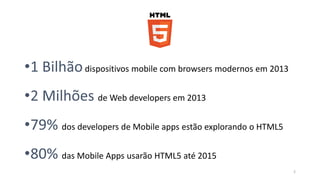
dispositivos mobile com browsers modernos em 2013 
de Web developers em 2013 
dos developers de Mobile apps estão explorando o HTML5 
das Mobile Apps usarão HTML5 até 2015
História 
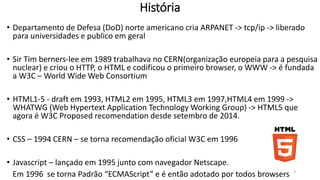
• Departamento de Defesa (DoD) norte americano cria ARPANET -> tcp/ip -> liberado 
para universidades e publico em geral 
• Sir Tim berners-lee em 1989 trabalhava no CERN(organização europeia para a pesquisa 
nuclear) e criou o HTTP, o HTML e codificou o primeiro browser, o WWW -> é fundada 
a W3C – World WideWeb Consortium 
• HTML1-5 - draft em 1993, HTML2 em 1995, HTML3 em 1997,HTML4 em 1999 -> 
WHATWG (Web Hypertext Application Technology Working Group) -> HTML5, 
recomendation desde outubro de 2014. 
• CSS – 1994 CERN – se torna recomendação oficial W3C em 1996 
• Javascript – lançado em 1995 junto com navegador Netscape. 
Em 1996 se torna Padrão “ECMAScript” e é então adotado por todos browsers 3
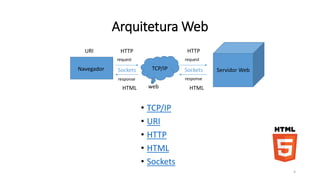
Arquitetura Web 
HTTP HTTP 
Navegador TCP/IP 
Sockets Sockets 
• TCP/IP 
• URI 
• HTTP 
• HTML 
• Sockets 
4 
request request 
response response 
Servidor Web 
web 
HTML HTML 
URI
HTML 
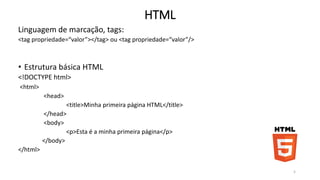
Linguagem de marcação, tags: 
<tag propriedade=“valor”></tag> ou <tag propriedade=“valor”/> 
• Estrutura básica HTML 
<!DOCTYPE html> 
<html> 
<head> 
<title>Minha primeira página HTML</title> 
</head> 
<body> 
<p>Esta é a minha primeira página</p> 
</body> 
</html> 
5
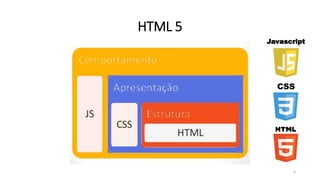
HTML 5 
Javascript 
CSS 
6 
http://www.w3.org/TR/html5/
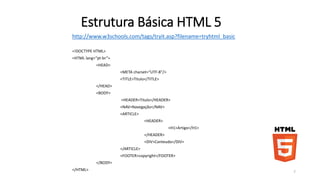
Estrutura Básica HTML 5 
http://www.w3schools.com/tags/tryit.asp?filename=tryhtml_basic 
<!DOCTYPE HTML> 
<HTML lang=“pt-br”> 
<HEAD> 
<META charset=“UTF-8”/> 
<TITLE>Titulo</TITLE> 
</HEAD> 
<BODY> 
<HEADER>Titulo</HEADER> 
<NAV>Navegação</NAV> 
<ARTICLE> 
<HEADER> 
<H1>Artigo</H1> 
</HEADER> 
<DIV>Conteudo</DIV> 
</ARTICLE> 
<FOOTER>copyright</FOOTER> 
</BODY> 
</HTML> 7
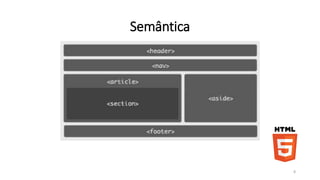
Semântica 
8
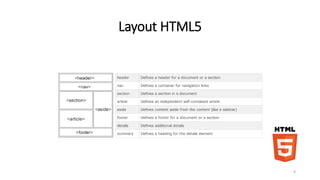
Layout HTML5 
9
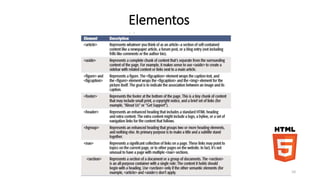
Elementos 
10
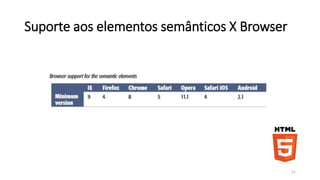
Suporte aos elementos semânticos X Browser 
11
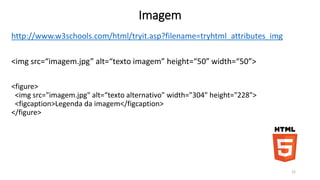
Imagem 
http://www.w3schools.com/html/tryit.asp?filename=tryhtml_attributes_img 
<img src=“imagem.jpg” alt=“texto imagem” height=“50” width=“50”> 
<figure> 
<img src="imagem.jpg" alt=“texto alternativo" width="304" height="228"> 
<figcaption>Legenda da imagem</figcaption> 
</figure> 
12
Âncoras - Links 
http://www.w3schools.com/html/tryit.asp?filename=tryhtml_attributes_link 
<a href="http://www.w3c.org” target=“_self”>World Wide Web Consortium</a> 
• A tag <a> define um hyperlink, que é usado para ligar uma página à outra. 
• O atributo mais importante do elemento <a> é o atributo href, que indica o 
destino do link. 
• Por padrão, links aparecerão da seguinte forma em browsers: 
• Um link não visitado aparece sublinhado e azul 
• Um link visitado é sublinhado e purpura 
• Um link ativo é sublinhado e vermelho 
13
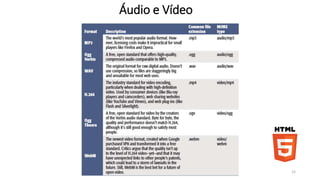
Áudio e Vídeo 
http://www.w3schools.com/tags/tryit.asp?filename=tryhtml5_audio 
• <audio src=“arquivo.mp3” controls autoplay loop></audio> 
<audio controls> 
<source src="arquivo.mp3" type="audio/mp3"> 
<source src="arquivo.ogg" type="audio/ogg"> 
</audio> 
http://www.w3schools.com/tags/tryit.asp?filename=tryhtml5_video 
• <video src=“arquivo.mp4” poster=“imagem.jpg” controls><vídeo> 
<video controls width="700" height="400"> 
<source src=“arquivo.mp4" type="video/mp4"> 
<source src=“arquivo.ogv" type="video/ogg"> 
</video> 
14
Áudio e Vídeo 
15
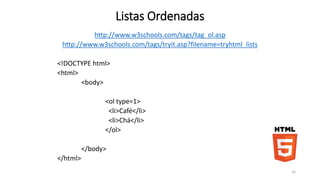
Listas Ordenadas 
http://www.w3schools.com/tags/tag_ol.asp 
http://www.w3schools.com/tags/tryit.asp?filename=tryhtml_lists 
<!DOCTYPE html> 
<html> 
<body> 
<ol type=1> 
<li>Café</li> 
<li>Chá</li> 
</ol> 
</body> 
</html> 
16
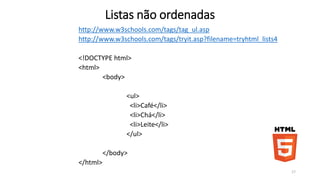
Listas não ordenadas 
http://www.w3schools.com/tags/tag_ul.asp 
http://www.w3schools.com/tags/tryit.asp?filename=tryhtml_lists4 
<!DOCTYPE html> 
<html> 
<body> 
<ul> 
<li>Café</li> 
<li>Chá</li> 
<li>Leite</li> 
</ul> 
</body> 
</html> 
17
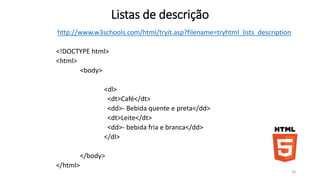
Listas de descrição 
http://www.w3schools.com/html/tryit.asp?filename=tryhtml_lists_description 
<!DOCTYPE html> 
<html> 
<body> 
<dl> 
<dt>Café</dt> 
<dd>- Bebida quente e preta</dd> 
<dt>Leite</dt> 
<dd>- bebida fria e branca</dd> 
</dl> 
</body> 
</html> 
18
Radio Buttons 
• <input type="radio"> define um radio button. Radio buttons 
permitem que o usuário selecione SOMENTE UMA de um numero 
limitado de escolhas: 
<form> 
<input type="radio" name="sex" value="male“ selected>Male<br> 
<input type="radio" name="sex" value="female">Female 
</form> 
19
Checkboxes 
• <input type="checkbox"> define um checkbox. Checkboxes permite o 
usuário selecionar ZERO or MAIS opções de um numero limitado de 
opções. 
<form> 
<input type="checkbox" name="veiculo" value="Bicicleta“ checked> 
Eu tenho uma bicicleta<br> 
<input type="checkbox" name="veiculo" value="Carro">Eu 
tenho um carro 
</form> 
20
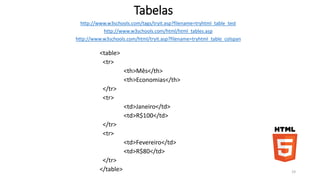
Tabelas 
http://www.w3schools.com/tags/tryit.asp?filename=tryhtml_table_test 
http://www.w3schools.com/html/html_tables.asp 
http://www.w3schools.com/html/tryit.asp?filename=tryhtml_table_colspan 
<table> 
<tr> 
<th>Mês</th> 
<th>Economias</th> 
</tr> 
<tr> 
<td>Janeiro</td> 
<td>R$100</td> 
</tr> 
<tr> 
<td>Fevereiro</td> 
<td>R$80</td> 
</tr> 
</table> 21
CSS3 
22
CSS – Cascading Style Sheets 
Cascading Style Sheets (ou simplesmente CSS) é uma linguagem de 
folhas de estilo utilizada para definir a apresentação de documentos 
escritos em uma linguagem de marcação, como HTML ou XML. Seu 
principal benefício é prover a separação entre o formato e o conteúdo 
de um documento. 
http://pt.wikipedia.org/wiki/Cascading_Style_Sheets 
http://www.w3schools.com/cssref/default.asp 
23
CSS – Cascading Style Sheets 
24 
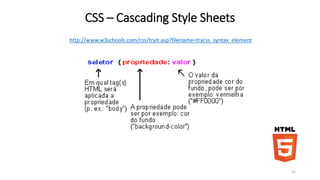
http://www.w3schools.com/css/tryit.asp?filename=trycss_syntax_element
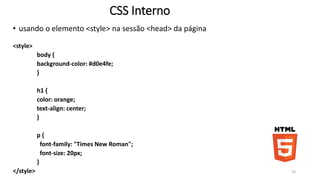
CSS Interno 
• usando o elemento <style> na sessão <head> da página 
<style> 
body { 
background-color: #d0e4fe; 
} 
h1 { 
color: orange; 
text-align: center; 
} 
p { 
font-family: "Times New Roman"; 
font-size: 20px; 
} 
</style> 25
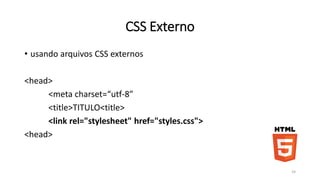
CSS Externo 
• usando arquivos CSS externos 
<head> 
<meta charset=“utf-8” 
<title>TITULO<title> 
<link rel="stylesheet" href="styles.css"> 
<head> 
26
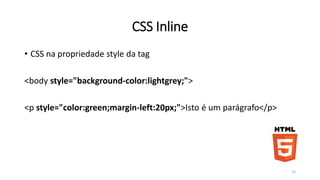
CSS Inline 
• CSS na propriedade style da tag 
<body style="background-color:lightgrey;"> 
<p style="color:green;margin-left:20px;">Isto é um parágrafo</p> 
27
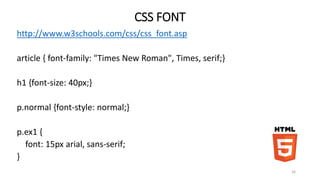
CSS FONT 
http://www.w3schools.com/css/css_font.asp 
article { font-family: "Times New Roman", Times, serif;} 
h1 {font-size: 40px;} 
p.normal {font-style: normal;} 
p.ex1 { 
font: 15px arial, sans-serif; 
} 
28
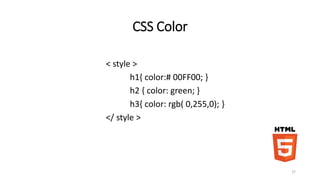
CSS Color 
< style > 
h1{ color: #00FF00; } 
h2 { color: green; } 
h3{ color: rgb( 0,255,0); } 
</ style > 
29
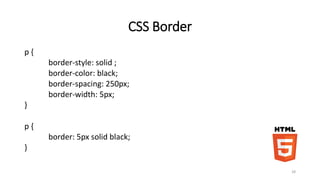
CSS Border 
p { 
border-style: solid ; 
border-color: black; 
border-spacing: 250px; 
border-width: 5px; 
} 
p { 
border: 5px solid black; 
} 
30
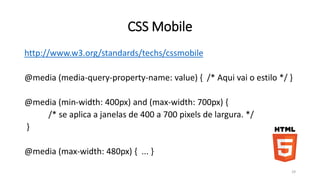
CSS Mobile 
http://www.w3.org/standards/techs/cssmobile 
@media (media-query-property-name: value) { /* Aqui vai o estilo */ } 
@media (min-width: 400px) and (max-width: 700px) { 
/* se aplica a janelas de 400 a 700 pixels de largura. */ 
} 
@media (max-width: 480px) { ... } 
31
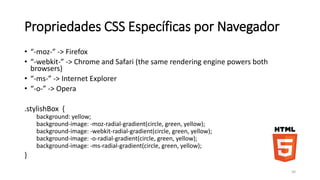
Propriedades CSS Específicas por Navegador 
• “-moz-” -> Firefox 
• “-webkit-” -> Chrome and Safari (the same rendering engine powers both 
browsers) 
• “-ms-” -> Internet Explorer 
• “-o-” -> Opera 
.stylishBox { 
background: yellow; 
background-image: -moz-radial-gradient(circle, green, yellow); 
background-image: -webkit-radial-gradient(circle, green, yellow); 
background-image: -o-radial-gradient(circle, green, yellow); 
background-image: -ms-radial-gradient(circle, green, yellow); 
} 
32
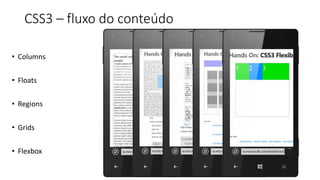
CSS3 – fluxo do conteúdo 
• Columns 
• Floats 
• Regions 
• Grids 
• Flexbox
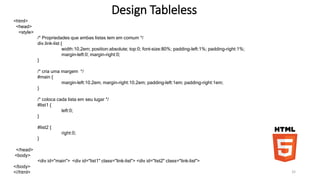
Design Tableless 
<html> 
<head> 
<style> 
/* Propriedades que ambas listas tem em comum */ 
div.link-list { 
width:10.2em; position:absolute; top:0; font-size:80%; padding-left:1%; padding-right:1%; 
margin-left:0; margin-right:0; 
} 
/* cria uma margem */ 
#main { 
margin-left:10.2em; margin-right:10.2em; padding-left:1em; padding-right:1em; 
} 
/* coloca cada lista em seu lugar */ 
#list1 { 
left:0; 
} 
#list2 { 
right:0; 
} 
</head> 
<body> 
<div id="main"> <div id="list1" class="link-list"> <div id="list2" class="link-list"> 
</body> 
<//html> 34
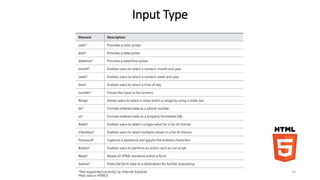
Input Type 
35
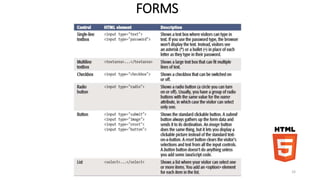
FORMS 
<style> 
input[ required] { border: 1px red solid; } 
<style> 
<FORM name=“Contact” action=“contact.cgi”> 
<FIELDSET> 
<LEGEND>Contato</LEGEND> 
<LABEL for=“nome”>Nome:</LABEL><INPUT id=“nome” required></br> 
<LABEL for=“nome”>Telefone:</LABEL><INPUT id=“telefone” type=“tel” required></br> 
<LABEL for=“email”>Email:</LABEL><INPUT id=“email” type=“email”></br> 
</FIELDSET> 
<INPUT type="submit" value=“Enviar“ > 
</FORM> 
36 
http://www.w3schools.com/html/html_forms.asp 
http://www.w3schools.com/tags/tag_input.asp
FORMS 
37
Atributo Pattern do elemento <INPUT> 
<form action="demo_form.asp"> 
Country code: <input type="text" name="country_code" 
pattern="[A-Za-z]{3}" title="Three letter country code“ required> 
<input type="submit"> 
</form> 
38 
http://www.w3schools.com/tags/att_input_pattern.asp
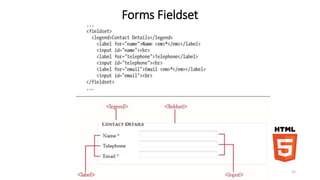
Forms Fieldset 
39
Submissão de Form 
• <input type="submit"> define um botão de submissão de form. 
• Um botão de submissão é usado para mandar dados a um servidor. O 
dado é mandado para a pagina especificada no atributo action do form 
usando o método especificado no atributo method. 
<form name="input" action="demo_form_action.asp" method=“POST"> 
Username: <input type="text" name="user"> 
<input type="submit" value="Submit"> 
</form> 
40
JavaScript 
http://www.w3schools.com/js/js_intro.asp 
41
http://bit.ly/1uJkIVq 
42

Aula html5

  • 1.
    HTML5 - Prof.Rodrigo Gidra 1
  • 2.
    2 dispositivos mobilecom browsers modernos em 2013 de Web developers em 2013 dos developers de Mobile apps estão explorando o HTML5 das Mobile Apps usarão HTML5 até 2015
  • 3.
    História • Departamentode Defesa (DoD) norte americano cria ARPANET -> tcp/ip -> liberado para universidades e publico em geral • Sir Tim berners-lee em 1989 trabalhava no CERN(organização europeia para a pesquisa nuclear) e criou o HTTP, o HTML e codificou o primeiro browser, o WWW -> é fundada a W3C – World WideWeb Consortium • HTML1-5 - draft em 1993, HTML2 em 1995, HTML3 em 1997,HTML4 em 1999 -> WHATWG (Web Hypertext Application Technology Working Group) -> HTML5, recomendation desde outubro de 2014. • CSS – 1994 CERN – se torna recomendação oficial W3C em 1996 • Javascript – lançado em 1995 junto com navegador Netscape. Em 1996 se torna Padrão “ECMAScript” e é então adotado por todos browsers 3
  • 4.
    Arquitetura Web HTTPHTTP Navegador TCP/IP Sockets Sockets • TCP/IP • URI • HTTP • HTML • Sockets 4 request request response response Servidor Web web HTML HTML URI
  • 5.
    HTML Linguagem demarcação, tags: <tag propriedade=“valor”></tag> ou <tag propriedade=“valor”/> • Estrutura básica HTML <!DOCTYPE html> <html> <head> <title>Minha primeira página HTML</title> </head> <body> <p>Esta é a minha primeira página</p> </body> </html> 5
  • 6.
    HTML 5 Javascript CSS 6 http://www.w3.org/TR/html5/
  • 7.
    Estrutura Básica HTML5 http://www.w3schools.com/tags/tryit.asp?filename=tryhtml_basic <!DOCTYPE HTML> <HTML lang=“pt-br”> <HEAD> <META charset=“UTF-8”/> <TITLE>Titulo</TITLE> </HEAD> <BODY> <HEADER>Titulo</HEADER> <NAV>Navegação</NAV> <ARTICLE> <HEADER> <H1>Artigo</H1> </HEADER> <DIV>Conteudo</DIV> </ARTICLE> <FOOTER>copyright</FOOTER> </BODY> </HTML> 7
  • 8.
  • 9.
  • 10.
  • 11.
    Suporte aos elementossemânticos X Browser 11
  • 12.
    Imagem http://www.w3schools.com/html/tryit.asp?filename=tryhtml_attributes_img <imgsrc=“imagem.jpg” alt=“texto imagem” height=“50” width=“50”> <figure> <img src="imagem.jpg" alt=“texto alternativo" width="304" height="228"> <figcaption>Legenda da imagem</figcaption> </figure> 12
  • 13.
    Âncoras - Links http://www.w3schools.com/html/tryit.asp?filename=tryhtml_attributes_link <a href="http://www.w3c.org” target=“_self”>World Wide Web Consortium</a> • A tag <a> define um hyperlink, que é usado para ligar uma página à outra. • O atributo mais importante do elemento <a> é o atributo href, que indica o destino do link. • Por padrão, links aparecerão da seguinte forma em browsers: • Um link não visitado aparece sublinhado e azul • Um link visitado é sublinhado e purpura • Um link ativo é sublinhado e vermelho 13
  • 14.
    Áudio e Vídeo http://www.w3schools.com/tags/tryit.asp?filename=tryhtml5_audio • <audio src=“arquivo.mp3” controls autoplay loop></audio> <audio controls> <source src="arquivo.mp3" type="audio/mp3"> <source src="arquivo.ogg" type="audio/ogg"> </audio> http://www.w3schools.com/tags/tryit.asp?filename=tryhtml5_video • <video src=“arquivo.mp4” poster=“imagem.jpg” controls><vídeo> <video controls width="700" height="400"> <source src=“arquivo.mp4" type="video/mp4"> <source src=“arquivo.ogv" type="video/ogg"> </video> 14
  • 15.
  • 16.
    Listas Ordenadas http://www.w3schools.com/tags/tag_ol.asp http://www.w3schools.com/tags/tryit.asp?filename=tryhtml_lists <!DOCTYPE html> <html> <body> <ol type=1> <li>Café</li> <li>Chá</li> </ol> </body> </html> 16
  • 17.
    Listas não ordenadas http://www.w3schools.com/tags/tag_ul.asp http://www.w3schools.com/tags/tryit.asp?filename=tryhtml_lists4 <!DOCTYPE html> <html> <body> <ul> <li>Café</li> <li>Chá</li> <li>Leite</li> </ul> </body> </html> 17
  • 18.
    Listas de descrição http://www.w3schools.com/html/tryit.asp?filename=tryhtml_lists_description <!DOCTYPE html> <html> <body> <dl> <dt>Café</dt> <dd>- Bebida quente e preta</dd> <dt>Leite</dt> <dd>- bebida fria e branca</dd> </dl> </body> </html> 18
  • 19.
    Radio Buttons •<input type="radio"> define um radio button. Radio buttons permitem que o usuário selecione SOMENTE UMA de um numero limitado de escolhas: <form> <input type="radio" name="sex" value="male“ selected>Male<br> <input type="radio" name="sex" value="female">Female </form> 19
  • 20.
    Checkboxes • <inputtype="checkbox"> define um checkbox. Checkboxes permite o usuário selecionar ZERO or MAIS opções de um numero limitado de opções. <form> <input type="checkbox" name="veiculo" value="Bicicleta“ checked> Eu tenho uma bicicleta<br> <input type="checkbox" name="veiculo" value="Carro">Eu tenho um carro </form> 20
  • 21.
    Tabelas http://www.w3schools.com/tags/tryit.asp?filename=tryhtml_table_test http://www.w3schools.com/html/html_tables.asp http://www.w3schools.com/html/tryit.asp?filename=tryhtml_table_colspan <table> <tr> <th>Mês</th> <th>Economias</th> </tr> <tr> <td>Janeiro</td> <td>R$100</td> </tr> <tr> <td>Fevereiro</td> <td>R$80</td> </tr> </table> 21
  • 22.
  • 23.
    CSS – CascadingStyle Sheets Cascading Style Sheets (ou simplesmente CSS) é uma linguagem de folhas de estilo utilizada para definir a apresentação de documentos escritos em uma linguagem de marcação, como HTML ou XML. Seu principal benefício é prover a separação entre o formato e o conteúdo de um documento. http://pt.wikipedia.org/wiki/Cascading_Style_Sheets http://www.w3schools.com/cssref/default.asp 23
  • 24.
    CSS – CascadingStyle Sheets 24 http://www.w3schools.com/css/tryit.asp?filename=trycss_syntax_element
  • 25.
    CSS Interno •usando o elemento <style> na sessão <head> da página <style> body { background-color: #d0e4fe; } h1 { color: orange; text-align: center; } p { font-family: "Times New Roman"; font-size: 20px; } </style> 25
  • 26.
    CSS Externo •usando arquivos CSS externos <head> <meta charset=“utf-8” <title>TITULO<title> <link rel="stylesheet" href="styles.css"> <head> 26
  • 27.
    CSS Inline •CSS na propriedade style da tag <body style="background-color:lightgrey;"> <p style="color:green;margin-left:20px;">Isto é um parágrafo</p> 27
  • 28.
    CSS FONT http://www.w3schools.com/css/css_font.asp article { font-family: "Times New Roman", Times, serif;} h1 {font-size: 40px;} p.normal {font-style: normal;} p.ex1 { font: 15px arial, sans-serif; } 28
  • 29.
    CSS Color <style > h1{ color: #00FF00; } h2 { color: green; } h3{ color: rgb( 0,255,0); } </ style > 29
  • 30.
    CSS Border p{ border-style: solid ; border-color: black; border-spacing: 250px; border-width: 5px; } p { border: 5px solid black; } 30
  • 31.
    CSS Mobile http://www.w3.org/standards/techs/cssmobile @media (media-query-property-name: value) { /* Aqui vai o estilo */ } @media (min-width: 400px) and (max-width: 700px) { /* se aplica a janelas de 400 a 700 pixels de largura. */ } @media (max-width: 480px) { ... } 31
  • 32.
    Propriedades CSS Específicaspor Navegador • “-moz-” -> Firefox • “-webkit-” -> Chrome and Safari (the same rendering engine powers both browsers) • “-ms-” -> Internet Explorer • “-o-” -> Opera .stylishBox { background: yellow; background-image: -moz-radial-gradient(circle, green, yellow); background-image: -webkit-radial-gradient(circle, green, yellow); background-image: -o-radial-gradient(circle, green, yellow); background-image: -ms-radial-gradient(circle, green, yellow); } 32
  • 33.
    CSS3 – fluxodo conteúdo • Columns • Floats • Regions • Grids • Flexbox
  • 34.
    Design Tableless <html> <head> <style> /* Propriedades que ambas listas tem em comum */ div.link-list { width:10.2em; position:absolute; top:0; font-size:80%; padding-left:1%; padding-right:1%; margin-left:0; margin-right:0; } /* cria uma margem */ #main { margin-left:10.2em; margin-right:10.2em; padding-left:1em; padding-right:1em; } /* coloca cada lista em seu lugar */ #list1 { left:0; } #list2 { right:0; } </head> <body> <div id="main"> <div id="list1" class="link-list"> <div id="list2" class="link-list"> </body> <//html> 34
  • 35.
  • 36.
    FORMS <style> input[required] { border: 1px red solid; } <style> <FORM name=“Contact” action=“contact.cgi”> <FIELDSET> <LEGEND>Contato</LEGEND> <LABEL for=“nome”>Nome:</LABEL><INPUT id=“nome” required></br> <LABEL for=“nome”>Telefone:</LABEL><INPUT id=“telefone” type=“tel” required></br> <LABEL for=“email”>Email:</LABEL><INPUT id=“email” type=“email”></br> </FIELDSET> <INPUT type="submit" value=“Enviar“ > </FORM> 36 http://www.w3schools.com/html/html_forms.asp http://www.w3schools.com/tags/tag_input.asp
  • 37.
  • 38.
    Atributo Pattern doelemento <INPUT> <form action="demo_form.asp"> Country code: <input type="text" name="country_code" pattern="[A-Za-z]{3}" title="Three letter country code“ required> <input type="submit"> </form> 38 http://www.w3schools.com/tags/att_input_pattern.asp
  • 39.
  • 40.
    Submissão de Form • <input type="submit"> define um botão de submissão de form. • Um botão de submissão é usado para mandar dados a um servidor. O dado é mandado para a pagina especificada no atributo action do form usando o método especificado no atributo method. <form name="input" action="demo_form_action.asp" method=“POST"> Username: <input type="text" name="user"> <input type="submit" value="Submit"> </form> 40
  • 41.
  • 42.