JAVASCRIPT
ÍNDICE
ÍNDICE .......................................................................................................................................... 2
INTRODUÇÃO .............................................................................................................................. 3
    A série............................................................................................................. 3
01 – CICLO DE BANNERS .......................................................................................................... 4
02 – ROLANDO UMAJANELA..................................................................................................... 5
03 – PAINEL DE MENUS ............................................................................................................. 7
04 – INTERLIGANDO CAMPOS DE FORMULÁRIOS ................................................................ 9
05 – CALENDÁRIO .................................................................................................................... 12
06 – DUPLO CLICK .................................................................................................................... 15
07 – MENUS SUSPENSOS ........................................................................................................ 16
08 – MENU DESLIZANTE .......................................................................................................... 19
9 – JANELAS DROPDOW COM DREAMWEAVER .................................................................. 21
10 – MENUS SUSPENSOS COM FIREWORKS ....................................................................... 24
CONCLUSÃO ............................................................................................................................. 34


                                                                                                                                                2
INTRODUÇÃO
Atualmente é muito comum encontrar material que ensine a utilizar um software
em seu computador, basta apenas dedicação e você passa a conhecer sua
interface, seus botões e menus.
Alguns materiais como os do Apostilando.com “casam” a explicação com
exemplos reais. Mas para quem está começando muitas vezes isso é
insuficiente.
Então nós do Apostilando.com, criamos uma série chamada TRUQUES
MÁGICOS. A composição da série será de apostilas para você que já baixou
nossas apostilas e precisa exercitar a criatividade.
Cada material da série trará dentro de um determinado software dicas e
exemplos de uso do software, reforçando assim seu aprendizado sobre ele e
despertando sua criatividade. Obrigado e tenha um bom curso.

A série
A série em sua primeira edição abordará exemplos para os seguintes
softwares:
    Adobe Photoshop;
    Adobe Flash
    Adobe Dreamweaver
    PHP
    Microsoft Word
    Microsoft Excel
    Adobe Photoshop WEB
    Corel Draw
    HTML & CSS
    Javascript
    Fireworks
    Excel Avançado


                                                                           3
01 – CICLO DE BANNERS
Quando se navega na WEB, é comum ver banners de publicidade que
alternam periodicamente entre imagens. Com JavaScript podemos criar um
ciclo de banners.
Observe o código.


<!DOCTYPE html PUBLIC "-//W3C//DTD XHTML 1.0 Transitional//EN"
"http://www.w3.org/TR/xhtml1/DTD/xhtml1-transitional.dtd">
<html xmlns="http://www.w3.org/1999/xhtml">
<head>
<meta http-equiv="Content-Type" content="text/html; charset=utf-8" />
<title>Ciclo de Banners</title>
<script language="javascript" type="text/javascript">
      //definindo as imagens para os banners
      adImages                       =          new                Array
("imagens/banner01.gif","imagens/banner02.gif","imagens/banner03.gif")
      //definindo os endereços dos links
      adURL                      =             new                 Array
("apostilando.com","multimidiaearte.com","adobe.com.br")
      thisAd = 0
      imgCt = adImages.length


      function rotate(){
             if (document.images){
             thisAd++
             if (thisAd == imgCt){
                    thisAd = 0
             }
             document.adBanner.src=adImages[thisAd]
             setTimeout("rotate()",3*1000)
             }
      }


                                                                        4
function newLocation(){
              document.location.href = "http://www."+adURL[thisAd]
         }
</script>
</head>


<body onload="rotate()">
<div align="center">
<a href="javascript:newLocation()">
<img         src="imagens/banner01.gif"    width="400"      height="150"
name="adBanner" alt="Ad Banner" /></a>s
</div>
</body>
</html>


02 – ROLANDO UMAJANELA
Ao abrir uma nova janela podemos definir que a mesma role até uma
determinada área. Vamos montar o script.
Primeiro crie o arquivo conteudo.html


                                                                      5
<!DOCTYPE html PUBLIC "-//W3C//DTD XHTML 1.0 Transitional//EN"
"http://www.w3.org/TR/xhtml1/DTD/xhtml1-transitional.dtd">
<html xmlns="http://www.w3.org/1999/xhtml">
<head>
<meta http-equiv="Content-Type" content="text/html; charset=utf-8" />
<title>Documento sem título</title>
</head>


<body>
<img src="imagens/lgo01.gif" width="100" height="140" vspace="10"
/><br />
<img src="imagens/lgo02.gif" width="100" height="140" vspace="10"
/><br/>
<img src="imagens/lgo03.gif" width="100" height="140" vspace="10"
/><br/>
</body>
</html>


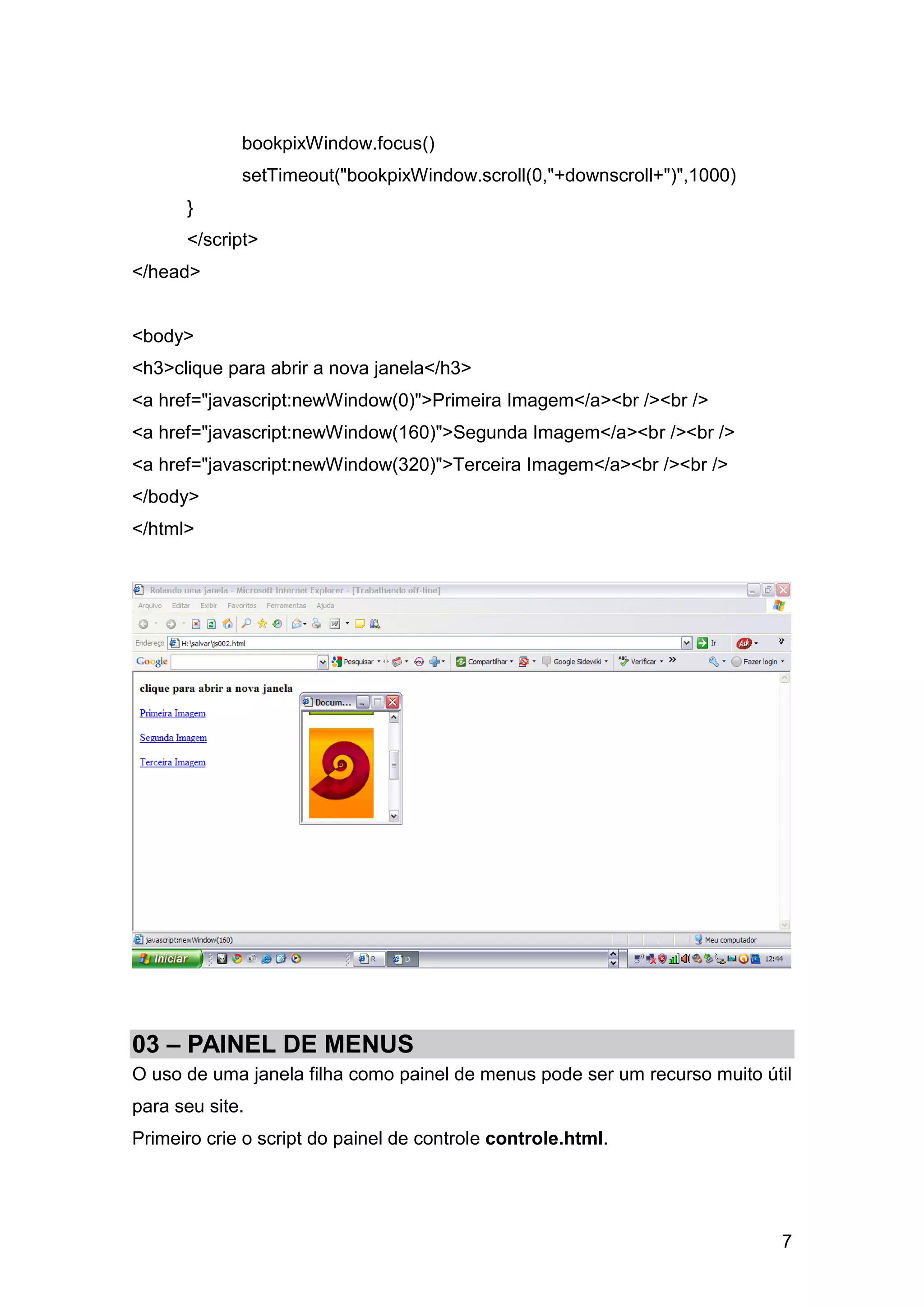
Agora vamos montar o script que gera uma nova janela e role a mesma de
acordo com o link para cada imagem.
O código fica da seguinte forma:
<!DOCTYPE html PUBLIC "-//W3C//DTD XHTML 1.0 Transitional//EN"
"http://www.w3.org/TR/xhtml1/DTD/xhtml1-transitional.dtd">
<html xmlns="http://www.w3.org/1999/xhtml">
<head>
<meta http-equiv="Content-Type" content="text/html; charset=utf-8" />
<title>Rolando uma janela</title>
<script language="javascript" type="text/javascript">
      function newWindow(downscroll){
             bookpixWindow                                                  =
window.open("conteudo.html","bookpixWin","width=150,               height=170,
scrollbars=yes")


                                                                            6
bookpixWindow.focus()
             setTimeout("bookpixWindow.scroll(0,"+downscroll+")",1000)
      }
      </script>
</head>


<body>
<h3>clique para abrir a nova janela</h3>
<a href="javascript:newWindow(0)">Primeira Imagem</a><br /><br />
<a href="javascript:newWindow(160)">Segunda Imagem</a><br /><br />
<a href="javascript:newWindow(320)">Terceira Imagem</a><br /><br />
</body>
</html>


03 – PAINEL DE MENUS
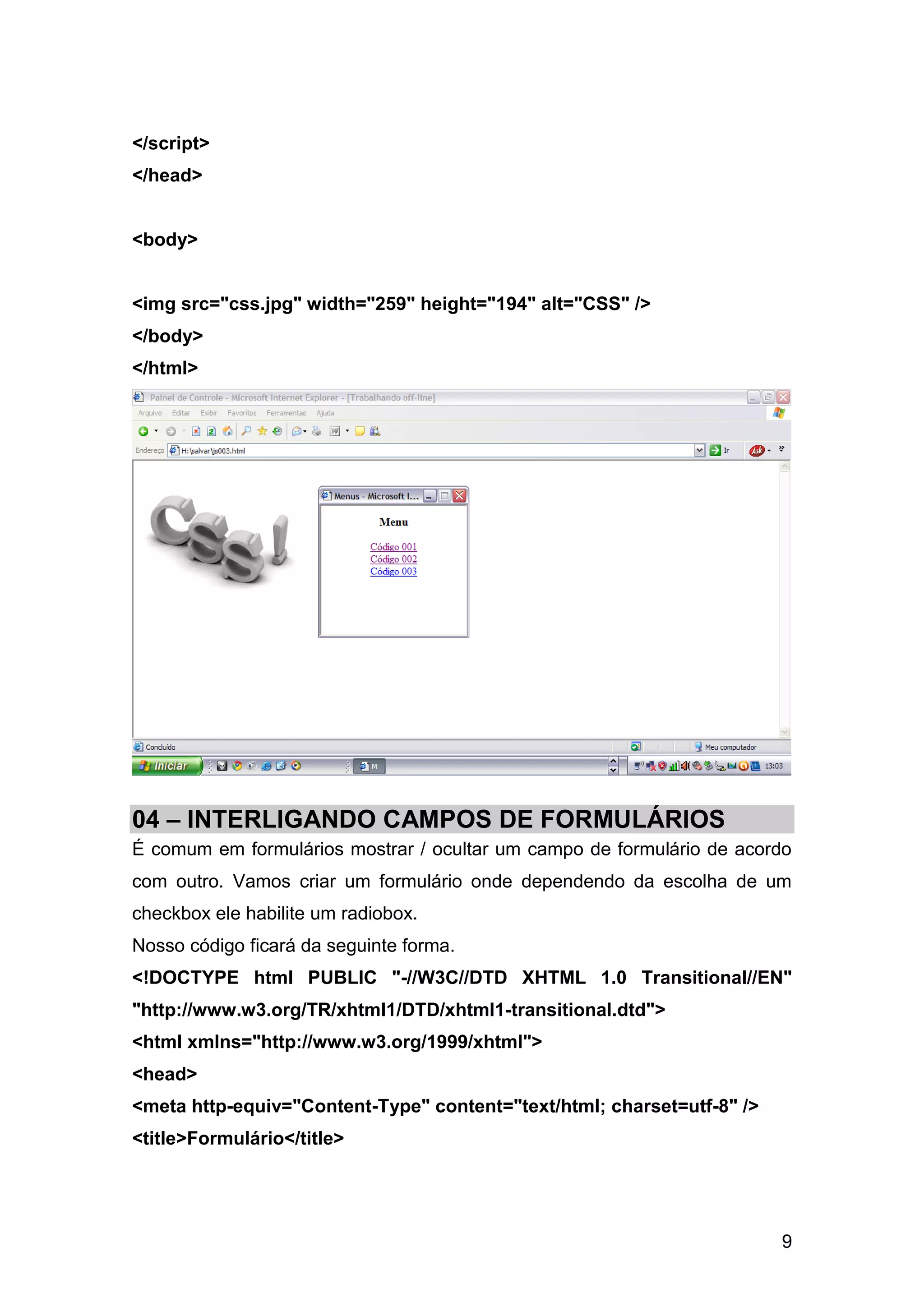
O uso de uma janela filha como painel de menus pode ser um recurso muito útil
para seu site.
Primeiro crie o script do painel de controle controle.html.


                                                                           7
<!DOCTYPE html PUBLIC "-//W3C//DTD XHTML 1.0 Transitional//EN"
"http://www.w3.org/TR/xhtml1/DTD/xhtml1-transitional.dtd">
<html xmlns="http://www.w3.org/1999/xhtml">
<head>
<meta http-equiv="Content-Type" content="text/html; charset=utf-8" />
<title>Menus</title>
<script language="javascript" type="text/javascript">
         function updateParent(newURL){
              opener.document.location = newURL
         }
</script>
</head>


<body>
<div align="center">
<h3> Menu</h3>
<a href="javascript:updateParent('js001.html')">Código 001</a><br/>
<a href="javascript:updateParent('js002.html')">Código 002</a><br/>
<a href="javascript:updateParent('js003.html')">Código 003</a><br/>
</div>
</body>
</html>
Crie agora o código da página inicial que abre o painel de menus.
<!DOCTYPE html PUBLIC "-//W3C//DTD XHTML 1.0 Transitional//EN"
"http://www.w3.org/TR/xhtml1/DTD/xhtml1-transitional.dtd">
<html xmlns="http://www.w3.org/1999/xhtml">
<head>
<meta http-equiv="Content-Type" content="text/html; charset=utf-8" />
<title>Painel de Controle</title>
<script language="javascript" type="text/javascript">
         newWindow = window.open("controle.html","newWin","width=225,
height=200")


                                                                        8
</script>
</head>


<body>


<img src="css.jpg" width="259" height="194" alt="CSS" />
</body>
</html>


04 – INTERLIGANDO CAMPOS DE FORMULÁRIOS
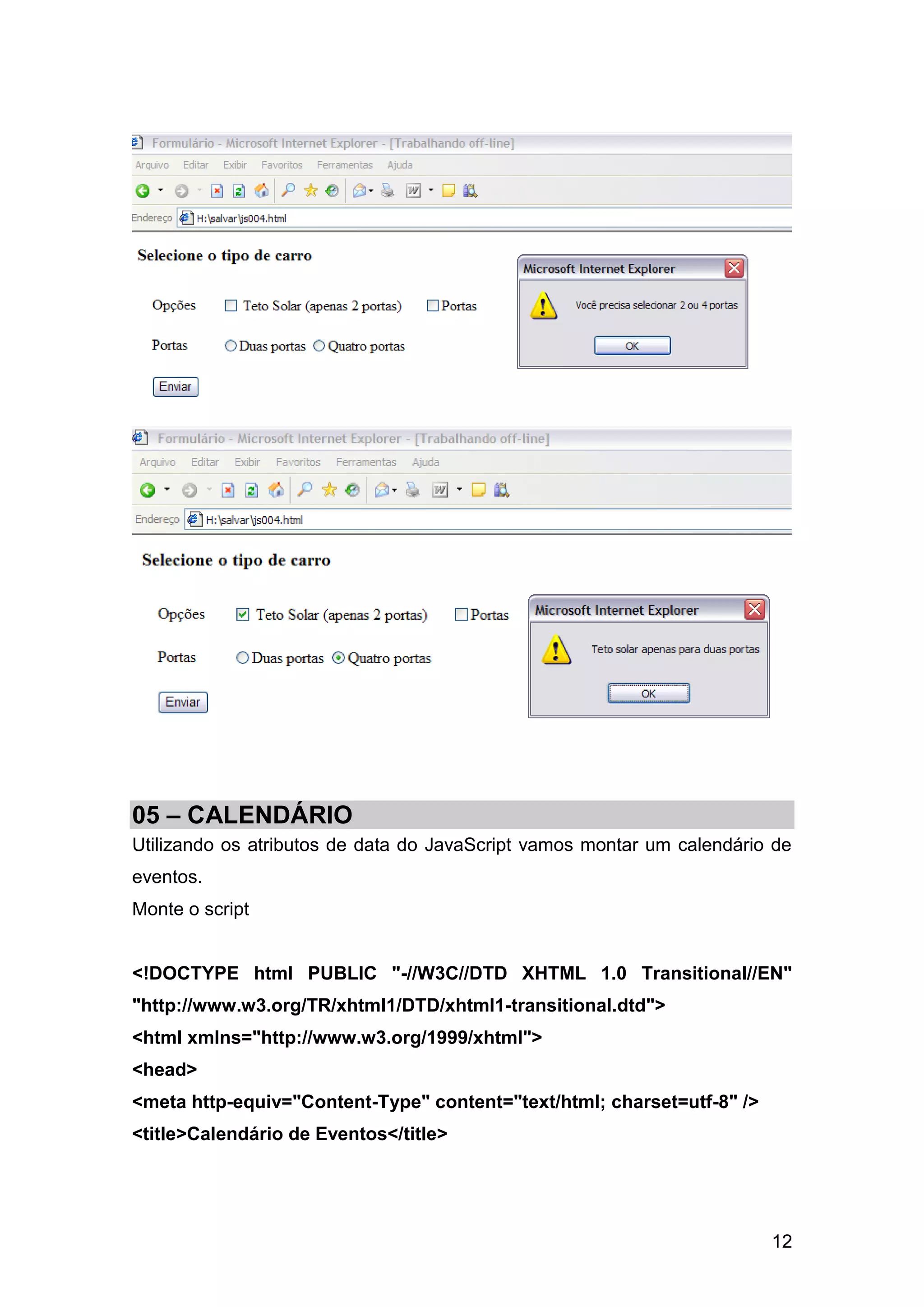
É comum em formulários mostrar / ocultar um campo de formulário de acordo
com outro. Vamos criar um formulário onde dependendo da escolha de um
checkbox ele habilite um radiobox.
Nosso código ficará da seguinte forma.
<!DOCTYPE html PUBLIC "-//W3C//DTD XHTML 1.0 Transitional//EN"
"http://www.w3.org/TR/xhtml1/DTD/xhtml1-transitional.dtd">
<html xmlns="http://www.w3.org/1999/xhtml">
<head>
<meta http-equiv="Content-Type" content="text/html; charset=utf-8" />
<title>Formulário</title>


                                                                        9
<script language="javascript" type="text/javascript">
      function submitIt(carForm){
            doorOption = -1
            for (i=0; i<carForm.DoorCt.length;i++){
                  if(carForm.DoorCt[i].checked){
                           doorOption= i
                  }
            }
            if(doorOption == -1){
                  alert("Você precisa selecionar 2 ou 4 portas")
                  return false
            }
            if(carForm.DoorCt[doorOption].value=="fourDoor"         &&
carForm.sunroof.checked){
                  alert("Teto solar apenas para duas portas")
                  return false
            }
            return false
      }
      function doorSet(sunroofField){
            if(sunroofField.checked){
                  for (i=0; i<document.myForm.DoorCt.length;i++){
                           if
(document.myForm.DoorCt[i].value=="twoDoor"){
                                 document.myForm.DoorCt[i].checked=true
                           }
                  }
            }
      }


</script>


                                                                     10
</head>


<body>
<h3> Selecione o tipo de carro</h3>
<form        onsubmit="return       submitIt(this)"    action="envia.php"
name="myForm">
<table border="0" cellspacing="8" cellpadding="8">
<tr>
<td>Opções</td>
<td><input        type="checkbox"       name="sunroof"         value="yes"
onclick="doorSet(this)" /> Teto Solar (apenas 2 portas)</td>
<td><input type="checkbox" name="psteering" value="yes" />Portas</td>
</tr>
<tr>
<td>Portas</td>
<td colspan="2">
<input type="radio" value="twoDoor" name="DoorCt" />Duas portas
<input type="radio" value="fourDoor" name="DoorCt" />Quatro portas
</td>
</tr>
<tr>
<td><input type="submit" value="Enviar" />
</body>
</html>


                                                                       11
05 – CALENDÁRIO
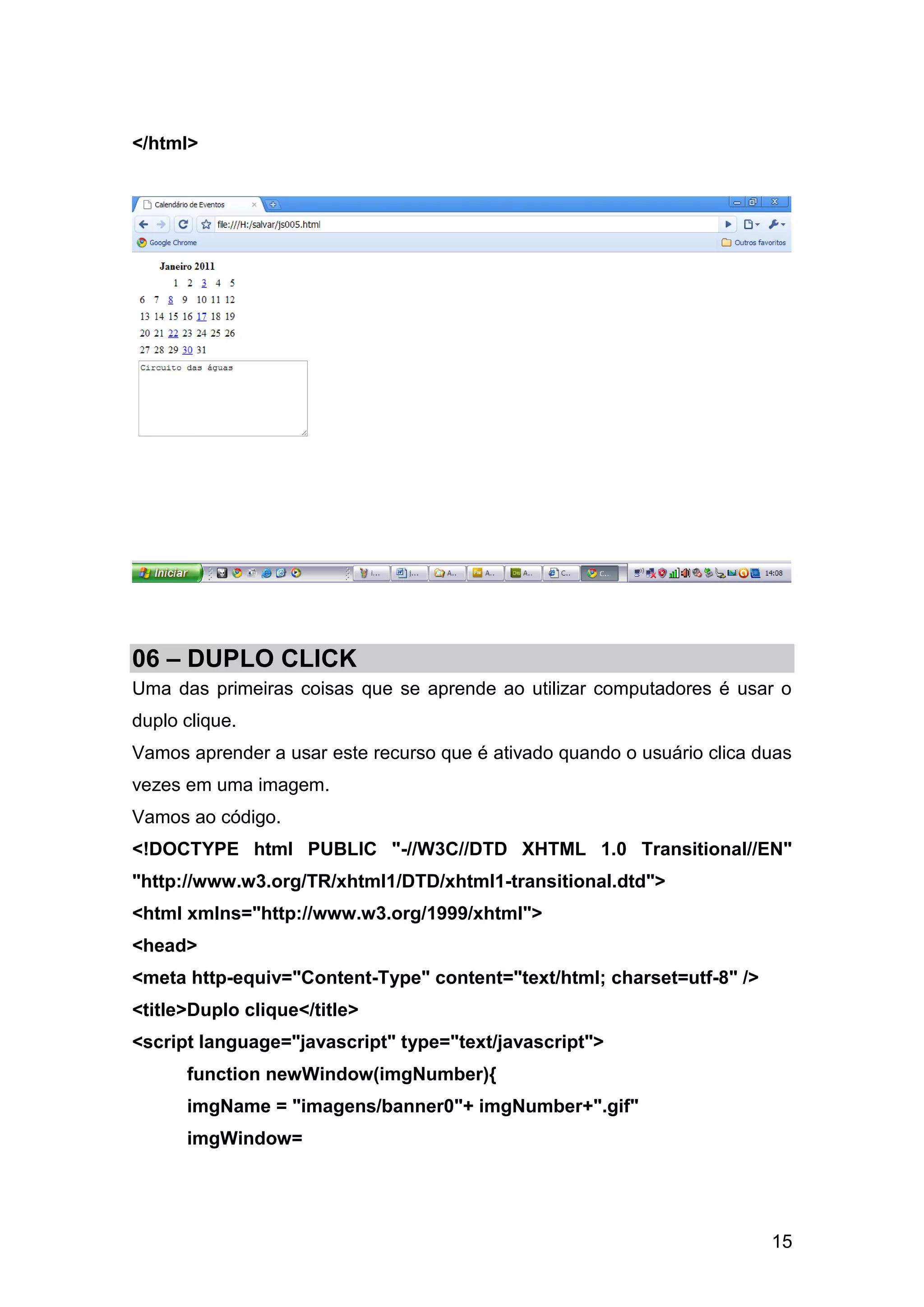
Utilizando os atributos de data do JavaScript vamos montar um calendário de
eventos.
Monte o script


<!DOCTYPE html PUBLIC "-//W3C//DTD XHTML 1.0 Transitional//EN"
"http://www.w3.org/TR/xhtml1/DTD/xhtml1-transitional.dtd">
<html xmlns="http://www.w3.org/1999/xhtml">
<head>
<meta http-equiv="Content-Type" content="text/html; charset=utf-8" />
<title>Calendário de Eventos</title>


                                                                        12
<script language="javascript" type="application/javascript">
        dayInfo = new Array
        dayInfo[3] = "Inicio das atividades"
        dayInfo[8] = "Circuito das águas"
        dayInfo[17] = "Corrida rustica"
        dayInfo[22] = "Caminhada"
        dayInfo[30] = "Passeio infantil"
        function showInfo(thisDay){
              document.calendar.dateInfo.value=dayInfo[thisDay]
        }
</script>


</head>


<body>
<table cellpadding="2" cellspacing="2">
<tr>
<th colspan="7">Janeiro 2011</th>
<td rowspan="6">&nbsp;&nbsp;&nbsp;</td>
</tr>
<tr align="right">
<td colspan="3">1</td>
<td>2</td>
<td><a href="javascript:showInfo(3)">3</a></td>
<td>4</td>
<td>5</td>
</tr><tr>
<td>6</td>
<td >7</td>
<td><a href="javascript:showInfo(8)">8</a></td>
<td >9</td>
<td>10</td>


                                                                  13
<td>11</td>
<td>12</td>
</tr><tr>
<td>13</td>
<td>14</td>
<td>15</td>
<td>16</td>
<td><a href="javascript:showInfo(17)">17</a></td>
<td>18</td>
<td>19</td>
</tr><tr>
<td >20</td>
<td >21</td>
<td><a href="javascript:showInfo(22)">22</a></td>
<td>23</td>
<td>24</td>
<td>25</td>
<td>26</td>
</tr><tr>
<td>27</td>
<td>28</td>
<td>29</td>
<td><a href="javascript:showInfo(30)">30</a></td>
<td colspan="3">31</td>
</tr>
</table>
<form name="calendar">
<textarea rows="7" cols="30" name="dateInfo" readonly wrap>
Selecione o dia da semana
</textarea>
</form>
</body>


                                                              14
</html>


06 – DUPLO CLICK
Uma das primeiras coisas que se aprende ao utilizar computadores é usar o
duplo clique.
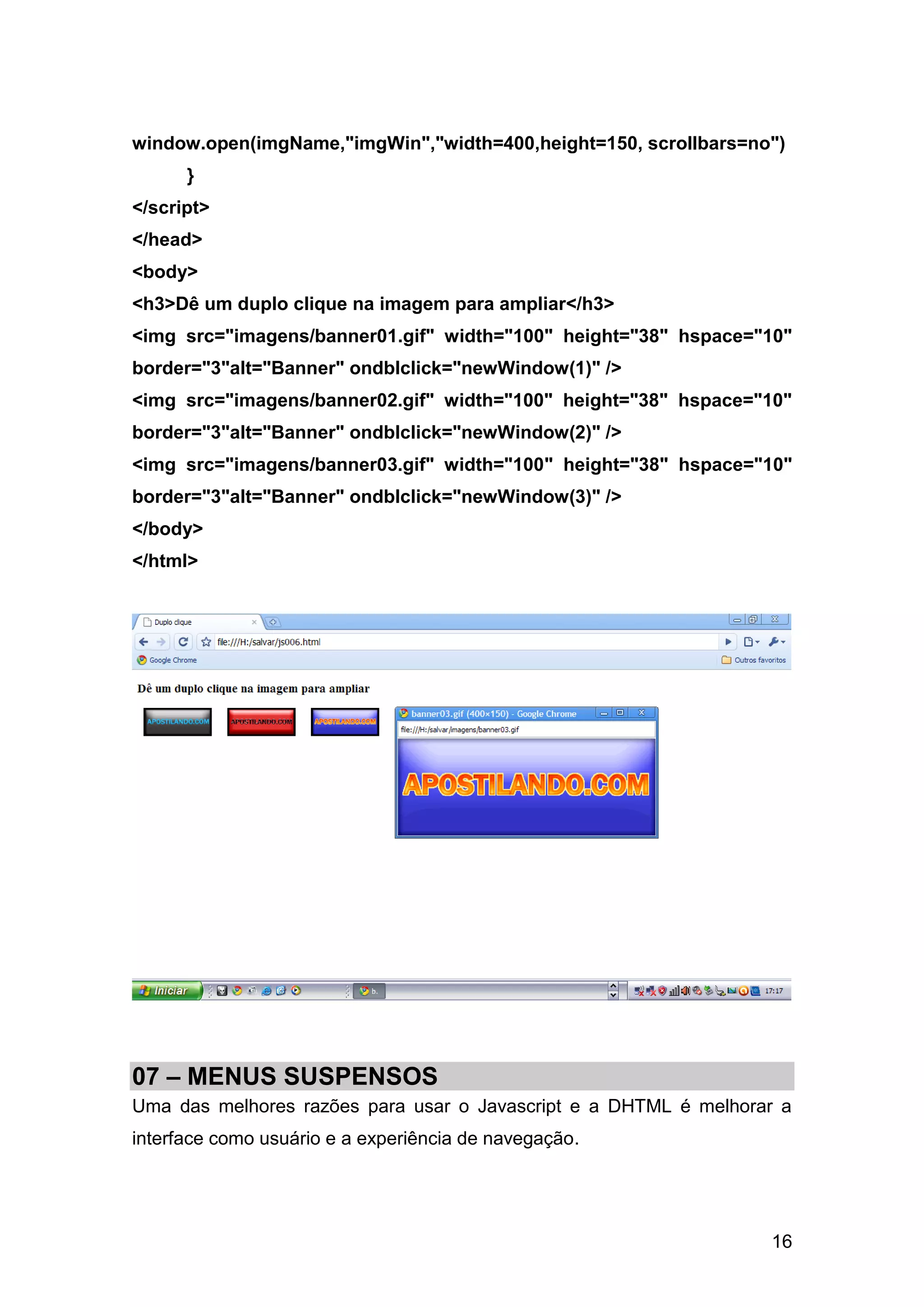
Vamos aprender a usar este recurso que é ativado quando o usuário clica duas
vezes em uma imagem.
Vamos ao código.
<!DOCTYPE html PUBLIC "-//W3C//DTD XHTML 1.0 Transitional//EN"
"http://www.w3.org/TR/xhtml1/DTD/xhtml1-transitional.dtd">
<html xmlns="http://www.w3.org/1999/xhtml">
<head>
<meta http-equiv="Content-Type" content="text/html; charset=utf-8" />
<title>Duplo clique</title>
<script language="javascript" type="text/javascript">
      function newWindow(imgNumber){
      imgName = "imagens/banner0"+ imgNumber+".gif"
      imgWindow=


                                                                         15
window.open(imgName,"imgWin","width=400,height=150, scrollbars=no")
      }
</script>
</head>
<body>
<h3>Dê um duplo clique na imagem para ampliar</h3>
<img src="imagens/banner01.gif" width="100" height="38" hspace="10"
border="3"alt="Banner" ondblclick="newWindow(1)" />
<img src="imagens/banner02.gif" width="100" height="38" hspace="10"
border="3"alt="Banner" ondblclick="newWindow(2)" />
<img src="imagens/banner03.gif" width="100" height="38" hspace="10"
border="3"alt="Banner" ondblclick="newWindow(3)" />
</body>
</html>


07 – MENUS SUSPENSOS
Uma das melhores razões para usar o Javascript e a DHTML é melhorar a
interface como usuário e a experiência de navegação.


                                                                  16
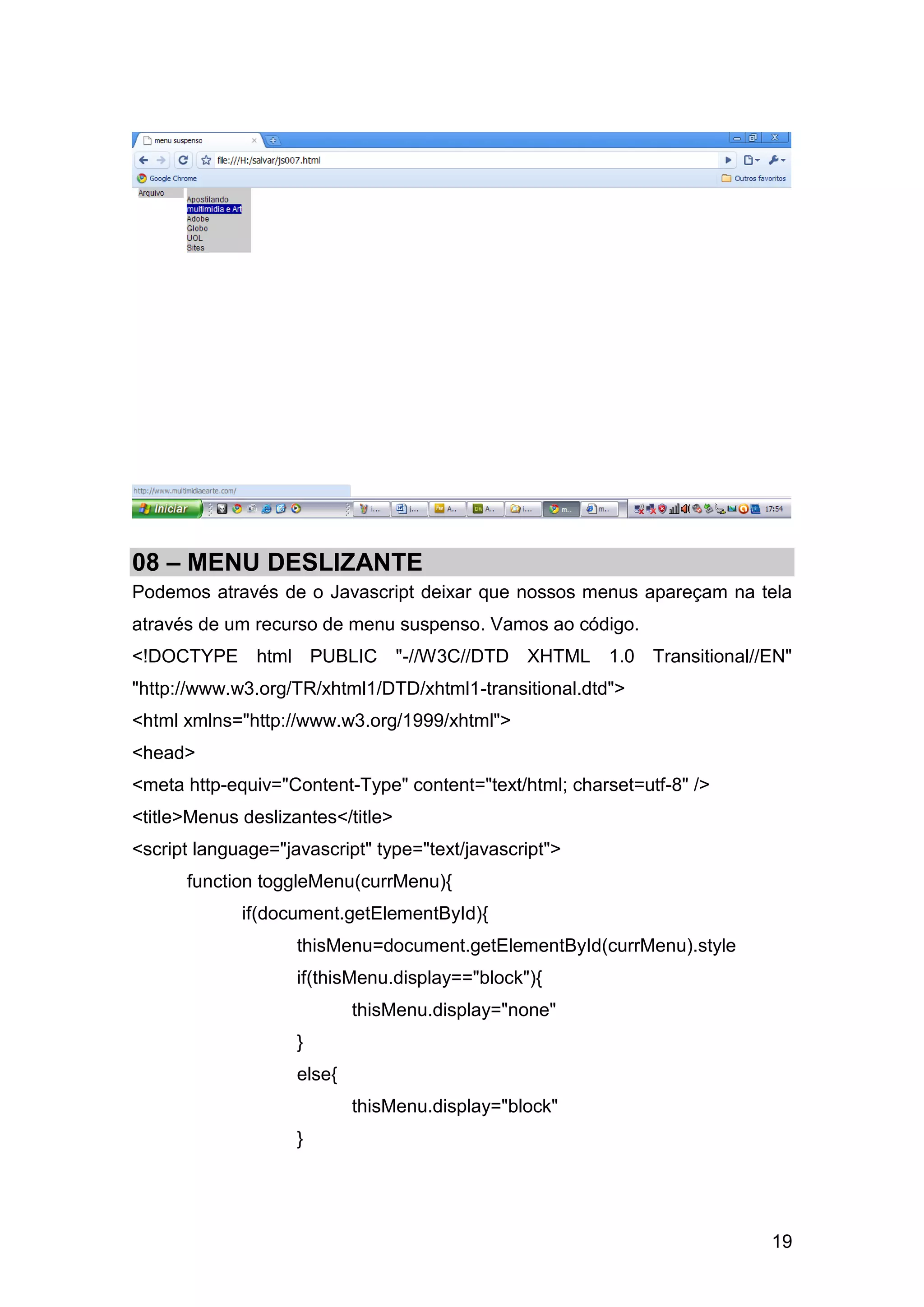
Vamos criar um exemplo de menu suspenso.
<!DOCTYPE html PUBLIC "-//W3C//DTD XHTML 1.0 Transitional//EN"
"http://www.w3.org/TR/xhtml1/DTD/xhtml1-transitional.dtd">
<html xmlns="http://www.w3.org/1999/xhtml">
<head>
<meta http-equiv="Content-Type" content="text/html; charset=utf-8" />
<title>menu suspenso</title>
<script language="javascript" type="text/javascript">
        stdBrowser = (document.getElementById)?true: false
        function toggleMenu(currElem,nextPos){
               menuObj                    =                     (stdBrowser)?
document.getElementById(currElem).style: eval("document."+currElem)
               if(toggleMenu.arguments.length==1){
                     nextPos=(parseInt(menuObj.top)==-5)?-90:-5
               }
               menuObj.top=(stdBrowser)? nextPos+"px": nextPos
        }


</script>
<style type="text/css">
.menu       {position:absolute;   font:12px   Arial,   Helvetica,   sans-serif;
background-color:#CCCCCC;          layer-background-color:#CCCCCC;        top:-
90px}
#fileMenu{left:10px; width:70px}
#searchMenu{left:85px; width:100px}
A{text-decoration:none; color:#000000}
A:hover{background-color:#000099;color:#FFFFFF}


</style>
</head>


<body>


                                                                            17
<div id="fileMenu" class="menu" onmouseover="toggleMenu('fileMenu',-
5)" onmouseout="toogleMenu('fileMenu',-90)"><br/>
<a href="javascript:window.open()">Abrir</a><br/>
<a href="javascript:window.open()">Imprimir</a><br/>
<a href="javascript:window.open()">Voltar</a><br/>
<a href="javascript:window.open()">Avançar</a><br/>
<a href="javascript:window.open()">Fechar</a><br/>
<a href="javascript:toggleMenu('fileMenu')">Arquivo</a>
</div>
<div                  id="searchMenu"                     class="menu"
onmouseover="toggleMenu('searchMenu',-5)"
onmouseout="toogleMenu('searchMenu,-90)"><br/>
<a href="http://www.apostilando.com">Apostilando</a><br/>
<a href="http://www.multimidiaearte.com">multimidia e Art</a><br/>
<a href="http://www.adobe.com.br">Adobe</a><br/>
<a href="http://www.globo.com">Globo</a><br/>
<a href="http://www.uol.com.br">UOL</a><br/>
<a href="javascript:toggleMenu('searchMenu')">Sites</a>
</div>


</body>
</html>


                                                                     18
08 – MENU DESLIZANTE
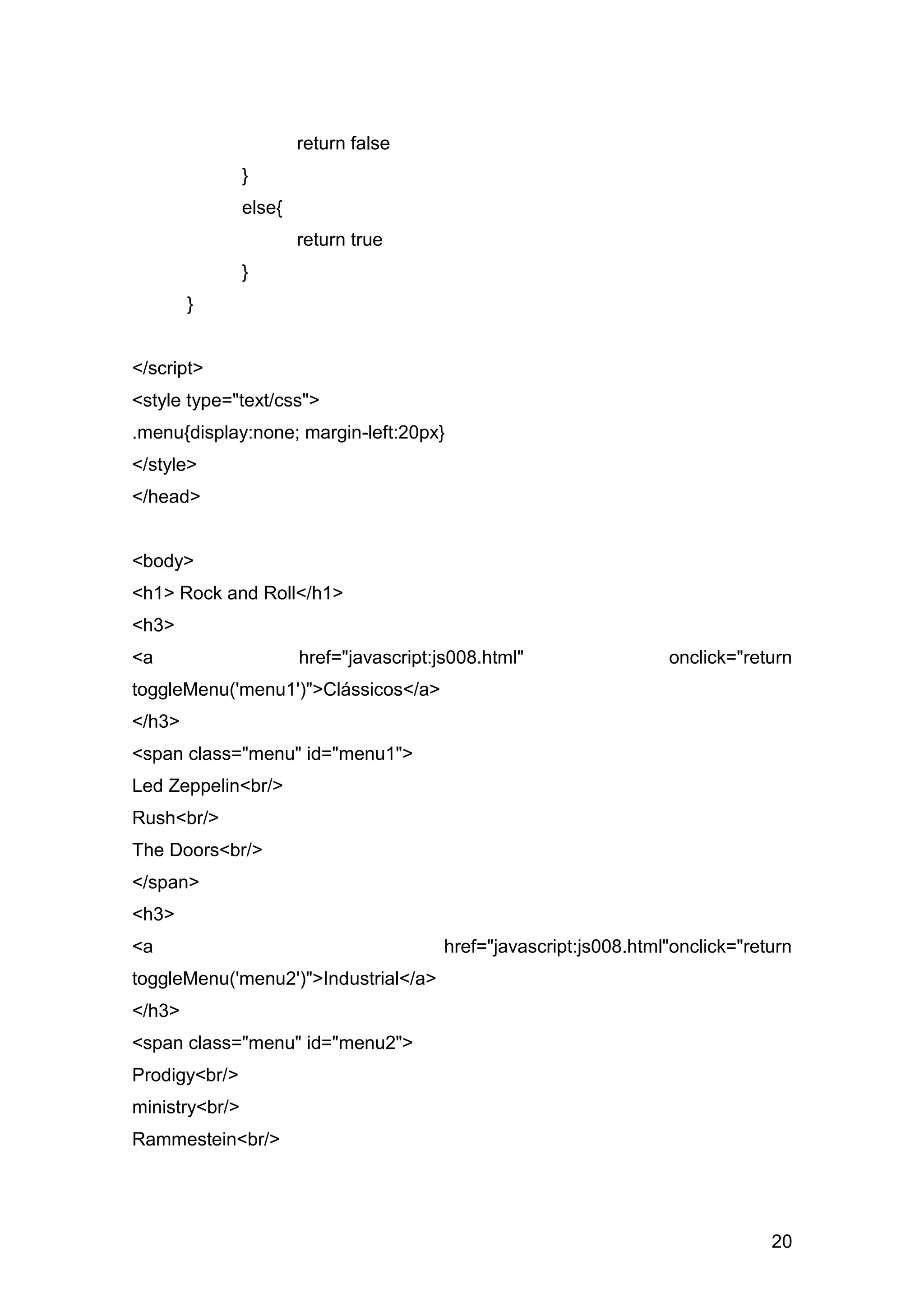
Podemos através de o Javascript deixar que nossos menus apareçam na tela
através de um recurso de menu suspenso. Vamos ao código.
<!DOCTYPE html PUBLIC "-//W3C//DTD XHTML 1.0 Transitional//EN"
"http://www.w3.org/TR/xhtml1/DTD/xhtml1-transitional.dtd">
<html xmlns="http://www.w3.org/1999/xhtml">
<head>
<meta http-equiv="Content-Type" content="text/html; charset=utf-8" />
<title>Menus deslizantes</title>
<script language="javascript" type="text/javascript">
      function toggleMenu(currMenu){
             if(document.getElementById){
                    thisMenu=document.getElementById(currMenu).style
                    if(thisMenu.display=="block"){
                            thisMenu.display="none"
                    }
                    else{
                            thisMenu.display="block"
                    }


                                                                        19
return false
                }
                else{
                        return true
                }
        }


</script>
<style type="text/css">
.menu{display:none; margin-left:20px}
</style>
</head>


<body>
<h1> Rock and Roll</h1>
<h3>
<a                      href="javascript:js008.html"                 onclick="return
toggleMenu('menu1')">Clássicos</a>
</h3>
<span class="menu" id="menu1">
Led Zeppelin<br/>
Rush<br/>
The Doors<br/>
</span>
<h3>
<a                                        href="javascript:js008.html"onclick="return
toggleMenu('menu2')">Industrial</a>
</h3>
<span class="menu" id="menu2">
Prodigy<br/>
ministry<br/>
Rammestein<br/>


                                                                                  20
</span>
</body>
</html>


9 – JANELAS DROPDOW COM DREAMWEAVER
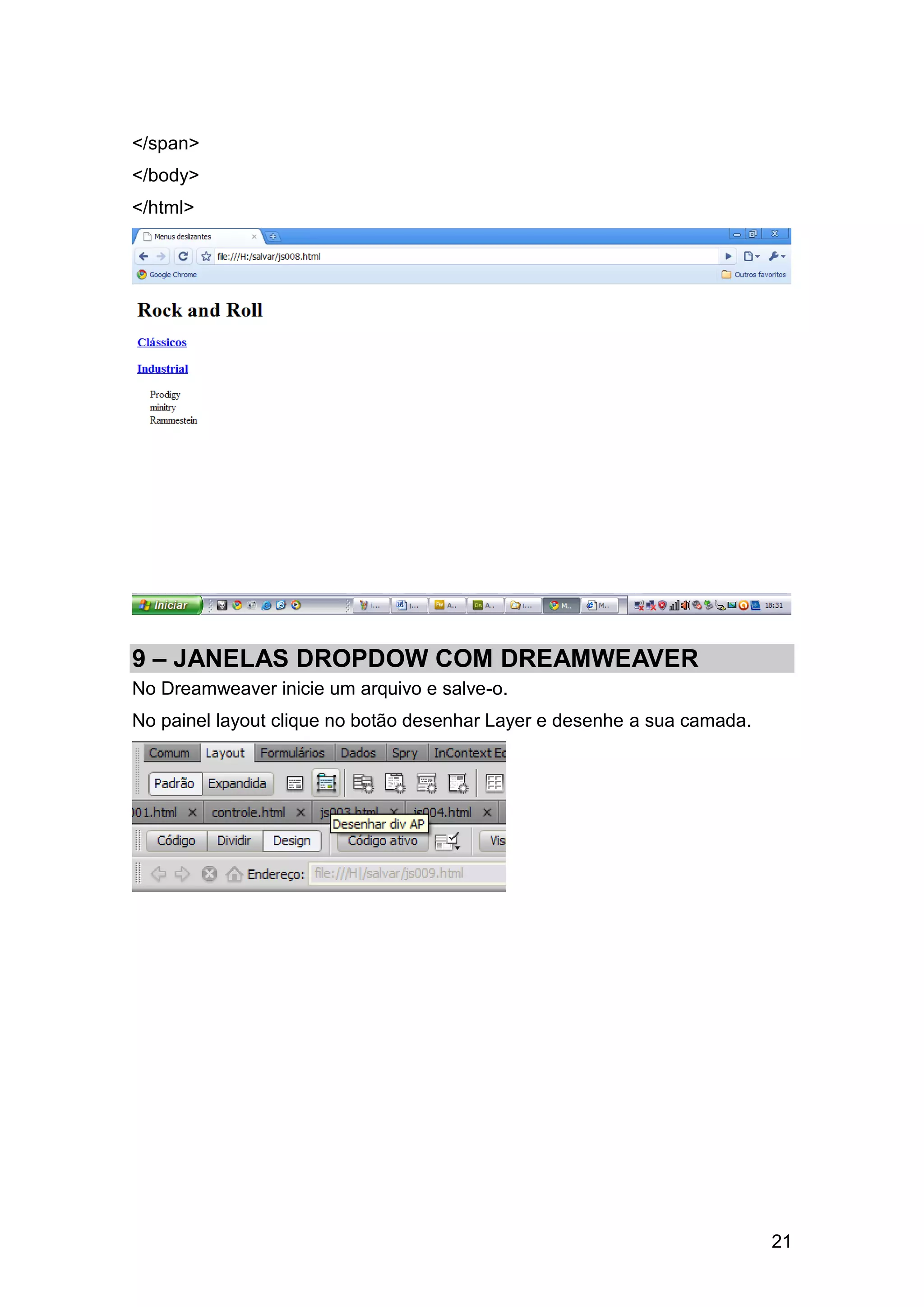
No Dreamweaver inicie um arquivo e salve-o.
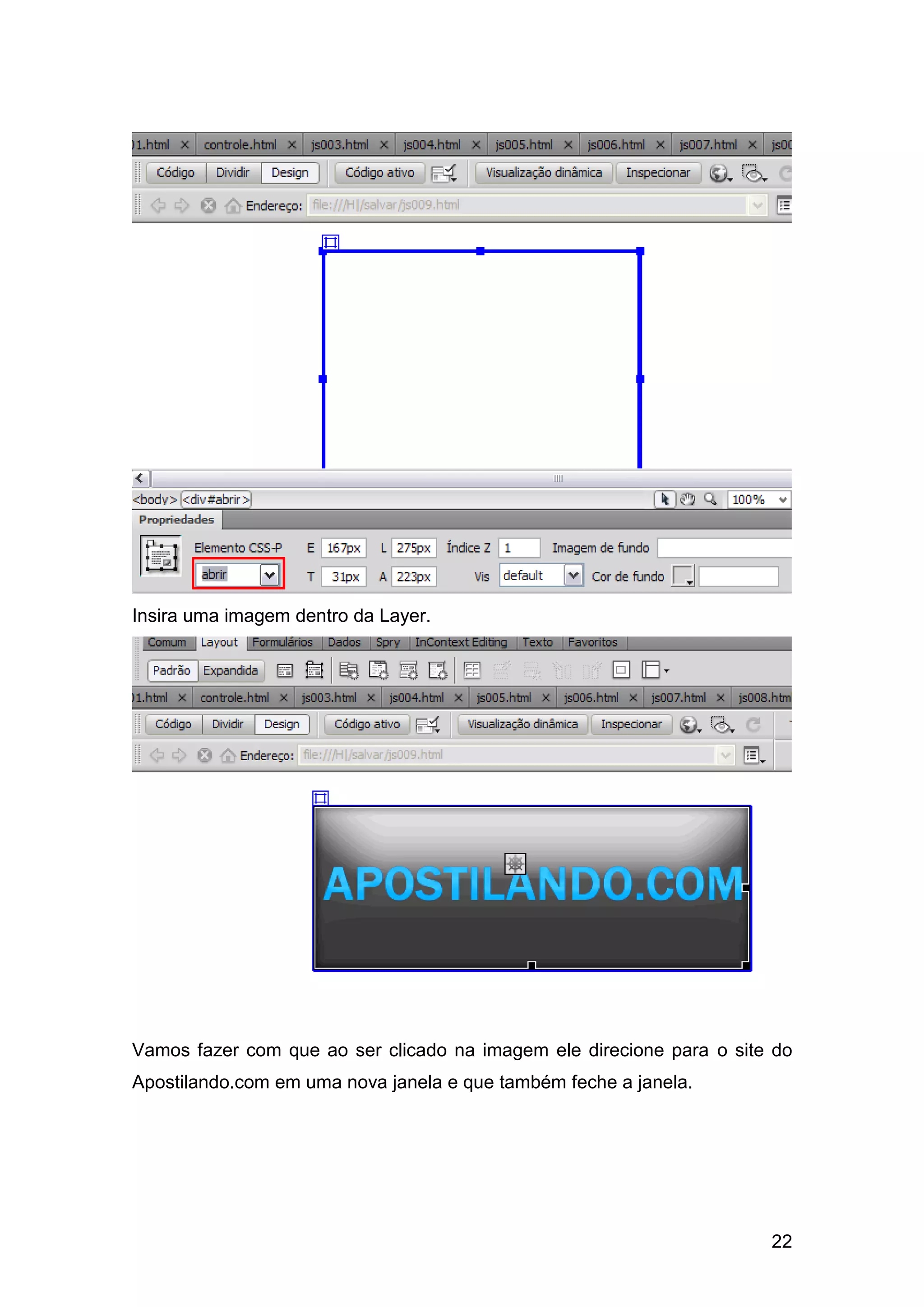
No painel layout clique no botão desenhar Layer e desenhe a sua camada.


                                                                          21
Insira uma imagem dentro da Layer.


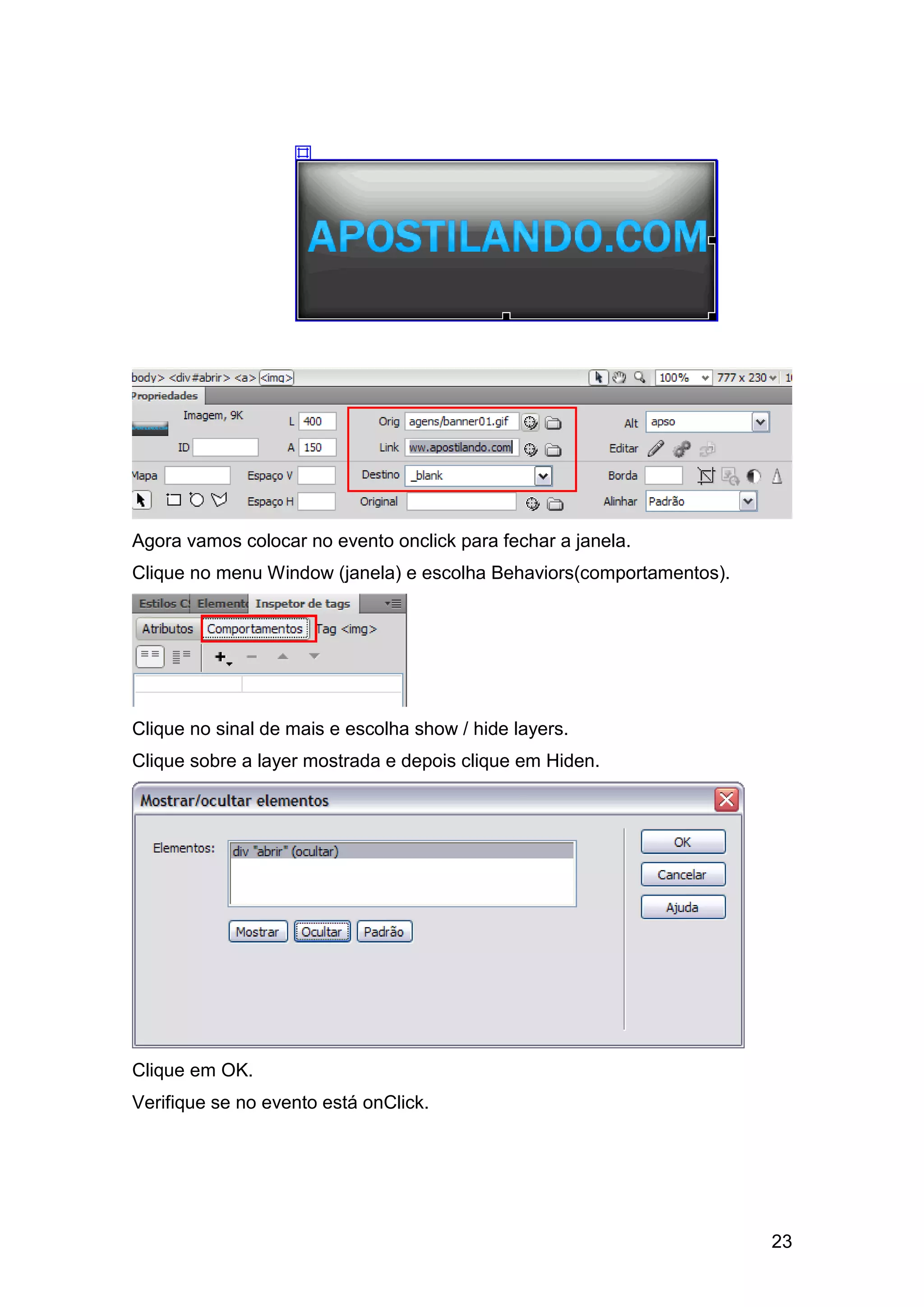
Vamos fazer com que ao ser clicado na imagem ele direcione para o site do
Apostilando.com em uma nova janela e que também feche a janela.


                                                                      22
Agora vamos colocar no evento onclick para fechar a janela.
Clique no menu Window (janela) e escolha Behaviors(comportamentos).


Clique no sinal de mais e escolha show / hide layers.
Clique sobre a layer mostrada e depois clique em Hiden.


Clique em OK.
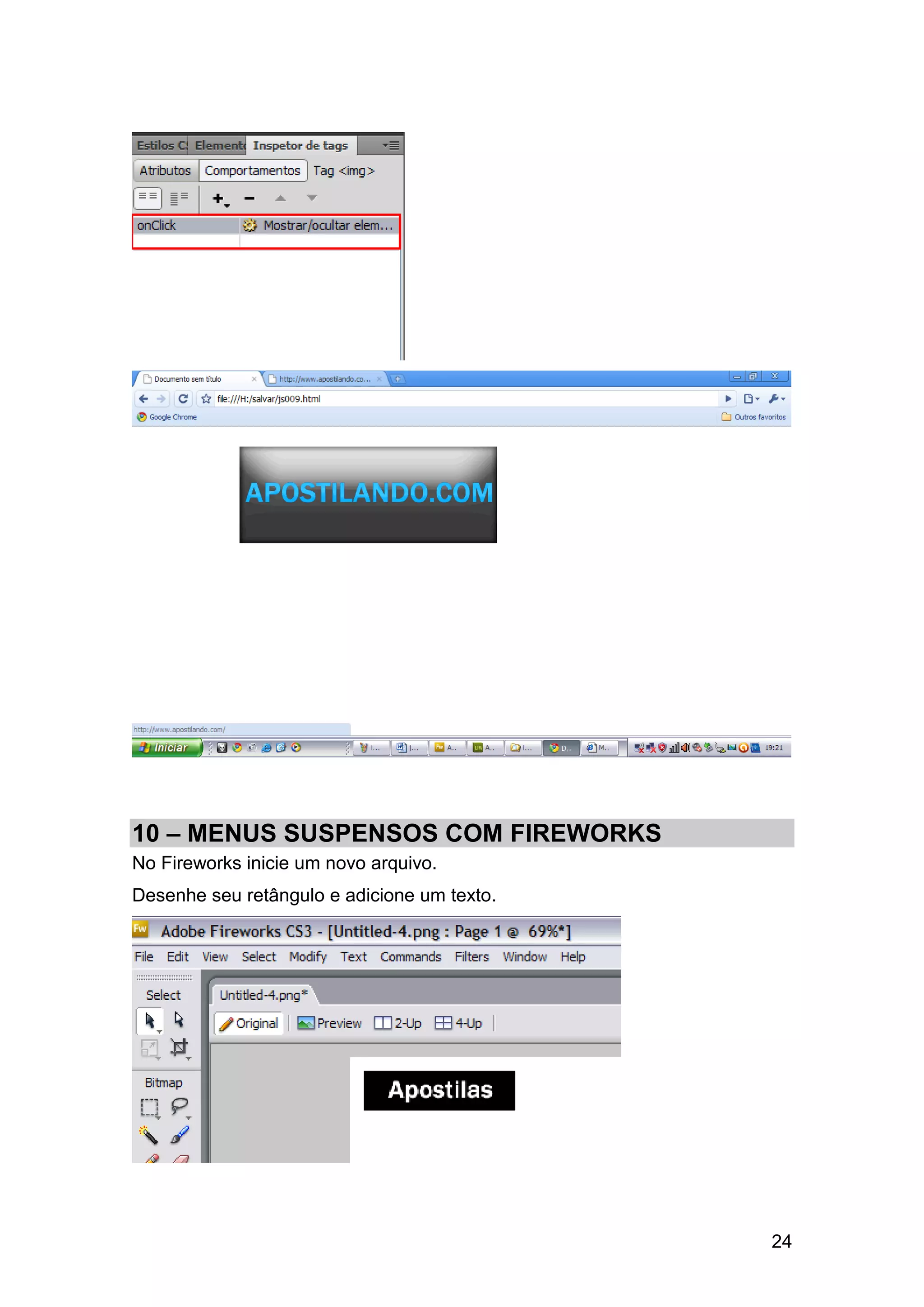
Verifique se no evento está onClick.


                                                                      23
10 – MENUS SUSPENSOS COM FIREWORKS
No Fireworks inicie um novo arquivo.
Desenhe seu retângulo e adicione um texto.


                                             24
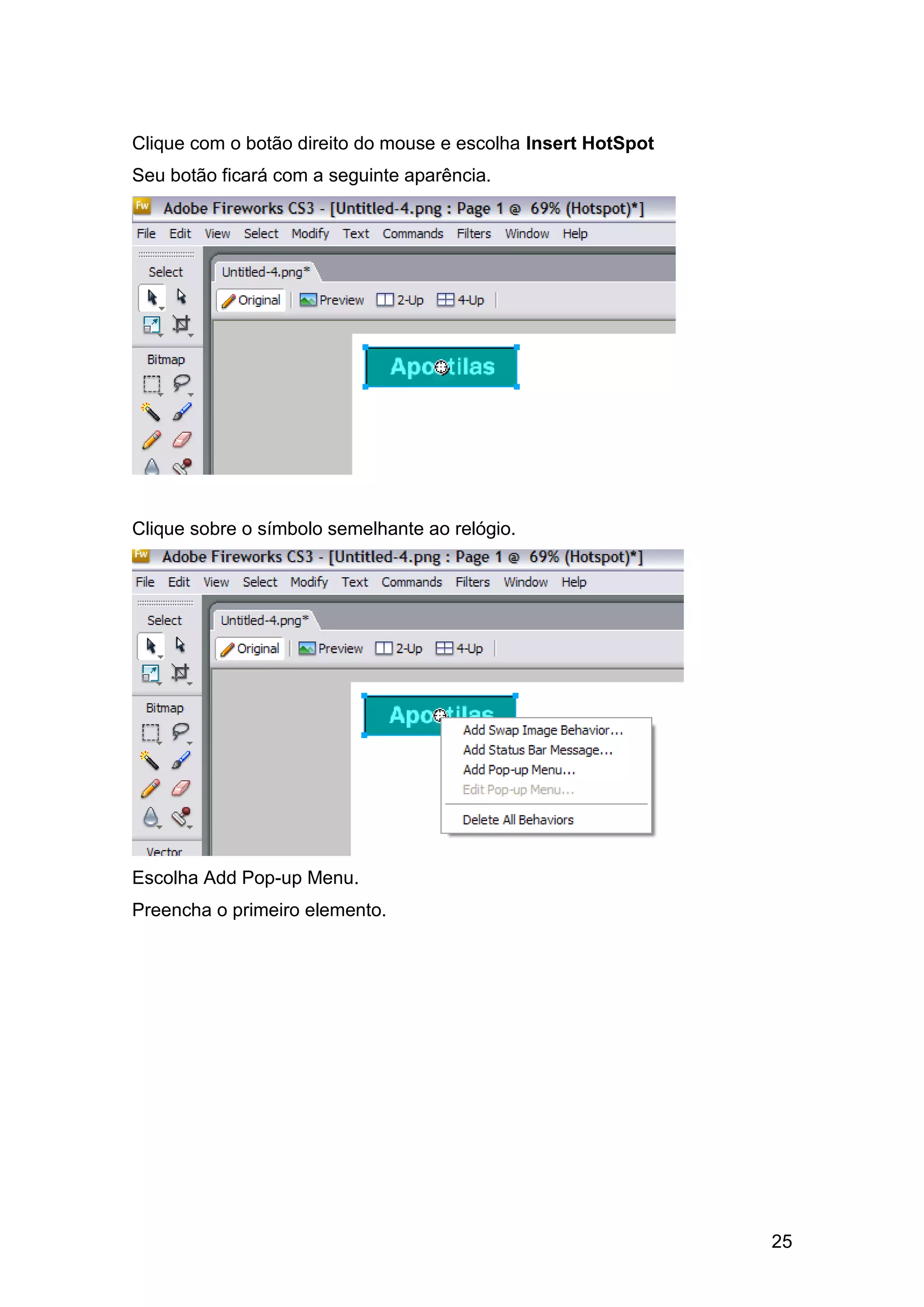
Clique com o botão direito do mouse e escolha Insert HotSpot
Seu botão ficará com a seguinte aparência.


Clique sobre o símbolo semelhante ao relógio.


Escolha Add Pop-up Menu.
Preencha o primeiro elemento.


                                                               25
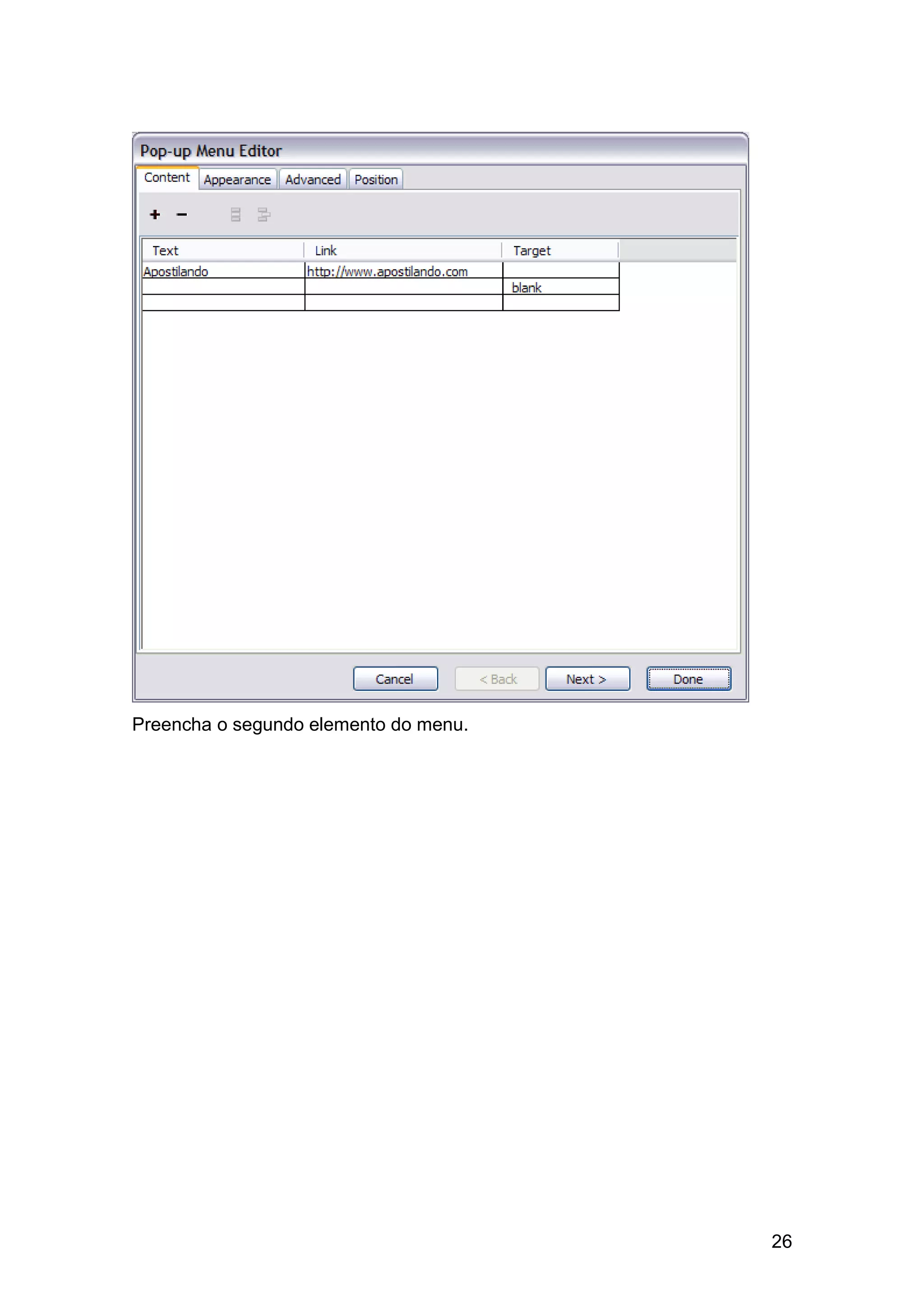
Preencha o segundo elemento do menu.


                                       26
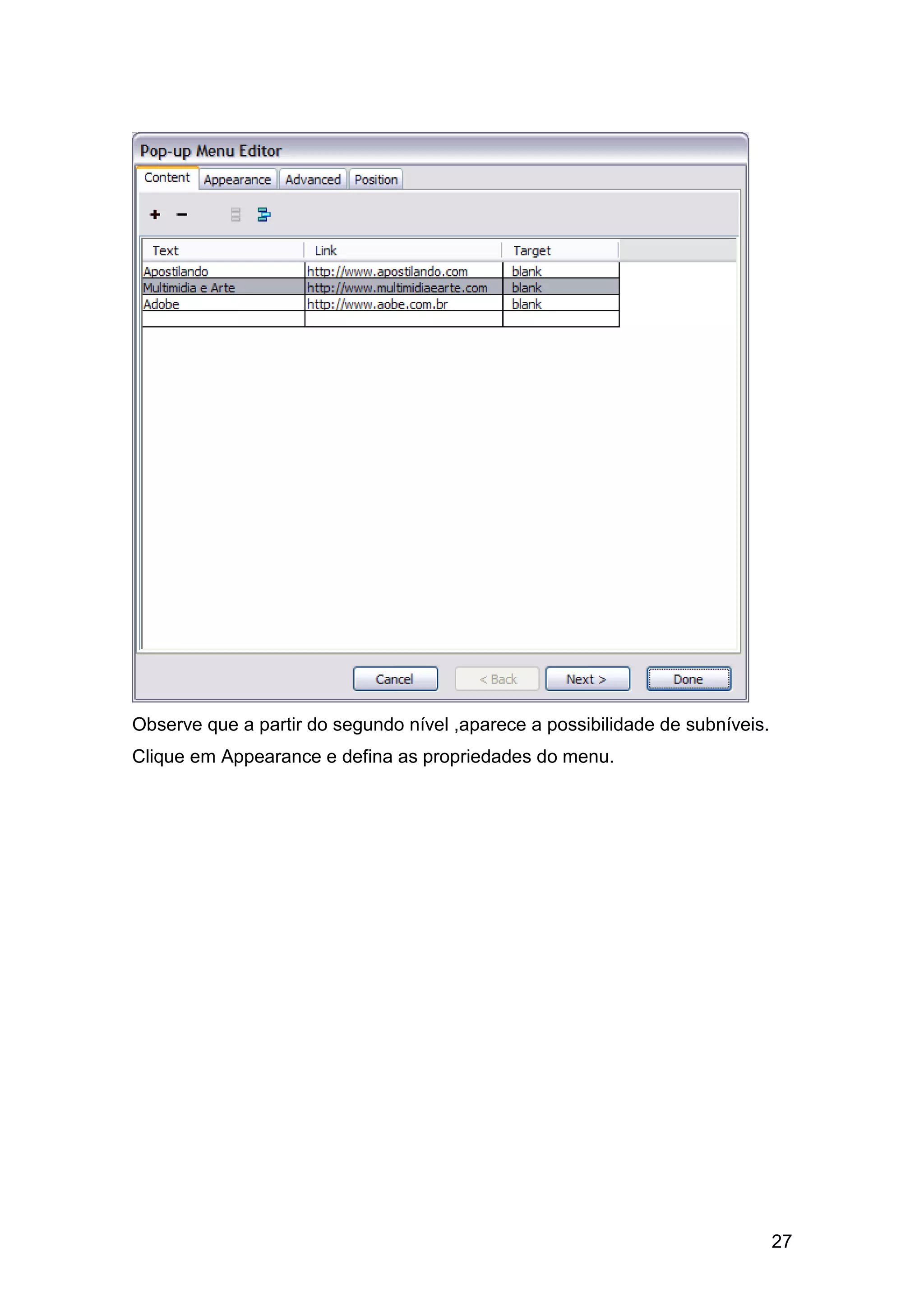
Observe que a partir do segundo nível ,aparece a possibilidade de subníveis.
Clique em Appearance e defina as propriedades do menu.


                                                                               27
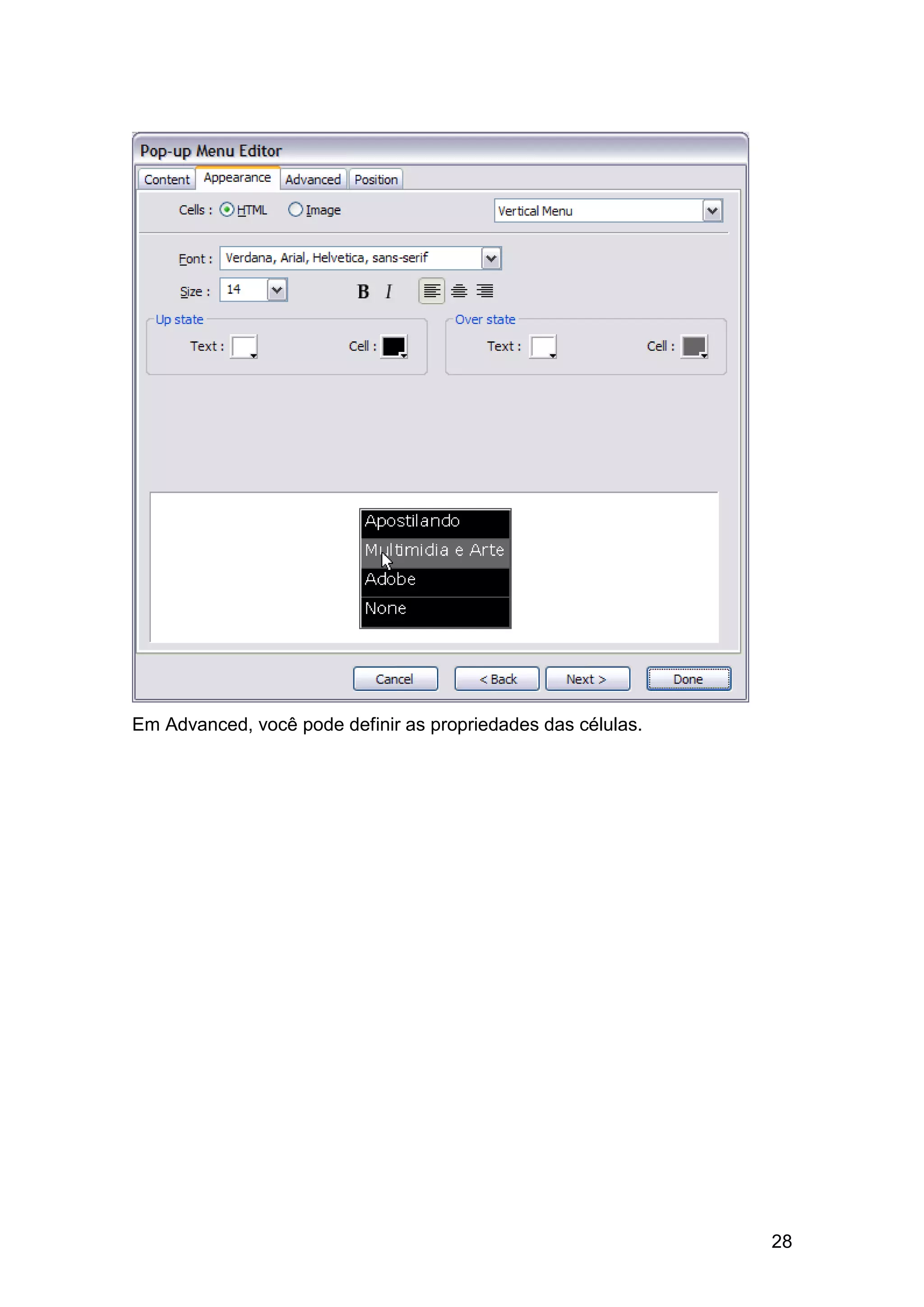
Em Advanced, você pode definir as propriedades das células.


                                                              28
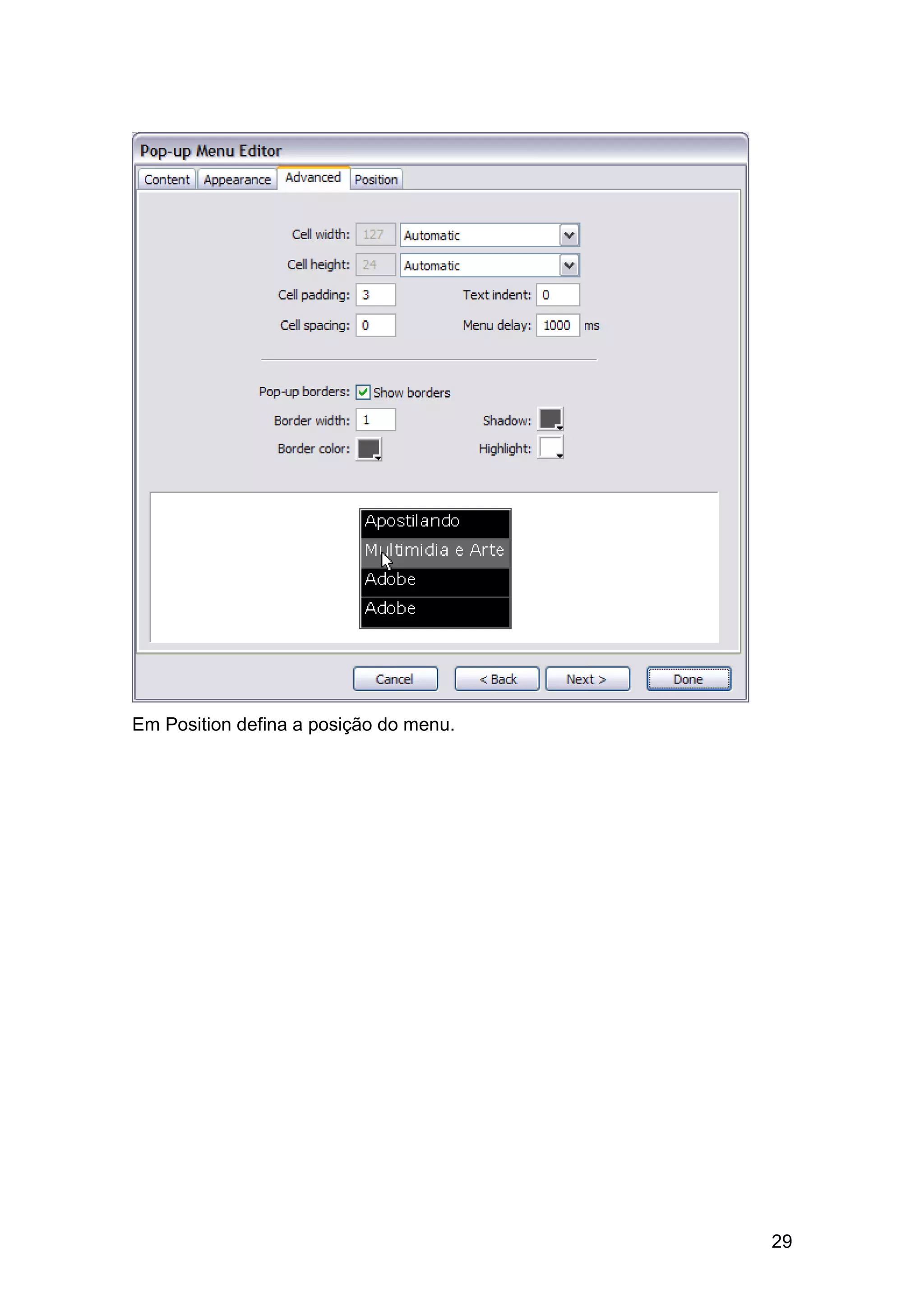
Em Position defina a posição do menu.


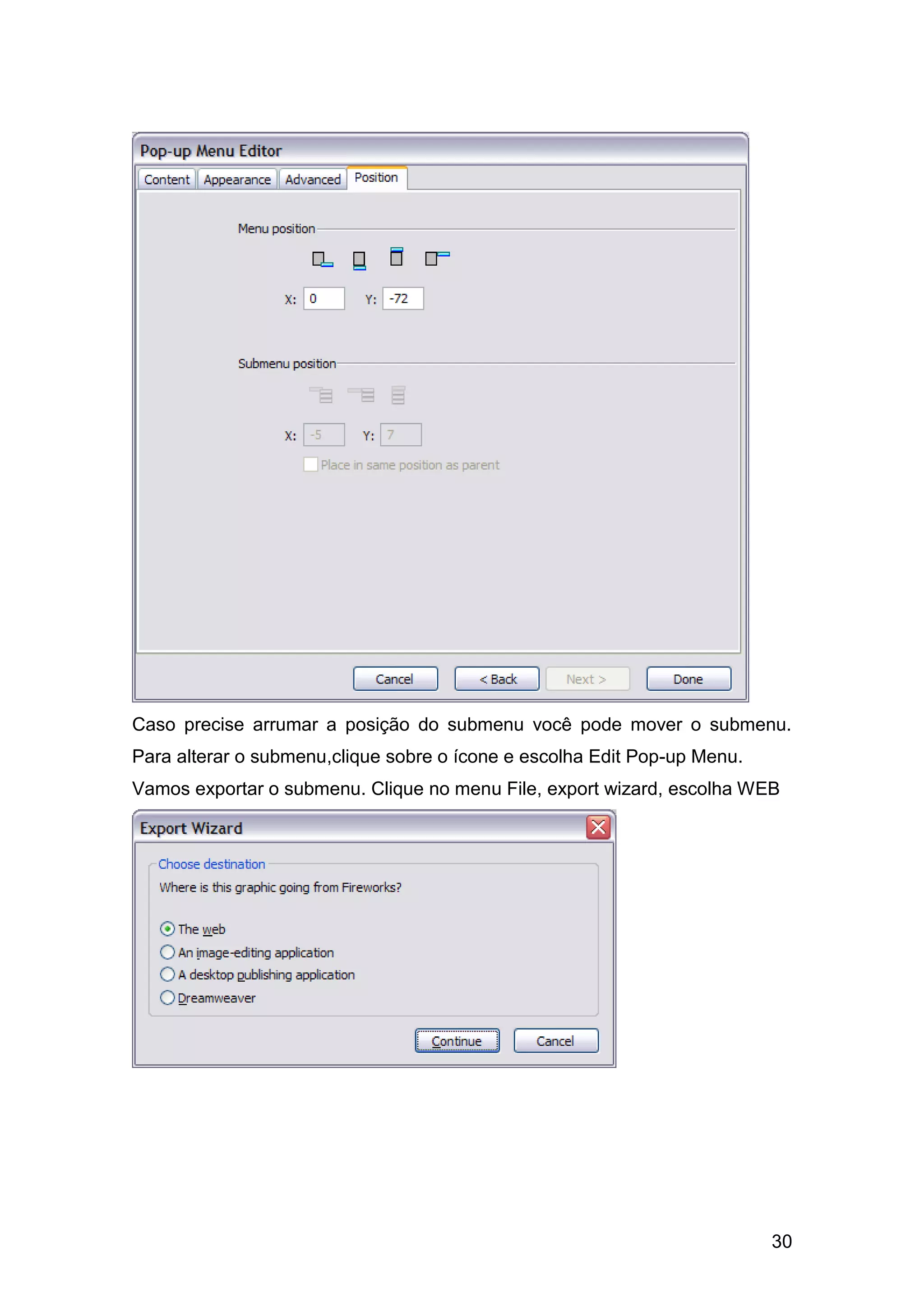
                                        29
Caso precise arrumar a posição do submenu você pode mover o submenu.
Para alterar o submenu,clique sobre o ícone e escolha Edit Pop-up Menu.
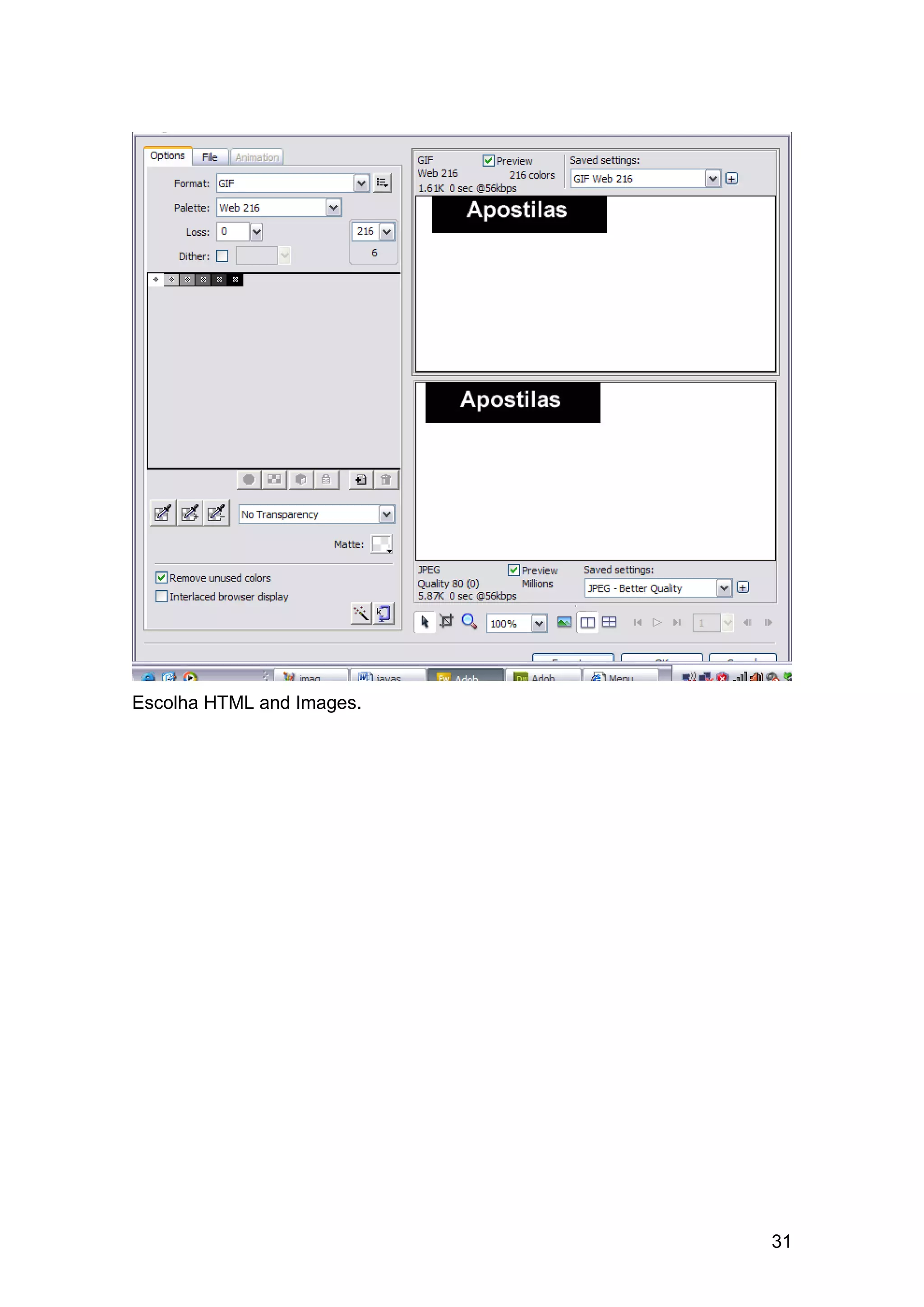
Vamos exportar o submenu. Clique no menu File, export wizard, escolha WEB


                                                                          30
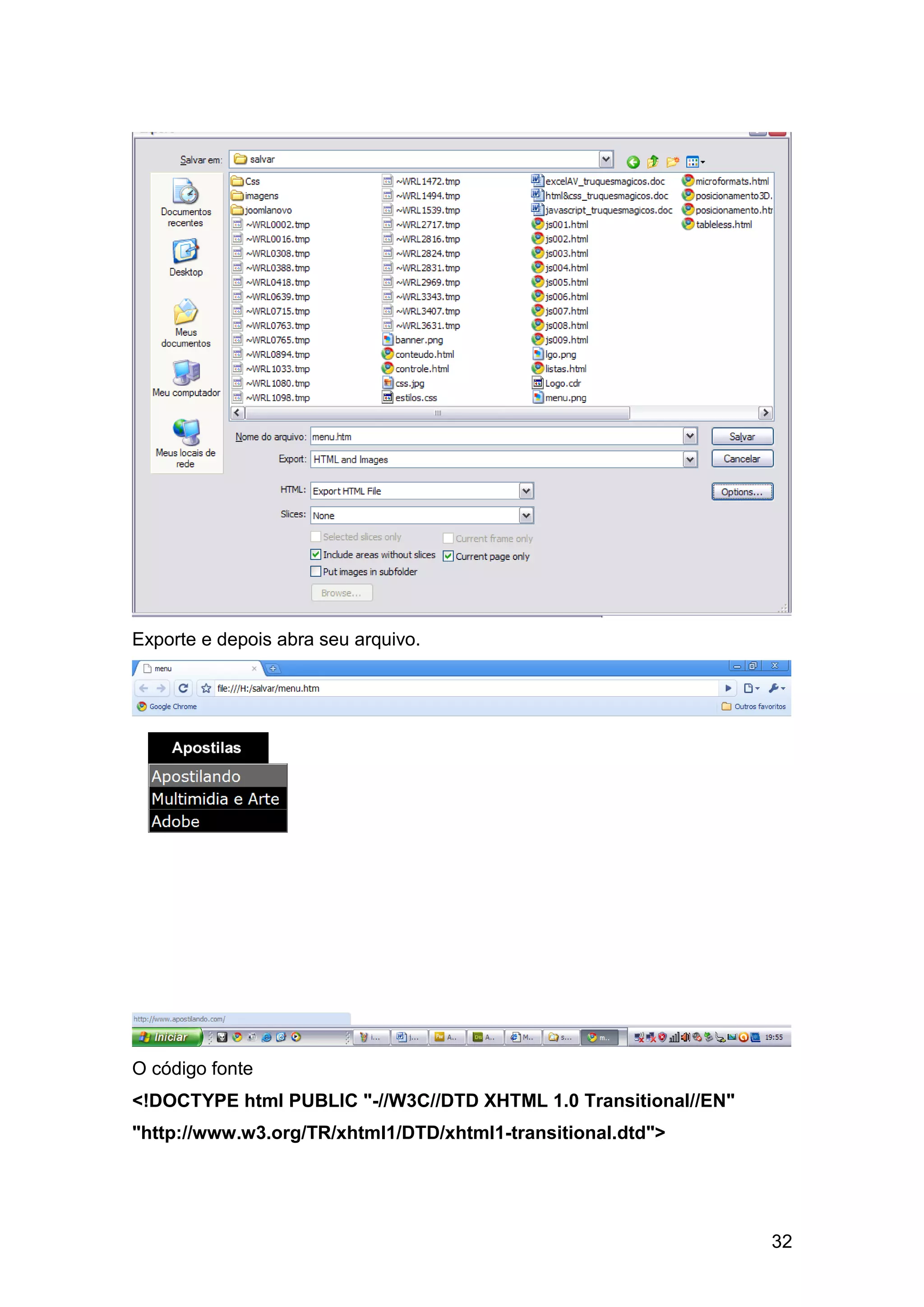
Escolha HTML and Images.


                           31
Exporte e depois abra seu arquivo.


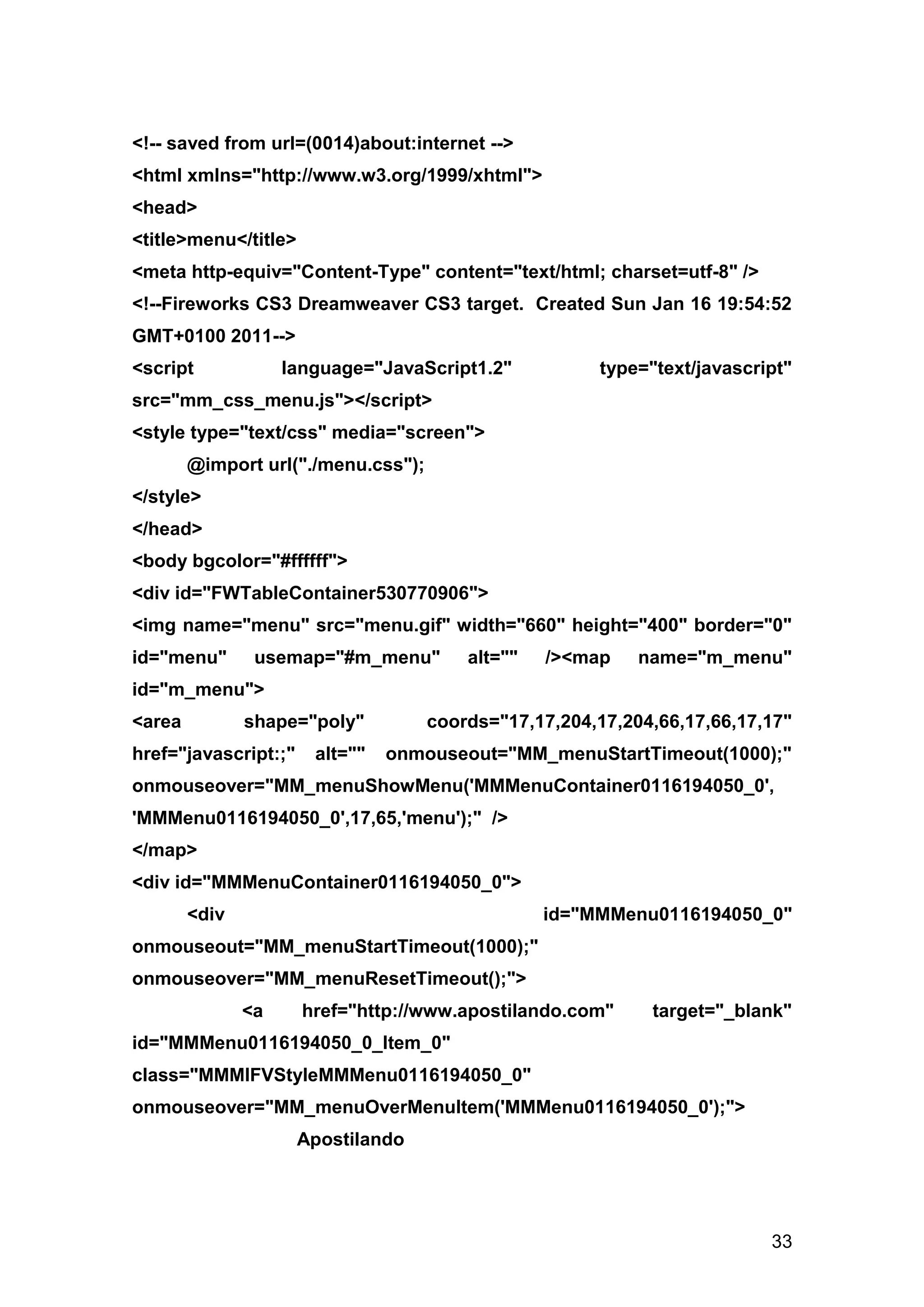
O código fonte
<!DOCTYPE html PUBLIC "-//W3C//DTD XHTML 1.0 Transitional//EN"
"http://www.w3.org/TR/xhtml1/DTD/xhtml1-transitional.dtd">


                                                                 32
<!-- saved from url=(0014)about:internet -->
<html xmlns="http://www.w3.org/1999/xhtml">
<head>
<title>menu</title>
<meta http-equiv="Content-Type" content="text/html; charset=utf-8" />
<!--Fireworks CS3 Dreamweaver CS3 target. Created Sun Jan 16 19:54:52
GMT+0100 2011-->
<script             language="JavaScript1.2"           type="text/javascript"
src="mm_css_menu.js"></script>
<style type="text/css" media="screen">
        @import url("./menu.css");
</style>
</head>
<body bgcolor="#ffffff">
<div id="FWTableContainer530770906">
<img name="menu" src="menu.gif" width="660" height="400" border="0"
id="menu"       usemap="#m_menu"         alt=""   /><map    name="m_menu"
id="m_menu">
<area          shape="poly"          coords="17,17,204,17,204,66,17,66,17,17"
href="javascript:;"    alt=""   onmouseout="MM_menuStartTimeout(1000);"
onmouseover="MM_menuShowMenu('MMMenuContainer0116194050_0',
'MMMenu0116194050_0',17,65,'menu');" />
</map>
<div id="MMMenuContainer0116194050_0">
        <div                                      id="MMMenu0116194050_0"
onmouseout="MM_menuStartTimeout(1000);"
onmouseover="MM_menuResetTimeout();">
               <a     href="http://www.apostilando.com"      target="_blank"
id="MMMenu0116194050_0_Item_0"
class="MMMIFVStyleMMMenu0116194050_0"
onmouseover="MM_menuOverMenuItem('MMMenu0116194050_0');">
                      Apostilando


                                                                          33
</a>
                  <a     href="http://www.multimidiaearte.com"   target="_blank"
id="MMMenu0116194050_0_Item_1"
class="MMMIVStyleMMMenu0116194050_0"
onmouseover="MM_menuOverMenuItem('MMMenu0116194050_0');">
                          Multimidia&nbsp;e&nbsp;Arte
                  </a>
                  <a        href="http://www.aobe.com.br"        target="_blank"
id="MMMenu0116194050_0_Item_2"
class="MMMIVStyleMMMenu0116194050_0"
onmouseover="MM_menuOverMenuItem('MMMenu0116194050_0');">
                          Adobe
                  </a>
         </div>
</div>
</div>
</body>
</html>


CONCLUSÃO

         Com isto finalizamos nossa apostila de Photoshop             TRUQUES
MÁGICOS, se você quer aprender mais sobre esta fantástica ferramenta e
quer aprender a usá-la para projetos de criação de web sites conheça nosso
curso Webkit através do link: http://apostilando.com/pagina.php?cod=30.


                                                                             34

Javascript truquesmagicos

  • 1.
  • 2.
    ÍNDICE ÍNDICE .......................................................................................................................................... 2 INTRODUÇÃO.............................................................................................................................. 3 A série............................................................................................................. 3 01 – CICLO DE BANNERS .......................................................................................................... 4 02 – ROLANDO UMAJANELA..................................................................................................... 5 03 – PAINEL DE MENUS ............................................................................................................. 7 04 – INTERLIGANDO CAMPOS DE FORMULÁRIOS ................................................................ 9 05 – CALENDÁRIO .................................................................................................................... 12 06 – DUPLO CLICK .................................................................................................................... 15 07 – MENUS SUSPENSOS ........................................................................................................ 16 08 – MENU DESLIZANTE .......................................................................................................... 19 9 – JANELAS DROPDOW COM DREAMWEAVER .................................................................. 21 10 – MENUS SUSPENSOS COM FIREWORKS ....................................................................... 24 CONCLUSÃO ............................................................................................................................. 34 2
  • 3.
    INTRODUÇÃO Atualmente é muitocomum encontrar material que ensine a utilizar um software em seu computador, basta apenas dedicação e você passa a conhecer sua interface, seus botões e menus. Alguns materiais como os do Apostilando.com “casam” a explicação com exemplos reais. Mas para quem está começando muitas vezes isso é insuficiente. Então nós do Apostilando.com, criamos uma série chamada TRUQUES MÁGICOS. A composição da série será de apostilas para você que já baixou nossas apostilas e precisa exercitar a criatividade. Cada material da série trará dentro de um determinado software dicas e exemplos de uso do software, reforçando assim seu aprendizado sobre ele e despertando sua criatividade. Obrigado e tenha um bom curso. A série A série em sua primeira edição abordará exemplos para os seguintes softwares:  Adobe Photoshop;  Adobe Flash  Adobe Dreamweaver  PHP  Microsoft Word  Microsoft Excel  Adobe Photoshop WEB  Corel Draw  HTML & CSS  Javascript  Fireworks  Excel Avançado 3
  • 4.
    01 – CICLODE BANNERS Quando se navega na WEB, é comum ver banners de publicidade que alternam periodicamente entre imagens. Com JavaScript podemos criar um ciclo de banners. Observe o código. <!DOCTYPE html PUBLIC "-//W3C//DTD XHTML 1.0 Transitional//EN" "http://www.w3.org/TR/xhtml1/DTD/xhtml1-transitional.dtd"> <html xmlns="http://www.w3.org/1999/xhtml"> <head> <meta http-equiv="Content-Type" content="text/html; charset=utf-8" /> <title>Ciclo de Banners</title> <script language="javascript" type="text/javascript"> //definindo as imagens para os banners adImages = new Array ("imagens/banner01.gif","imagens/banner02.gif","imagens/banner03.gif") //definindo os endereços dos links adURL = new Array ("apostilando.com","multimidiaearte.com","adobe.com.br") thisAd = 0 imgCt = adImages.length function rotate(){ if (document.images){ thisAd++ if (thisAd == imgCt){ thisAd = 0 } document.adBanner.src=adImages[thisAd] setTimeout("rotate()",3*1000) } } 4
  • 5.
    function newLocation(){ document.location.href = "http://www."+adURL[thisAd] } </script> </head> <body onload="rotate()"> <div align="center"> <a href="javascript:newLocation()"> <img src="imagens/banner01.gif" width="400" height="150" name="adBanner" alt="Ad Banner" /></a>s </div> </body> </html> 02 – ROLANDO UMAJANELA Ao abrir uma nova janela podemos definir que a mesma role até uma determinada área. Vamos montar o script. Primeiro crie o arquivo conteudo.html 5
  • 6.
    <!DOCTYPE html PUBLIC"-//W3C//DTD XHTML 1.0 Transitional//EN" "http://www.w3.org/TR/xhtml1/DTD/xhtml1-transitional.dtd"> <html xmlns="http://www.w3.org/1999/xhtml"> <head> <meta http-equiv="Content-Type" content="text/html; charset=utf-8" /> <title>Documento sem título</title> </head> <body> <img src="imagens/lgo01.gif" width="100" height="140" vspace="10" /><br /> <img src="imagens/lgo02.gif" width="100" height="140" vspace="10" /><br/> <img src="imagens/lgo03.gif" width="100" height="140" vspace="10" /><br/> </body> </html> Agora vamos montar o script que gera uma nova janela e role a mesma de acordo com o link para cada imagem. O código fica da seguinte forma: <!DOCTYPE html PUBLIC "-//W3C//DTD XHTML 1.0 Transitional//EN" "http://www.w3.org/TR/xhtml1/DTD/xhtml1-transitional.dtd"> <html xmlns="http://www.w3.org/1999/xhtml"> <head> <meta http-equiv="Content-Type" content="text/html; charset=utf-8" /> <title>Rolando uma janela</title> <script language="javascript" type="text/javascript"> function newWindow(downscroll){ bookpixWindow = window.open("conteudo.html","bookpixWin","width=150, height=170, scrollbars=yes") 6
  • 7.
    bookpixWindow.focus() setTimeout("bookpixWindow.scroll(0,"+downscroll+")",1000) } </script> </head> <body> <h3>clique para abrir a nova janela</h3> <a href="javascript:newWindow(0)">Primeira Imagem</a><br /><br /> <a href="javascript:newWindow(160)">Segunda Imagem</a><br /><br /> <a href="javascript:newWindow(320)">Terceira Imagem</a><br /><br /> </body> </html> 03 – PAINEL DE MENUS O uso de uma janela filha como painel de menus pode ser um recurso muito útil para seu site. Primeiro crie o script do painel de controle controle.html. 7
  • 8.
    <!DOCTYPE html PUBLIC"-//W3C//DTD XHTML 1.0 Transitional//EN" "http://www.w3.org/TR/xhtml1/DTD/xhtml1-transitional.dtd"> <html xmlns="http://www.w3.org/1999/xhtml"> <head> <meta http-equiv="Content-Type" content="text/html; charset=utf-8" /> <title>Menus</title> <script language="javascript" type="text/javascript"> function updateParent(newURL){ opener.document.location = newURL } </script> </head> <body> <div align="center"> <h3> Menu</h3> <a href="javascript:updateParent('js001.html')">Código 001</a><br/> <a href="javascript:updateParent('js002.html')">Código 002</a><br/> <a href="javascript:updateParent('js003.html')">Código 003</a><br/> </div> </body> </html> Crie agora o código da página inicial que abre o painel de menus. <!DOCTYPE html PUBLIC "-//W3C//DTD XHTML 1.0 Transitional//EN" "http://www.w3.org/TR/xhtml1/DTD/xhtml1-transitional.dtd"> <html xmlns="http://www.w3.org/1999/xhtml"> <head> <meta http-equiv="Content-Type" content="text/html; charset=utf-8" /> <title>Painel de Controle</title> <script language="javascript" type="text/javascript"> newWindow = window.open("controle.html","newWin","width=225, height=200") 8
  • 9.
    </script> </head> <body> <img src="css.jpg" width="259"height="194" alt="CSS" /> </body> </html> 04 – INTERLIGANDO CAMPOS DE FORMULÁRIOS É comum em formulários mostrar / ocultar um campo de formulário de acordo com outro. Vamos criar um formulário onde dependendo da escolha de um checkbox ele habilite um radiobox. Nosso código ficará da seguinte forma. <!DOCTYPE html PUBLIC "-//W3C//DTD XHTML 1.0 Transitional//EN" "http://www.w3.org/TR/xhtml1/DTD/xhtml1-transitional.dtd"> <html xmlns="http://www.w3.org/1999/xhtml"> <head> <meta http-equiv="Content-Type" content="text/html; charset=utf-8" /> <title>Formulário</title> 9
  • 10.
    <script language="javascript" type="text/javascript"> function submitIt(carForm){ doorOption = -1 for (i=0; i<carForm.DoorCt.length;i++){ if(carForm.DoorCt[i].checked){ doorOption= i } } if(doorOption == -1){ alert("Você precisa selecionar 2 ou 4 portas") return false } if(carForm.DoorCt[doorOption].value=="fourDoor" && carForm.sunroof.checked){ alert("Teto solar apenas para duas portas") return false } return false } function doorSet(sunroofField){ if(sunroofField.checked){ for (i=0; i<document.myForm.DoorCt.length;i++){ if (document.myForm.DoorCt[i].value=="twoDoor"){ document.myForm.DoorCt[i].checked=true } } } } </script> 10
  • 11.
    </head> <body> <h3> Selecione otipo de carro</h3> <form onsubmit="return submitIt(this)" action="envia.php" name="myForm"> <table border="0" cellspacing="8" cellpadding="8"> <tr> <td>Opções</td> <td><input type="checkbox" name="sunroof" value="yes" onclick="doorSet(this)" /> Teto Solar (apenas 2 portas)</td> <td><input type="checkbox" name="psteering" value="yes" />Portas</td> </tr> <tr> <td>Portas</td> <td colspan="2"> <input type="radio" value="twoDoor" name="DoorCt" />Duas portas <input type="radio" value="fourDoor" name="DoorCt" />Quatro portas </td> </tr> <tr> <td><input type="submit" value="Enviar" /> </body> </html> 11
  • 12.
    05 – CALENDÁRIO Utilizandoos atributos de data do JavaScript vamos montar um calendário de eventos. Monte o script <!DOCTYPE html PUBLIC "-//W3C//DTD XHTML 1.0 Transitional//EN" "http://www.w3.org/TR/xhtml1/DTD/xhtml1-transitional.dtd"> <html xmlns="http://www.w3.org/1999/xhtml"> <head> <meta http-equiv="Content-Type" content="text/html; charset=utf-8" /> <title>Calendário de Eventos</title> 12
  • 13.
    <script language="javascript" type="application/javascript"> dayInfo = new Array dayInfo[3] = "Inicio das atividades" dayInfo[8] = "Circuito das águas" dayInfo[17] = "Corrida rustica" dayInfo[22] = "Caminhada" dayInfo[30] = "Passeio infantil" function showInfo(thisDay){ document.calendar.dateInfo.value=dayInfo[thisDay] } </script> </head> <body> <table cellpadding="2" cellspacing="2"> <tr> <th colspan="7">Janeiro 2011</th> <td rowspan="6">&nbsp;&nbsp;&nbsp;</td> </tr> <tr align="right"> <td colspan="3">1</td> <td>2</td> <td><a href="javascript:showInfo(3)">3</a></td> <td>4</td> <td>5</td> </tr><tr> <td>6</td> <td >7</td> <td><a href="javascript:showInfo(8)">8</a></td> <td >9</td> <td>10</td> 13
  • 14.
    <td>11</td> <td>12</td> </tr><tr> <td>13</td> <td>14</td> <td>15</td> <td>16</td> <td><a href="javascript:showInfo(17)">17</a></td> <td>18</td> <td>19</td> </tr><tr> <td >20</td> <td>21</td> <td><a href="javascript:showInfo(22)">22</a></td> <td>23</td> <td>24</td> <td>25</td> <td>26</td> </tr><tr> <td>27</td> <td>28</td> <td>29</td> <td><a href="javascript:showInfo(30)">30</a></td> <td colspan="3">31</td> </tr> </table> <form name="calendar"> <textarea rows="7" cols="30" name="dateInfo" readonly wrap> Selecione o dia da semana </textarea> </form> </body> 14
  • 15.
    </html> 06 – DUPLOCLICK Uma das primeiras coisas que se aprende ao utilizar computadores é usar o duplo clique. Vamos aprender a usar este recurso que é ativado quando o usuário clica duas vezes em uma imagem. Vamos ao código. <!DOCTYPE html PUBLIC "-//W3C//DTD XHTML 1.0 Transitional//EN" "http://www.w3.org/TR/xhtml1/DTD/xhtml1-transitional.dtd"> <html xmlns="http://www.w3.org/1999/xhtml"> <head> <meta http-equiv="Content-Type" content="text/html; charset=utf-8" /> <title>Duplo clique</title> <script language="javascript" type="text/javascript"> function newWindow(imgNumber){ imgName = "imagens/banner0"+ imgNumber+".gif" imgWindow= 15
  • 16.
    window.open(imgName,"imgWin","width=400,height=150, scrollbars=no") } </script> </head> <body> <h3>Dê um duplo clique na imagem para ampliar</h3> <img src="imagens/banner01.gif" width="100" height="38" hspace="10" border="3"alt="Banner" ondblclick="newWindow(1)" /> <img src="imagens/banner02.gif" width="100" height="38" hspace="10" border="3"alt="Banner" ondblclick="newWindow(2)" /> <img src="imagens/banner03.gif" width="100" height="38" hspace="10" border="3"alt="Banner" ondblclick="newWindow(3)" /> </body> </html> 07 – MENUS SUSPENSOS Uma das melhores razões para usar o Javascript e a DHTML é melhorar a interface como usuário e a experiência de navegação. 16
  • 17.
    Vamos criar umexemplo de menu suspenso. <!DOCTYPE html PUBLIC "-//W3C//DTD XHTML 1.0 Transitional//EN" "http://www.w3.org/TR/xhtml1/DTD/xhtml1-transitional.dtd"> <html xmlns="http://www.w3.org/1999/xhtml"> <head> <meta http-equiv="Content-Type" content="text/html; charset=utf-8" /> <title>menu suspenso</title> <script language="javascript" type="text/javascript"> stdBrowser = (document.getElementById)?true: false function toggleMenu(currElem,nextPos){ menuObj = (stdBrowser)? document.getElementById(currElem).style: eval("document."+currElem) if(toggleMenu.arguments.length==1){ nextPos=(parseInt(menuObj.top)==-5)?-90:-5 } menuObj.top=(stdBrowser)? nextPos+"px": nextPos } </script> <style type="text/css"> .menu {position:absolute; font:12px Arial, Helvetica, sans-serif; background-color:#CCCCCC; layer-background-color:#CCCCCC; top:- 90px} #fileMenu{left:10px; width:70px} #searchMenu{left:85px; width:100px} A{text-decoration:none; color:#000000} A:hover{background-color:#000099;color:#FFFFFF} </style> </head> <body> 17
  • 18.
    <div id="fileMenu" class="menu"onmouseover="toggleMenu('fileMenu',- 5)" onmouseout="toogleMenu('fileMenu',-90)"><br/> <a href="javascript:window.open()">Abrir</a><br/> <a href="javascript:window.open()">Imprimir</a><br/> <a href="javascript:window.open()">Voltar</a><br/> <a href="javascript:window.open()">Avançar</a><br/> <a href="javascript:window.open()">Fechar</a><br/> <a href="javascript:toggleMenu('fileMenu')">Arquivo</a> </div> <div id="searchMenu" class="menu" onmouseover="toggleMenu('searchMenu',-5)" onmouseout="toogleMenu('searchMenu,-90)"><br/> <a href="http://www.apostilando.com">Apostilando</a><br/> <a href="http://www.multimidiaearte.com">multimidia e Art</a><br/> <a href="http://www.adobe.com.br">Adobe</a><br/> <a href="http://www.globo.com">Globo</a><br/> <a href="http://www.uol.com.br">UOL</a><br/> <a href="javascript:toggleMenu('searchMenu')">Sites</a> </div> </body> </html> 18
  • 19.
    08 – MENUDESLIZANTE Podemos através de o Javascript deixar que nossos menus apareçam na tela através de um recurso de menu suspenso. Vamos ao código. <!DOCTYPE html PUBLIC "-//W3C//DTD XHTML 1.0 Transitional//EN" "http://www.w3.org/TR/xhtml1/DTD/xhtml1-transitional.dtd"> <html xmlns="http://www.w3.org/1999/xhtml"> <head> <meta http-equiv="Content-Type" content="text/html; charset=utf-8" /> <title>Menus deslizantes</title> <script language="javascript" type="text/javascript"> function toggleMenu(currMenu){ if(document.getElementById){ thisMenu=document.getElementById(currMenu).style if(thisMenu.display=="block"){ thisMenu.display="none" } else{ thisMenu.display="block" } 19
  • 20.
    return false } else{ return true } } </script> <style type="text/css"> .menu{display:none; margin-left:20px} </style> </head> <body> <h1> Rock and Roll</h1> <h3> <a href="javascript:js008.html" onclick="return toggleMenu('menu1')">Clássicos</a> </h3> <span class="menu" id="menu1"> Led Zeppelin<br/> Rush<br/> The Doors<br/> </span> <h3> <a href="javascript:js008.html"onclick="return toggleMenu('menu2')">Industrial</a> </h3> <span class="menu" id="menu2"> Prodigy<br/> ministry<br/> Rammestein<br/> 20
  • 21.
    </span> </body> </html> 9 – JANELASDROPDOW COM DREAMWEAVER No Dreamweaver inicie um arquivo e salve-o. No painel layout clique no botão desenhar Layer e desenhe a sua camada. 21
  • 22.
    Insira uma imagemdentro da Layer. Vamos fazer com que ao ser clicado na imagem ele direcione para o site do Apostilando.com em uma nova janela e que também feche a janela. 22
  • 23.
    Agora vamos colocarno evento onclick para fechar a janela. Clique no menu Window (janela) e escolha Behaviors(comportamentos). Clique no sinal de mais e escolha show / hide layers. Clique sobre a layer mostrada e depois clique em Hiden. Clique em OK. Verifique se no evento está onClick. 23
  • 24.
    10 – MENUSSUSPENSOS COM FIREWORKS No Fireworks inicie um novo arquivo. Desenhe seu retângulo e adicione um texto. 24
  • 25.
    Clique com obotão direito do mouse e escolha Insert HotSpot Seu botão ficará com a seguinte aparência. Clique sobre o símbolo semelhante ao relógio. Escolha Add Pop-up Menu. Preencha o primeiro elemento. 25
  • 26.
    Preencha o segundoelemento do menu. 26
  • 27.
    Observe que apartir do segundo nível ,aparece a possibilidade de subníveis. Clique em Appearance e defina as propriedades do menu. 27
  • 28.
    Em Advanced, vocêpode definir as propriedades das células. 28
  • 29.
    Em Position definaa posição do menu. 29
  • 30.
    Caso precise arrumara posição do submenu você pode mover o submenu. Para alterar o submenu,clique sobre o ícone e escolha Edit Pop-up Menu. Vamos exportar o submenu. Clique no menu File, export wizard, escolha WEB 30
  • 31.
    Escolha HTML andImages. 31
  • 32.
    Exporte e depoisabra seu arquivo. O código fonte <!DOCTYPE html PUBLIC "-//W3C//DTD XHTML 1.0 Transitional//EN" "http://www.w3.org/TR/xhtml1/DTD/xhtml1-transitional.dtd"> 32
  • 33.
    <!-- saved fromurl=(0014)about:internet --> <html xmlns="http://www.w3.org/1999/xhtml"> <head> <title>menu</title> <meta http-equiv="Content-Type" content="text/html; charset=utf-8" /> <!--Fireworks CS3 Dreamweaver CS3 target. Created Sun Jan 16 19:54:52 GMT+0100 2011--> <script language="JavaScript1.2" type="text/javascript" src="mm_css_menu.js"></script> <style type="text/css" media="screen"> @import url("./menu.css"); </style> </head> <body bgcolor="#ffffff"> <div id="FWTableContainer530770906"> <img name="menu" src="menu.gif" width="660" height="400" border="0" id="menu" usemap="#m_menu" alt="" /><map name="m_menu" id="m_menu"> <area shape="poly" coords="17,17,204,17,204,66,17,66,17,17" href="javascript:;" alt="" onmouseout="MM_menuStartTimeout(1000);" onmouseover="MM_menuShowMenu('MMMenuContainer0116194050_0', 'MMMenu0116194050_0',17,65,'menu');" /> </map> <div id="MMMenuContainer0116194050_0"> <div id="MMMenu0116194050_0" onmouseout="MM_menuStartTimeout(1000);" onmouseover="MM_menuResetTimeout();"> <a href="http://www.apostilando.com" target="_blank" id="MMMenu0116194050_0_Item_0" class="MMMIFVStyleMMMenu0116194050_0" onmouseover="MM_menuOverMenuItem('MMMenu0116194050_0');"> Apostilando 33
  • 34.
    </a> <a href="http://www.multimidiaearte.com" target="_blank" id="MMMenu0116194050_0_Item_1" class="MMMIVStyleMMMenu0116194050_0" onmouseover="MM_menuOverMenuItem('MMMenu0116194050_0');"> Multimidia&nbsp;e&nbsp;Arte </a> <a href="http://www.aobe.com.br" target="_blank" id="MMMenu0116194050_0_Item_2" class="MMMIVStyleMMMenu0116194050_0" onmouseover="MM_menuOverMenuItem('MMMenu0116194050_0');"> Adobe </a> </div> </div> </div> </body> </html> CONCLUSÃO Com isto finalizamos nossa apostila de Photoshop TRUQUES MÁGICOS, se você quer aprender mais sobre esta fantástica ferramenta e quer aprender a usá-la para projetos de criação de web sites conheça nosso curso Webkit através do link: http://apostilando.com/pagina.php?cod=30. 34