TestRock!
Ruby para testers III
Selenium
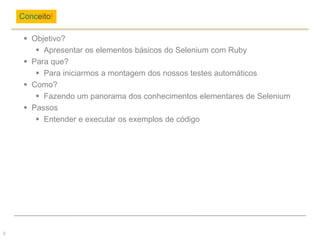
 Objetivo?
 Apresentar os elementos básicos do Selenium com Ruby
 Para que?
 Para iniciarmos a montagem dos nossos testes automáticos
 Como?
 Fazendo um panorama dos conhecimentos elementares de Selenium
 Passos
 Entender e executar os exemplos de código
Conceito!
2
Prática!
3
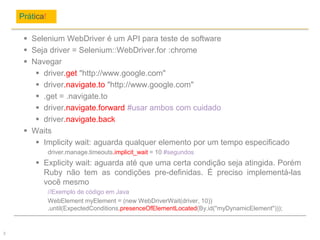
 Selenium WebDriver é um API para teste de software
 Seja driver = Selenium::WebDriver.for :chrome
 Navegar
 driver.get "http://www.google.com"
 driver.navigate.to "http://www.google.com"
 .get = .navigate.to
 driver.navigate.forward #usar ambos com cuidado
 driver.navigate.back
 Waits
 Implicity wait: aguarda qualquer elemento por um tempo especificado
driver.manage.timeouts.implicit_wait = 10 #segundos
 Explicity wait: aguarda até que uma certa condição seja atingida. Porém
Ruby não tem as condições pre-definidas. É preciso implementá-las
você mesmo
//Exemplo de código em Java
WebElement myElement = (new WebDriverWait(driver, 10))
.until(ExpectedConditions.presenceOfElementLocated(By.id("myDynamicElement")));
Prática!
4
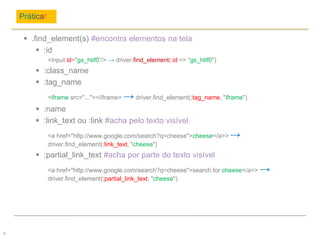
 .find_element(s) #encontra elementos na tela
 :id
<input id="gs_htif0“/> → driver.find_element(:id => “gs_htif0")
 :class_name
 :tag_name
<iframe src="..."></iframe> → driver.find_element(:tag_name, "iframe")
 :name
 :link_text ou :link #acha pelo texto visível
<a href="http://www.google.com/search?q=cheese">cheese</a>> →
driver.find_element(:link_text, "cheese")
 :partial_link_text #acha por parte do texto visível
<a href="http://www.google.com/search?q=cheese">search for cheese</a>> →
driver.find_element(:partial_link_text, "cheese")
Prática!
5
 .find_element(s) #encontra elementos na tela
 :xpath
<input id="gs_htif0“/> → driver.find_elements(:xpath, “.//*[@id='gs_htif0']")
 :css
<div class="intro"><p>Meu nome é Paulo<span id="Lastname">Silva.</span></p>
→driver.find_element(:css, “.intro, #LastName")
 Mais métodos
 .send_keys #imputa uma string na caixa de texto
 .text #retorna o texto visível do objeto
 .click #clica em um objeto
 .toggle #seleciona um radiobutton
Prática!
6
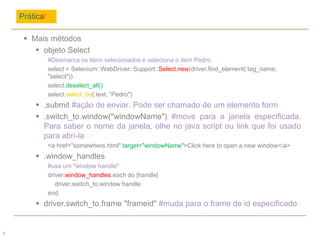
 Mais métodos
 objeto Select
#Desmarca os itens selecionados e seleciona o item Pedro
select = Selenium::WebDriver::Support::Select.new(driver.find_element(:tag_name,
"select"))
select.deselect_all()
select.select_by(:text, “Pedro")
 .submit #ação de enviar. Pode ser chamado de um elemento form
 .switch_to.window("windowName") #move para a janela especificada.
Para saber o nome da janela, olhe no java script ou link que foi usado
para abri-la
<a href="somewhere.html" target="windowName">Click here to open a new window</a>
 .window_handles
#usa um "window handle"
driver.window_handles.each do |handle|
driver.switch_to.window handle
end
 driver.switch_to.frame "frameid" #muda para o frame de id especificado
Prática!
7
 Mais métodos
 Popups
 driver.switch_to.alert #com o objeto em mãos é possível aceitar, inserir usuário e senha,
cancelar entre outras ações
 Alterando as configurações do browser
 driver = Selenium::WebDriver.for :firefox, :profile => profile
 profile = Selenium::WebDriver::Firefox::Profile.new
 profile['network.proxy.http'] = 'localhost'
 profile['network.proxy.http_port'] = 9090
 #ver mais em http://kb.mozillazine.org/About:config_entries
 ActionBuilder #operações complexas
 driver.action.drag_and_drop(element, target).perform
 driver.action.click_and_hold(element).perform
 driver.action.double_click(element).perform
Prática!
8
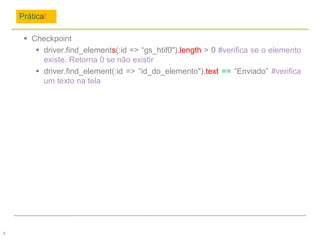
 Checkpoint
 driver.find_elements(:id => “gs_htif0").length > 0 #verifica se o elemento
existe. Retorna 0 se não existir
 driver.find_element(:id => “id_do_elemento").text == “Enviado” #verifica
um texto na tela
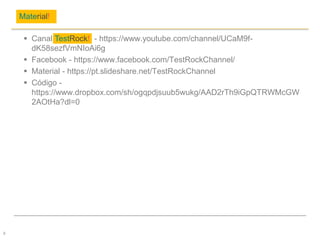
 Canal TestRock! - https://www.youtube.com/channel/UCaM9f-
dK58sezfVmNIoAi6g
 Facebook - https://www.facebook.com/TestRockChannel/
 Material - https://pt.slideshare.net/TestRockChannel
 Código -
https://www.dropbox.com/sh/ogqpdjsuub5wukg/AAD2rTh9iGpQTRWMcGW
2AOtHa?dl=0
Material!
9

Ruby para testers III - Selenium

  • 1.
  • 2.
     Objetivo?  Apresentaros elementos básicos do Selenium com Ruby  Para que?  Para iniciarmos a montagem dos nossos testes automáticos  Como?  Fazendo um panorama dos conhecimentos elementares de Selenium  Passos  Entender e executar os exemplos de código Conceito! 2
  • 3.
    Prática! 3  Selenium WebDriveré um API para teste de software  Seja driver = Selenium::WebDriver.for :chrome  Navegar  driver.get "http://www.google.com"  driver.navigate.to "http://www.google.com"  .get = .navigate.to  driver.navigate.forward #usar ambos com cuidado  driver.navigate.back  Waits  Implicity wait: aguarda qualquer elemento por um tempo especificado driver.manage.timeouts.implicit_wait = 10 #segundos  Explicity wait: aguarda até que uma certa condição seja atingida. Porém Ruby não tem as condições pre-definidas. É preciso implementá-las você mesmo //Exemplo de código em Java WebElement myElement = (new WebDriverWait(driver, 10)) .until(ExpectedConditions.presenceOfElementLocated(By.id("myDynamicElement")));
  • 4.
    Prática! 4  .find_element(s) #encontraelementos na tela  :id <input id="gs_htif0“/> → driver.find_element(:id => “gs_htif0")  :class_name  :tag_name <iframe src="..."></iframe> → driver.find_element(:tag_name, "iframe")  :name  :link_text ou :link #acha pelo texto visível <a href="http://www.google.com/search?q=cheese">cheese</a>> → driver.find_element(:link_text, "cheese")  :partial_link_text #acha por parte do texto visível <a href="http://www.google.com/search?q=cheese">search for cheese</a>> → driver.find_element(:partial_link_text, "cheese")
  • 5.
    Prática! 5  .find_element(s) #encontraelementos na tela  :xpath <input id="gs_htif0“/> → driver.find_elements(:xpath, “.//*[@id='gs_htif0']")  :css <div class="intro"><p>Meu nome é Paulo<span id="Lastname">Silva.</span></p> →driver.find_element(:css, “.intro, #LastName")  Mais métodos  .send_keys #imputa uma string na caixa de texto  .text #retorna o texto visível do objeto  .click #clica em um objeto  .toggle #seleciona um radiobutton
  • 6.
    Prática! 6  Mais métodos objeto Select #Desmarca os itens selecionados e seleciona o item Pedro select = Selenium::WebDriver::Support::Select.new(driver.find_element(:tag_name, "select")) select.deselect_all() select.select_by(:text, “Pedro")  .submit #ação de enviar. Pode ser chamado de um elemento form  .switch_to.window("windowName") #move para a janela especificada. Para saber o nome da janela, olhe no java script ou link que foi usado para abri-la <a href="somewhere.html" target="windowName">Click here to open a new window</a>  .window_handles #usa um "window handle" driver.window_handles.each do |handle| driver.switch_to.window handle end  driver.switch_to.frame "frameid" #muda para o frame de id especificado
  • 7.
    Prática! 7  Mais métodos Popups  driver.switch_to.alert #com o objeto em mãos é possível aceitar, inserir usuário e senha, cancelar entre outras ações  Alterando as configurações do browser  driver = Selenium::WebDriver.for :firefox, :profile => profile  profile = Selenium::WebDriver::Firefox::Profile.new  profile['network.proxy.http'] = 'localhost'  profile['network.proxy.http_port'] = 9090  #ver mais em http://kb.mozillazine.org/About:config_entries  ActionBuilder #operações complexas  driver.action.drag_and_drop(element, target).perform  driver.action.click_and_hold(element).perform  driver.action.double_click(element).perform
  • 8.
    Prática! 8  Checkpoint  driver.find_elements(:id=> “gs_htif0").length > 0 #verifica se o elemento existe. Retorna 0 se não existir  driver.find_element(:id => “id_do_elemento").text == “Enviado” #verifica um texto na tela
  • 9.
     Canal TestRock!- https://www.youtube.com/channel/UCaM9f- dK58sezfVmNIoAi6g  Facebook - https://www.facebook.com/TestRockChannel/  Material - https://pt.slideshare.net/TestRockChannel  Código - https://www.dropbox.com/sh/ogqpdjsuub5wukg/AAD2rTh9iGpQTRWMcGW 2AOtHa?dl=0 Material! 9