Bertolo Fase #1: Desenvolvendo Procedimentos VBA em Excel 55
Lição 5: Modificando Macros no Visual Basic Editor
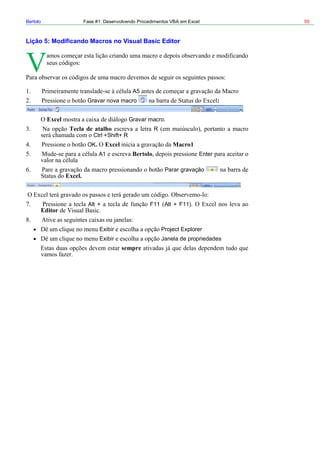
A5
Gravar nova macro :
r
Parar gravação
Excel Gravar macro.
Tecla de atalho R
Ctrl +Shift+ R
OK. Excel Macro1
A1 Bertolo Ente
Excel.
Alt + F11 Alt + F11).
Editor
Exibir Project Explorer
Exibir Janela de propriedades
sempre
Bertolo Lição #05 – Modificando Macros no Visual Basic Editor 56
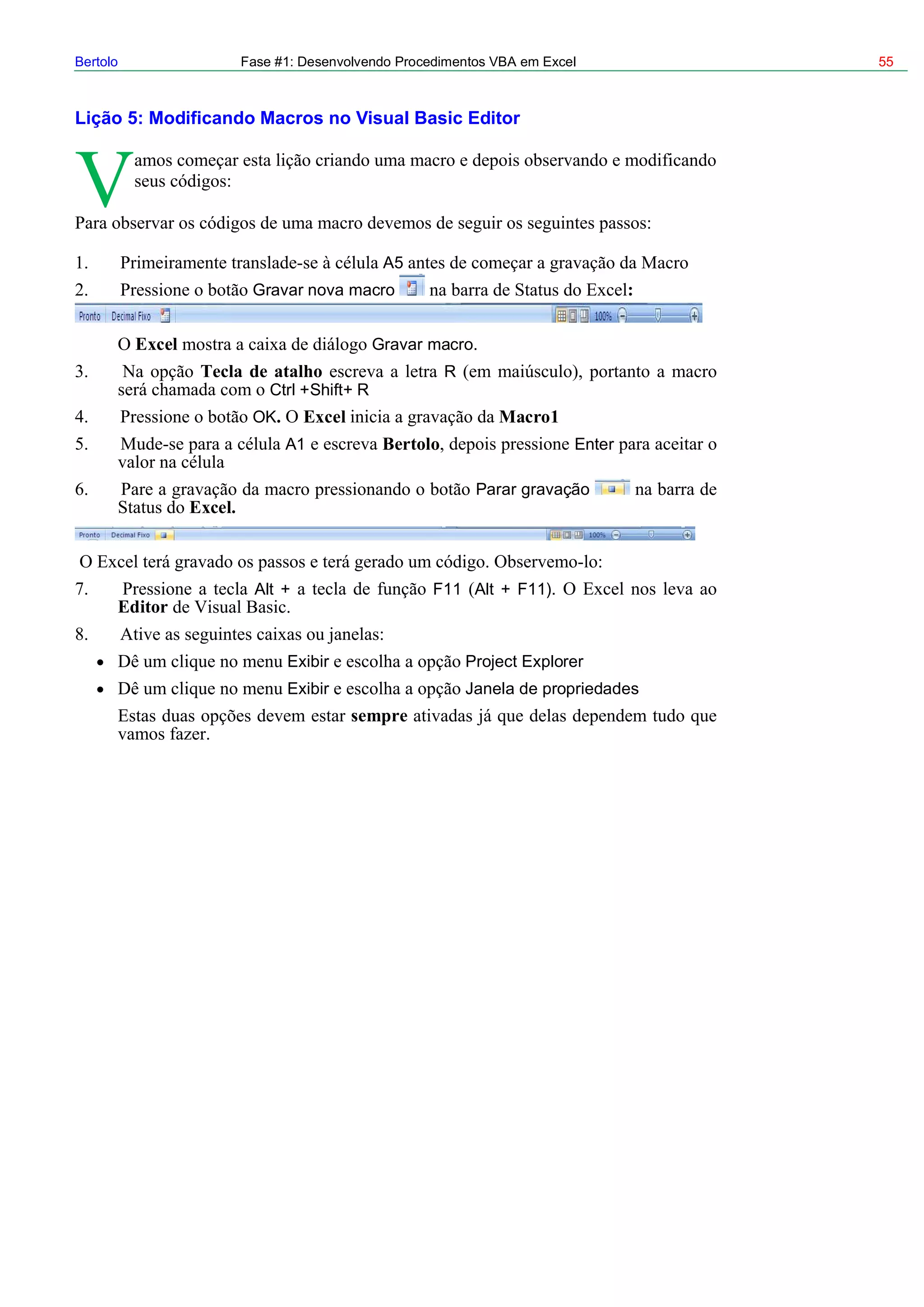
Projeto – VBAProject Módulos
sic
tolo()
elect
"Bertolo"
.Select
+ Módulos Módulos
Módulo1
Módulo1. Editor de Visual Ba
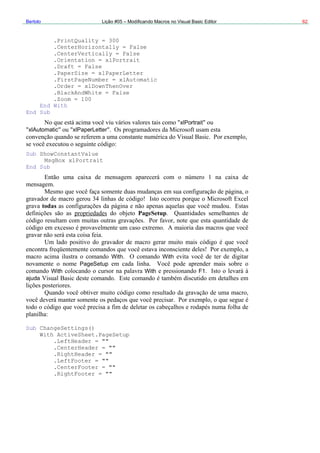
Sub Ber
'
' Bertolo Macro
'
' Atalho do teclado: Ctrl+Shift+R
'
Range("A1").S
ActiveCell.FormulaR1C1 =
Range("A2")
End Sub
Excel
Bertolo Lições de VBA do Excel 57
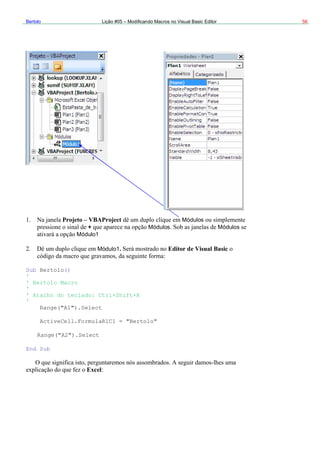
Sub End Sub Macro1
").Select -Range("A1
A1 Range
ActiveCell.FormulaR1C1 = "Bertolo" -
Bertolo
ActiveCell.FormulaR1C1
A2.
Bertolo A1 Enter
b M
' Mac
'
' Atalho do teclado: Ctrl+Shift+R
Ra ")
Ac
Range("B1").Select
ActiveCell.FormulaR1C1 = "Catanduva, 07 de Julho de 2007"
Range("C1").Select
ActiveCell.FormulaR1C1 = "31-2-47-13"
Range("D1").Select
ActiveCell.FormulaR1C1 = "Festa do Peão"
Range("E1").Select
ActiveCell.FormulaR1C1 = "FAFICA"
End Sub
Excel
Crtl + Shift + R,
A1 Bertolo
B1 Catanduva, 07 de Julho de 2007
C1 31-2-47-13
D1 Festa do Peão
Range("A2").Select :
Enter A2.
Editor de Visual Basic
Su acro1()
'
ro1 Macro
' Macro gravada em 7/7/2007 por Bertolo
'
nge("A1 .Select
tiveCell.FormulaR1C1 = "Bertolo"
Bertolo Lição #05 – Modificando Macros no Visual Basic Editor 58
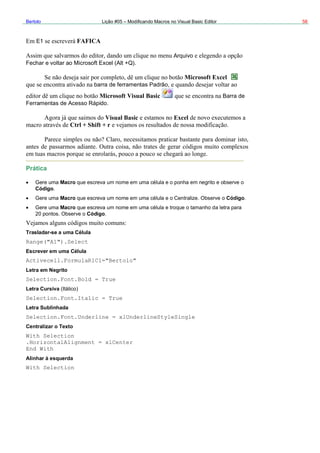
E FAFICA1
Arquivo
Microsoft Excel
Fechar e voltar ao Microsoft Excel (Alt +Q)
barra de ferramentas Padrão,
Microsoft Visual Basic Barra de
Ferramentas de Acesso Rápido
Visual Basi
Ctrl + Shift + r
Prática
Gere uma Macro que escreva um no
Código.
Gere uma Macro que escreva um nome em uma célula e o Centralize. Observe
Gere uma Macro que escreva um nome em uma célula e troque o tamanho d
20 pontos. Observe o Código.
Trasladar-se a uma Célula
Range("A1").Select
Escrever em uma Célula
Activecell.FormulaR1C1="Bertolo"
Letra em Negrito
Selection.Font.Bold = True
Letra Cursiva (Itálico)
Selection.Font.Italic = True
Letra Sublinhada
Selection.Font
Central
c Excel
me em uma célula e o ponha em negrito e observe o
o Código.
a letra para
.Underline = xlUnderlineStyleSingle
izar o Texto
With Selection
.HorizontalAlignment = xlCenter
End With
Alinhar à esquerda
With Selection
Bertolo Lições de VBA do Excel 59
.HorizontalAlignment = xlLeft
End W
eita
A1"), Order1:=xlAscending,
False, Orientation:=xlTopToBottom
"A1"), Order1:=xlDescending,
s, _
om:=1, MatchCase:=False, Orientation:=xlTopToBottom
:=xlP
rt
ith
Alinhar à Dir
With Selection
.HorizontalAlignment = xlRight
End With
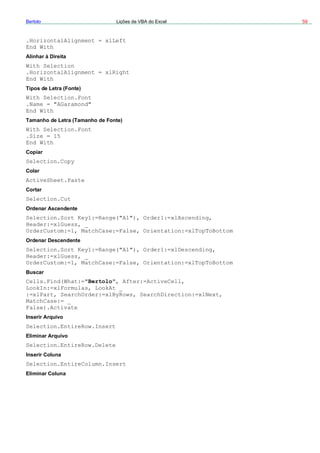
Tipos de Letra (Fonte)
With Selection.Font
.Name = "AGaramond"
End With
Tamanho de Letra (Tamanho de Fonte)
With Selection.Font
.Size = 15
End With
Copiar
Selection.Copy
Colar
ActiveSheet.Paste
Cortar
Selection.Cut
Ordenar Ascendente
Selection.Sort Key1:=Range("
Header:=xlGuess, _
OrderCustom:=1, MatchCase:=
Ordenar Descendente
Selection.Sort Key1:=Range(
Header:=xlGues
OrderCust
Buscar
Cells.Find(What:="Bertolo", After:=ActiveCell,
LookIn:=xlFormulas, LookAt _
art, SearchOrder:=xlByRows, SearchDirection:=xlNext,
MatchCase:= _
False).Activate
Inserir Arquivo
Selection.EntireRow.Inse
Eliminar Arquivo
Selection.EntireRow.Delete
Inserir Coluna
Selection.EntireColumn.Insert
Eliminar Coluna
Bertolo Lição #05 – Modificando Macros no Visual Basic Editor 60
Selection.EntireColumn.Delete
Abrir uma Pasta
Workbooks.Open Filename:="C:Meus documentosvideo safe 3.xls
Gravar um Pasta
ActiveWorkbook.SaveAs Filename:="C:Meus documentos
FileFormat _
:=xlNormal, Password:="", WriteResPassword:="",
ReadOnlyRecommended:= _
False, CreateBackup:=False
Excel
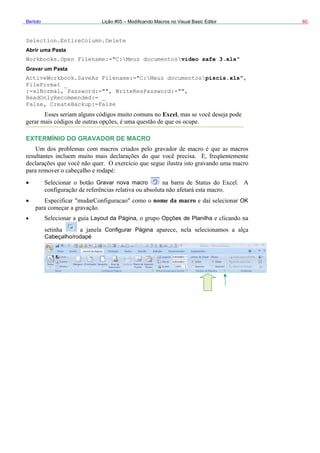
EXTERMÍNIO DO GRAVADOR DE MACRO
"
piscis.xls",
Gravar nova macro
nome da macro OK
ilhaLayout da Página Opções de Plan
Configurar Página
Cabeçalho/rodapé
Bertolo Lições de VBA do Excel 61
vação
pull down
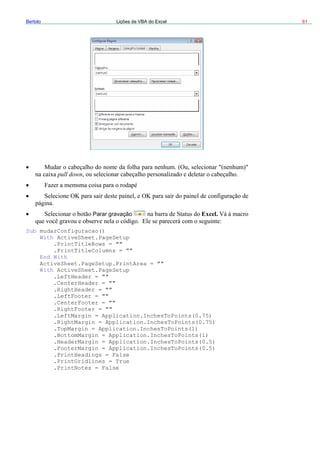
Parar gra Excel.
Setup.PrintArea = ""
PageSetup
= ""
Application.InchesToPoints(0.75)
pplication.InchesToPoints(1)
oPoints(0.5)
n = Application.InchesToPoints(0.5)
.PrintNotes = False
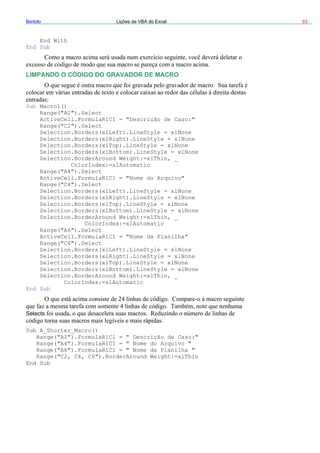
Sub mudarConfiguracao()
With ActiveSheet.PageSetup
.PrintTitleRows = ""
.PrintTitleColumns = ""
End With
ActiveSheet.Page
With ActiveSheet.
.LeftHeader = ""
.CenterHeader = ""
.RightHeader
.LeftFooter = ""
.CenterFooter = ""
.RightFooter = ""
.LeftMargin = Application.InchesToPoints(0.75)
.RightMargin =
.TopMargin = A
.BottomMargin = Application.InchesToPoints(1)
.HeaderMargin = Application.InchesT
.FooterMargi
.PrintHeadings = False
.PrintGridlines = True
Bertolo Lição #05 – Modificando Macros no Visual Basic Editor 62
.PrintQuality = 300
.CenterHorizontally = False
.CenterVertically =
.Orientation = xlPor
False
trait
xlPaperLetter
tomatic
.Draft = False
.PaperSize =
.FirstPageNumber = xlAu
.Order = xlDownThenOver
.BlackAndWhite = False
.Zoom = 100
End With
End Sub
xlPortrait
xlAutomatic xlPaperLetter
Sub ShowConstantValue
MsgBox xlPortrait
End Sub
todas
PageSetup
With With
With F1
Settings()
W
PageSetup
With
ajuda
Sub Change
ith ActiveSheet.PageSetup
.LeftHeader = ""
.CenterHeader = ""
.RightHeader = ""
.LeftFooter = ""
.CenterFooter = ""
.RightFooter = ""
Bertolo Lições de VBA do Excel 63
End With
End Sub
LIMPANDO O CÓDIGO DO GRAVADOR D
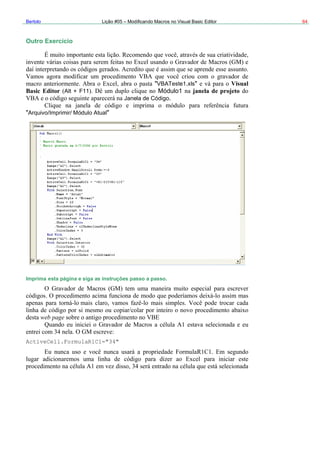
Sub Macro1()
E MACRO
("A2").Select
ActiveCell.FormulaR1C1 = "Descrição de Caso:"
lect
Selection.Borders(xlLeft).LineStyle = xlNone
Selection.Borders(xlRight).LineStyle = xlNone
Selection.Borders(xlTop).LineStyle = xlNone
Selection.Borders(xlBottom).LineStyle = xlNone
Selection.BorderAround Weight:=xlThin, _
ColorIndex:=xlAutomatic
Range("A4").Select
ActiveCell.FormulaR1C1 = "Nome do Arquivo"
Range("C4").Select
Selection.Borders(xlLeft).LineStyle = xlNone
Selection.Borders(xlRight).LineStyle = xlNone
Selection.Borders(xlTop).LineStyle = xlNone
Selection.Borders(xlBottom).LineStyle = xlNone
Selection.BorderAround Weight:=xlThin, _
ColorIndex:=xlAutomatic
Range("A6").Select
ActiveCell.FormulaR1C1 = "Nome da Planilha"
Range("C6").Select
Selection.Borders(xlLeft).LineStyle = xlNone
Selection.Borders(xlRight).LineStyle = xlNone
Selection.Borders(xlTop).LineStyle = xlNone
Selection.Borders(xlBottom).LineStyle = xlNone
Selection.BorderAround Weight:=xlThin, _
ColorIndex:=xlAutomatic
End Sub
Selects
Sub A_Shorter_Macro()
Range("A2").FormulaR1C1 = " Descrição de Caso:"
Range("A4").FormulaR1C1 = " Nome do Arquivo "
Range("A6").FormulaR1C1 = " Nome da Planilha "
Range("C2, C4, C6").BorderAround Weight:=xlThin
End Sub
Range
Range("C2").Se
Bertolo Lição #05 – Modificando Macros no Visual Basic Editor 64
Outro Exercício
"VBATeste1.xls" Visual
Basic Editor Alt + F11 Módulo1 janela de projeto
Janela de Código.
tiveCell.FormulaR1C1="34"
"Arquivo/Imprimir/ Módulo Atual"
Imprima esta página e siga as instruções passo a passo.
web page
Ac
Bertolo Lições de VBA do Excel 65
ActiveCell
Act
Ran
Ran
nge
Seleção)
ColorIndex 41 Pattern xlSolid.
nge("A1").Interio
nge("A1").Interior.Pattern = xlSolid
Range("A1").Select
iveCell.Value=34
Range("A2").Select
ActiveCell.FormulaR1C1 = "55"
ge("A2").Value=55
ge("A3").Select
ActiveCell.FormulaR1C1 = "=R[-2]C+R[-1]C"
Range("A3").Formula="=A1+A2"
Ra ("A2").Select
Selection.Font.ColorIndex = 3
Range("A2").Font.ColorIndex = 3
Range("A1").Select
With Selection.Interior
.ColorIndex = 41
.Pattern = xlSolid
End With
"With..End With"
A1 ( A1
Selection.Interior
Ra
Ra
r.ColorIndex = 41
:
Bertolo Lição #05 – Modificando Macros no Visual Basic Editor 66
Range("A3").Select
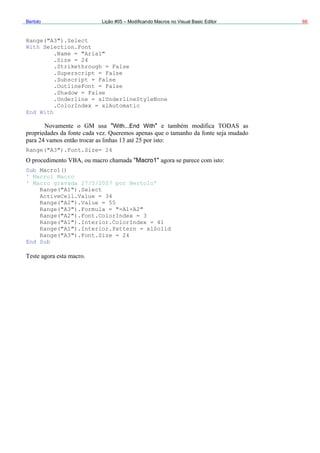
With Selection.Font
.Name = "Arial"
.Size = 24
With...End With
ub Macro1()
' Mac
Range("A1").Select
Ra
R
.Strikethrough = False
.Superscript = False
.Subscript = False
.OutlineFont = False
.Shadow = False
.Underline = xlUnderlineStyleNone
.ColorIndex = xlAutomatic
End With
" "
Range("A3").Font.Size= 24
"Macro1"
S
ro1 Macro
' Macro gravada 27/5/2007 por Bertolo'
ActiveCell.Value = 34
nge("A2").Value = 55
Range("A3").Formula = "=A1+A2"
Range("A2").Font.ColorIndex = 3
ange("A1").Interior.ColorIndex = 41
Range("A1").Interior.Pattern = xlSolid
Range("A3").Font.Size = 24
End Sub

5 modificando macros-vbe

  • 1.
    Bertolo Fase #1:Desenvolvendo Procedimentos VBA em Excel 55 Lição 5: Modificando Macros no Visual Basic Editor A5 Gravar nova macro : r Parar gravação Excel Gravar macro. Tecla de atalho R Ctrl +Shift+ R OK. Excel Macro1 A1 Bertolo Ente Excel. Alt + F11 Alt + F11). Editor Exibir Project Explorer Exibir Janela de propriedades sempre
  • 2.
    Bertolo Lição #05– Modificando Macros no Visual Basic Editor 56 Projeto – VBAProject Módulos sic tolo() elect "Bertolo" .Select + Módulos Módulos Módulo1 Módulo1. Editor de Visual Ba Sub Ber ' ' Bertolo Macro ' ' Atalho do teclado: Ctrl+Shift+R ' Range("A1").S ActiveCell.FormulaR1C1 = Range("A2") End Sub Excel
  • 3.
    Bertolo Lições deVBA do Excel 57 Sub End Sub Macro1 ").Select -Range("A1 A1 Range ActiveCell.FormulaR1C1 = "Bertolo" - Bertolo ActiveCell.FormulaR1C1 A2. Bertolo A1 Enter b M ' Mac ' ' Atalho do teclado: Ctrl+Shift+R Ra ") Ac Range("B1").Select ActiveCell.FormulaR1C1 = "Catanduva, 07 de Julho de 2007" Range("C1").Select ActiveCell.FormulaR1C1 = "31-2-47-13" Range("D1").Select ActiveCell.FormulaR1C1 = "Festa do Peão" Range("E1").Select ActiveCell.FormulaR1C1 = "FAFICA" End Sub Excel Crtl + Shift + R, A1 Bertolo B1 Catanduva, 07 de Julho de 2007 C1 31-2-47-13 D1 Festa do Peão Range("A2").Select : Enter A2. Editor de Visual Basic Su acro1() ' ro1 Macro ' Macro gravada em 7/7/2007 por Bertolo ' nge("A1 .Select tiveCell.FormulaR1C1 = "Bertolo"
  • 4.
    Bertolo Lição #05– Modificando Macros no Visual Basic Editor 58 E FAFICA1 Arquivo Microsoft Excel Fechar e voltar ao Microsoft Excel (Alt +Q) barra de ferramentas Padrão, Microsoft Visual Basic Barra de Ferramentas de Acesso Rápido Visual Basi Ctrl + Shift + r Prática Gere uma Macro que escreva um no Código. Gere uma Macro que escreva um nome em uma célula e o Centralize. Observe Gere uma Macro que escreva um nome em uma célula e troque o tamanho d 20 pontos. Observe o Código. Trasladar-se a uma Célula Range("A1").Select Escrever em uma Célula Activecell.FormulaR1C1="Bertolo" Letra em Negrito Selection.Font.Bold = True Letra Cursiva (Itálico) Selection.Font.Italic = True Letra Sublinhada Selection.Font Central c Excel me em uma célula e o ponha em negrito e observe o o Código. a letra para .Underline = xlUnderlineStyleSingle izar o Texto With Selection .HorizontalAlignment = xlCenter End With Alinhar à esquerda With Selection
  • 5.
    Bertolo Lições deVBA do Excel 59 .HorizontalAlignment = xlLeft End W eita A1"), Order1:=xlAscending, False, Orientation:=xlTopToBottom "A1"), Order1:=xlDescending, s, _ om:=1, MatchCase:=False, Orientation:=xlTopToBottom :=xlP rt ith Alinhar à Dir With Selection .HorizontalAlignment = xlRight End With Tipos de Letra (Fonte) With Selection.Font .Name = "AGaramond" End With Tamanho de Letra (Tamanho de Fonte) With Selection.Font .Size = 15 End With Copiar Selection.Copy Colar ActiveSheet.Paste Cortar Selection.Cut Ordenar Ascendente Selection.Sort Key1:=Range(" Header:=xlGuess, _ OrderCustom:=1, MatchCase:= Ordenar Descendente Selection.Sort Key1:=Range( Header:=xlGues OrderCust Buscar Cells.Find(What:="Bertolo", After:=ActiveCell, LookIn:=xlFormulas, LookAt _ art, SearchOrder:=xlByRows, SearchDirection:=xlNext, MatchCase:= _ False).Activate Inserir Arquivo Selection.EntireRow.Inse Eliminar Arquivo Selection.EntireRow.Delete Inserir Coluna Selection.EntireColumn.Insert Eliminar Coluna
  • 6.
    Bertolo Lição #05– Modificando Macros no Visual Basic Editor 60 Selection.EntireColumn.Delete Abrir uma Pasta Workbooks.Open Filename:="C:Meus documentosvideo safe 3.xls Gravar um Pasta ActiveWorkbook.SaveAs Filename:="C:Meus documentos FileFormat _ :=xlNormal, Password:="", WriteResPassword:="", ReadOnlyRecommended:= _ False, CreateBackup:=False Excel EXTERMÍNIO DO GRAVADOR DE MACRO " piscis.xls", Gravar nova macro nome da macro OK ilhaLayout da Página Opções de Plan Configurar Página Cabeçalho/rodapé
  • 7.
    Bertolo Lições deVBA do Excel 61 vação pull down Parar gra Excel. Setup.PrintArea = "" PageSetup = "" Application.InchesToPoints(0.75) pplication.InchesToPoints(1) oPoints(0.5) n = Application.InchesToPoints(0.5) .PrintNotes = False Sub mudarConfiguracao() With ActiveSheet.PageSetup .PrintTitleRows = "" .PrintTitleColumns = "" End With ActiveSheet.Page With ActiveSheet. .LeftHeader = "" .CenterHeader = "" .RightHeader .LeftFooter = "" .CenterFooter = "" .RightFooter = "" .LeftMargin = Application.InchesToPoints(0.75) .RightMargin = .TopMargin = A .BottomMargin = Application.InchesToPoints(1) .HeaderMargin = Application.InchesT .FooterMargi .PrintHeadings = False .PrintGridlines = True
  • 8.
    Bertolo Lição #05– Modificando Macros no Visual Basic Editor 62 .PrintQuality = 300 .CenterHorizontally = False .CenterVertically = .Orientation = xlPor False trait xlPaperLetter tomatic .Draft = False .PaperSize = .FirstPageNumber = xlAu .Order = xlDownThenOver .BlackAndWhite = False .Zoom = 100 End With End Sub xlPortrait xlAutomatic xlPaperLetter Sub ShowConstantValue MsgBox xlPortrait End Sub todas PageSetup With With With F1 Settings() W PageSetup With ajuda Sub Change ith ActiveSheet.PageSetup .LeftHeader = "" .CenterHeader = "" .RightHeader = "" .LeftFooter = "" .CenterFooter = "" .RightFooter = ""
  • 9.
    Bertolo Lições deVBA do Excel 63 End With End Sub LIMPANDO O CÓDIGO DO GRAVADOR D Sub Macro1() E MACRO ("A2").Select ActiveCell.FormulaR1C1 = "Descrição de Caso:" lect Selection.Borders(xlLeft).LineStyle = xlNone Selection.Borders(xlRight).LineStyle = xlNone Selection.Borders(xlTop).LineStyle = xlNone Selection.Borders(xlBottom).LineStyle = xlNone Selection.BorderAround Weight:=xlThin, _ ColorIndex:=xlAutomatic Range("A4").Select ActiveCell.FormulaR1C1 = "Nome do Arquivo" Range("C4").Select Selection.Borders(xlLeft).LineStyle = xlNone Selection.Borders(xlRight).LineStyle = xlNone Selection.Borders(xlTop).LineStyle = xlNone Selection.Borders(xlBottom).LineStyle = xlNone Selection.BorderAround Weight:=xlThin, _ ColorIndex:=xlAutomatic Range("A6").Select ActiveCell.FormulaR1C1 = "Nome da Planilha" Range("C6").Select Selection.Borders(xlLeft).LineStyle = xlNone Selection.Borders(xlRight).LineStyle = xlNone Selection.Borders(xlTop).LineStyle = xlNone Selection.Borders(xlBottom).LineStyle = xlNone Selection.BorderAround Weight:=xlThin, _ ColorIndex:=xlAutomatic End Sub Selects Sub A_Shorter_Macro() Range("A2").FormulaR1C1 = " Descrição de Caso:" Range("A4").FormulaR1C1 = " Nome do Arquivo " Range("A6").FormulaR1C1 = " Nome da Planilha " Range("C2, C4, C6").BorderAround Weight:=xlThin End Sub Range Range("C2").Se
  • 10.
    Bertolo Lição #05– Modificando Macros no Visual Basic Editor 64 Outro Exercício "VBATeste1.xls" Visual Basic Editor Alt + F11 Módulo1 janela de projeto Janela de Código. tiveCell.FormulaR1C1="34" "Arquivo/Imprimir/ Módulo Atual" Imprima esta página e siga as instruções passo a passo. web page Ac
  • 11.
    Bertolo Lições deVBA do Excel 65 ActiveCell Act Ran Ran nge Seleção) ColorIndex 41 Pattern xlSolid. nge("A1").Interio nge("A1").Interior.Pattern = xlSolid Range("A1").Select iveCell.Value=34 Range("A2").Select ActiveCell.FormulaR1C1 = "55" ge("A2").Value=55 ge("A3").Select ActiveCell.FormulaR1C1 = "=R[-2]C+R[-1]C" Range("A3").Formula="=A1+A2" Ra ("A2").Select Selection.Font.ColorIndex = 3 Range("A2").Font.ColorIndex = 3 Range("A1").Select With Selection.Interior .ColorIndex = 41 .Pattern = xlSolid End With "With..End With" A1 ( A1 Selection.Interior Ra Ra r.ColorIndex = 41 :
  • 12.
    Bertolo Lição #05– Modificando Macros no Visual Basic Editor 66 Range("A3").Select With Selection.Font .Name = "Arial" .Size = 24 With...End With ub Macro1() ' Mac Range("A1").Select Ra R .Strikethrough = False .Superscript = False .Subscript = False .OutlineFont = False .Shadow = False .Underline = xlUnderlineStyleNone .ColorIndex = xlAutomatic End With " " Range("A3").Font.Size= 24 "Macro1" S ro1 Macro ' Macro gravada 27/5/2007 por Bertolo' ActiveCell.Value = 34 nge("A2").Value = 55 Range("A3").Formula = "=A1+A2" Range("A2").Font.ColorIndex = 3 ange("A1").Interior.ColorIndex = 41 Range("A1").Interior.Pattern = xlSolid Range("A3").Font.Size = 24 End Sub